
 OnceHub
 ScheduleOnce

Customer action: Cancel a Panel meeting
Whether or not a Customer can cancel a Panel meeting is subject to the Cancel/reschedule policy you’ve set on your Booking page or Event type. The Cancellation policy only applies to scheduled bookings.
In this article, you’ll learn about the steps that a Customer takes to reschedule a Panel meeting.
How Customers cancel Panel meetings
Section titled “How Customers cancel Panel meetings”-
The Customer clicks the Cancel/reschedule link in the scheduling email notification (Figure 1) or in the calendar event.
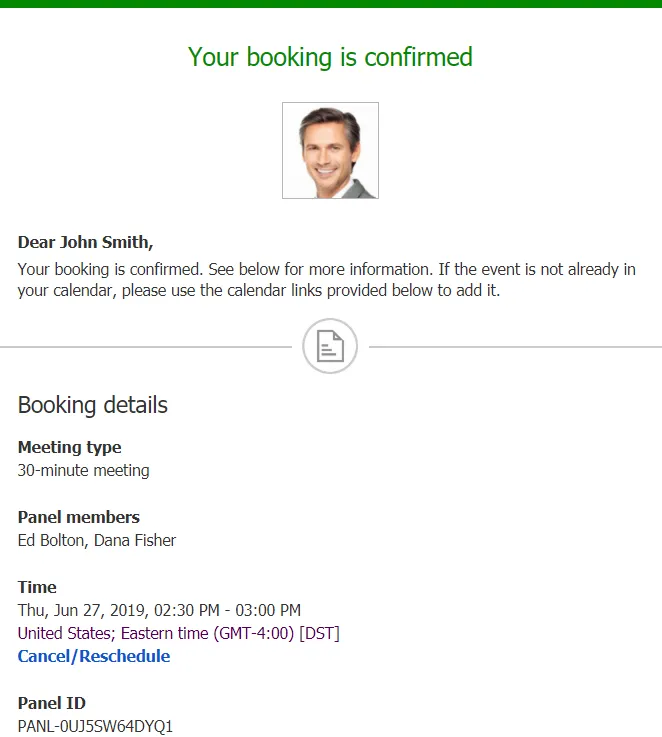 Figure 1: Booking confirmation email
 -
The Cancel/reschedule page will open.
-
In the Cancel tab, the Customer clicks the Cancel the booking button (Figure 2). Depending on your Cancel/reschedule policy, the Customer can be asked to provide a reason for canceling.
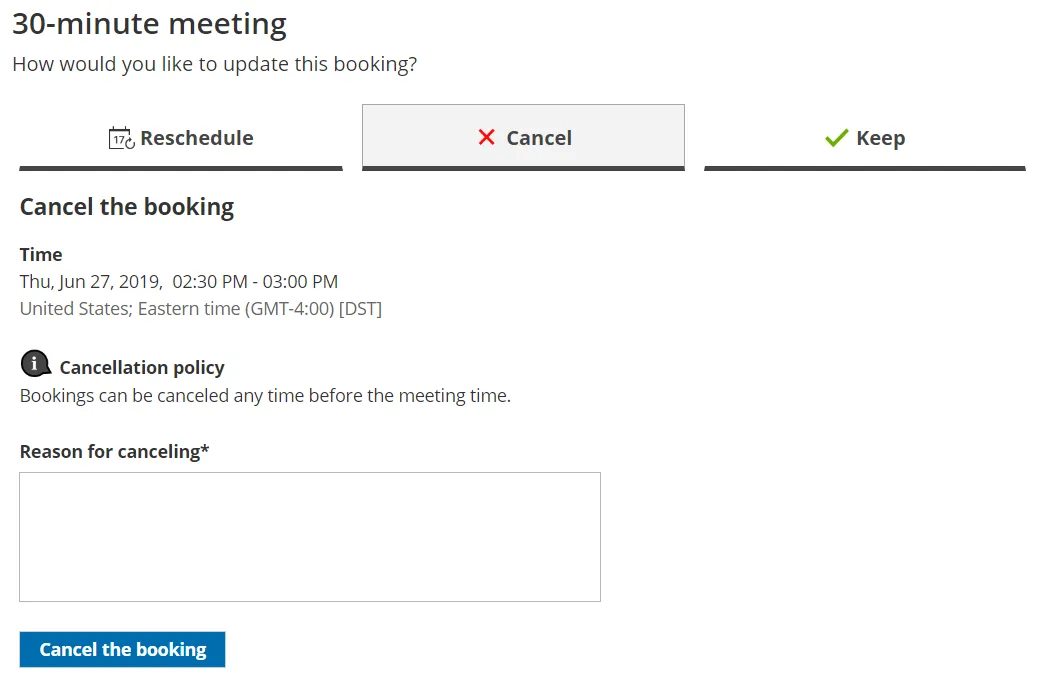 Figure 2: Cancel tab
 -
When a Customer cancels a Panel meeting, the following actions take place:
- The Customer receives a cancellation email notification.
- The Primary team member receives a cancellation email notification and all Additional team members are cc’d in this email.
- If the Primary team member is connected to a calendar, the event is automatically cancelled.
- All panelists see the cancelled activity status and details for the activity in their Activity stream.