
 OnceHub
 ScheduleOnce

Connecting OnceHub to PayPal
The OnceHub connector for PayPal allows you to collect payments and issue refunds as an integral part of your booking process. This allows you to automatically refund customers when they are canceling, or charge them a reschedule fee when they are rescheduling. You only need to connect your PayPal account, configure your Payment settings, and OnceHub takes care of all payment activities in an automated and secure manner. Connecting OnceHub to your PayPal account is a three-step process: Accept Terms, Connect to Paypal, and Allow automatic billing.
In this article, you will learn how to connect OnceHub to your PayPal account.
Requirements
Section titled “Requirements”To connect to PayPal, you will need:
- A OnceHub Administrator
- A PayPal Administrator for your account
The OnceHub connector for PayPal is compatible with any PayPal account. If you don’t have a PayPal account, create one now.
Connect to PayPal
Section titled “Connect to PayPal”-
Hover over the lefthand menu and go to the Booking pages icon → open the lefthand sidebar → Integrations → Payment.
-
Click the Get started button (Figure 1).
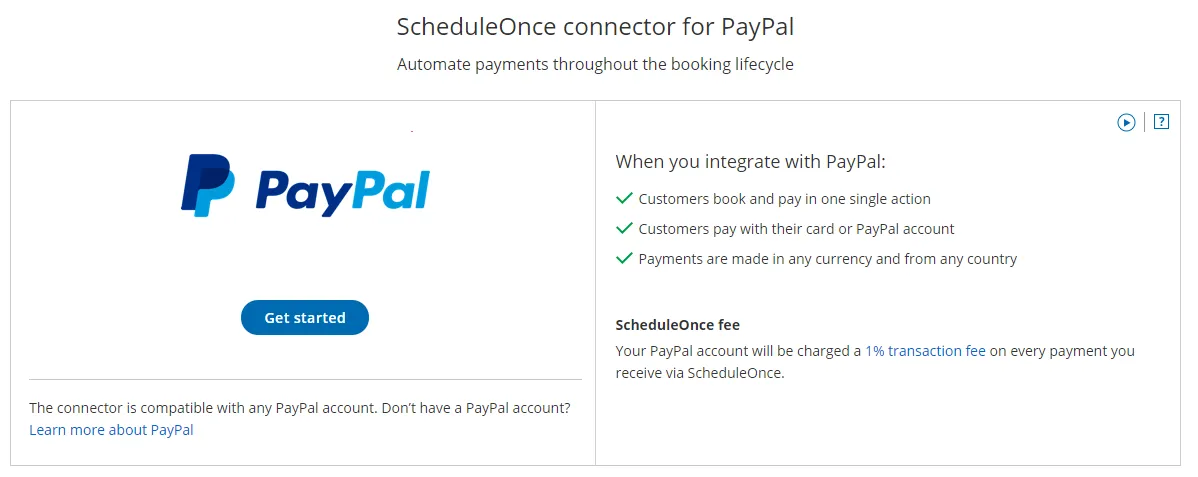 Figure 1: Paypal integration
 -
The Connect to PayPal wizard pop-up appears. Read the terms and click the Accept and continue button (Figure 2). OnceHub will charge a 1% transaction fee for payments made via OnceHub.
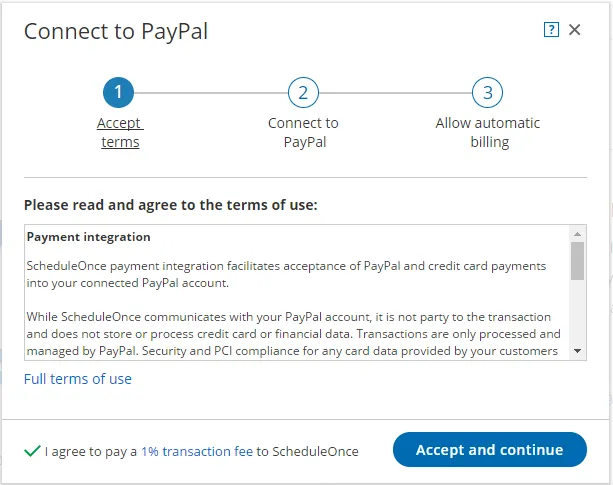
Figure 2: Accept terms
-
In the Connect to PayPal step, click the Connect to PayPal button. Note that if you do not have a PayPal account, you will be prompted to create one - it takes only a couple of minutes. (See Figure 3) This will allow OnceHub to access your PayPal account via the PayPal API. Learn more about granting permissions to OnceHub
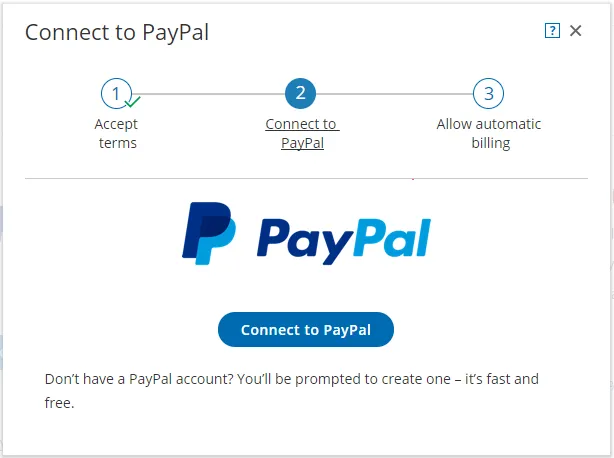 Figure 3: Connect to PayPal
 -
After connecting to your PayPal account and granting permissions to OnceHub, you are automatically redirected to your OnceHub account to allow automatic billing (Figure 4). Automatic billing authorizes OnceHub to charge a 1% transaction fee for each payment made via OnceHub, in addition to the fees charged by PayPal.
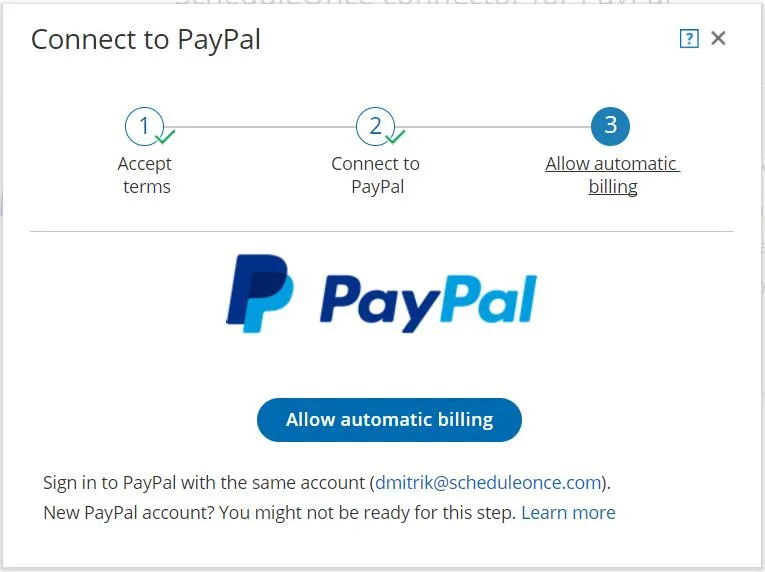 Figure 4: Allow automatic billing
 -
Once you allow automatic billing, your connected PayPal account will display a confirmation message informing you that you have agreed to allow OnceHub to charge your account for future received payments, using the funding sources in your PayPal account (Figure 5).
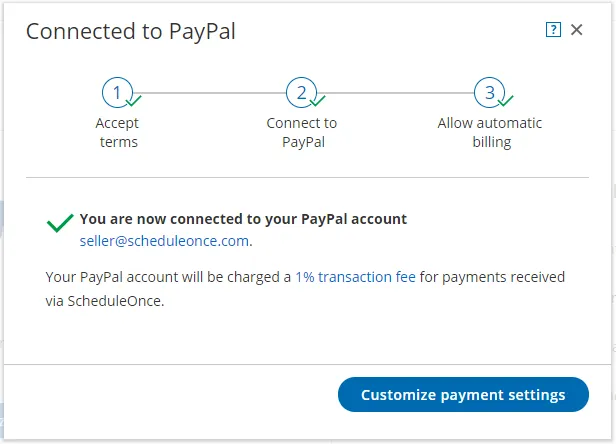 Figure 5: Confirmation message
Congratulations! Your OnceHub User app is now connected to your PayPal account. Next you can customize the payment settings for your account.