
 OnceHub
 ScheduleOnce

Offering different appointment types on your Booking page
If you offer multiple meeting types which all have the same availability and same location, you can set up one Booking page with multiple Event types linked to it. Follow these steps to offer different appointment types on your Booking page.
-
Create the Event types you need and define the settings for each Event type.
-
In the settings for the relevant Booking page, go to the Event types section and add your Event types to your Booking page (Figure 1).
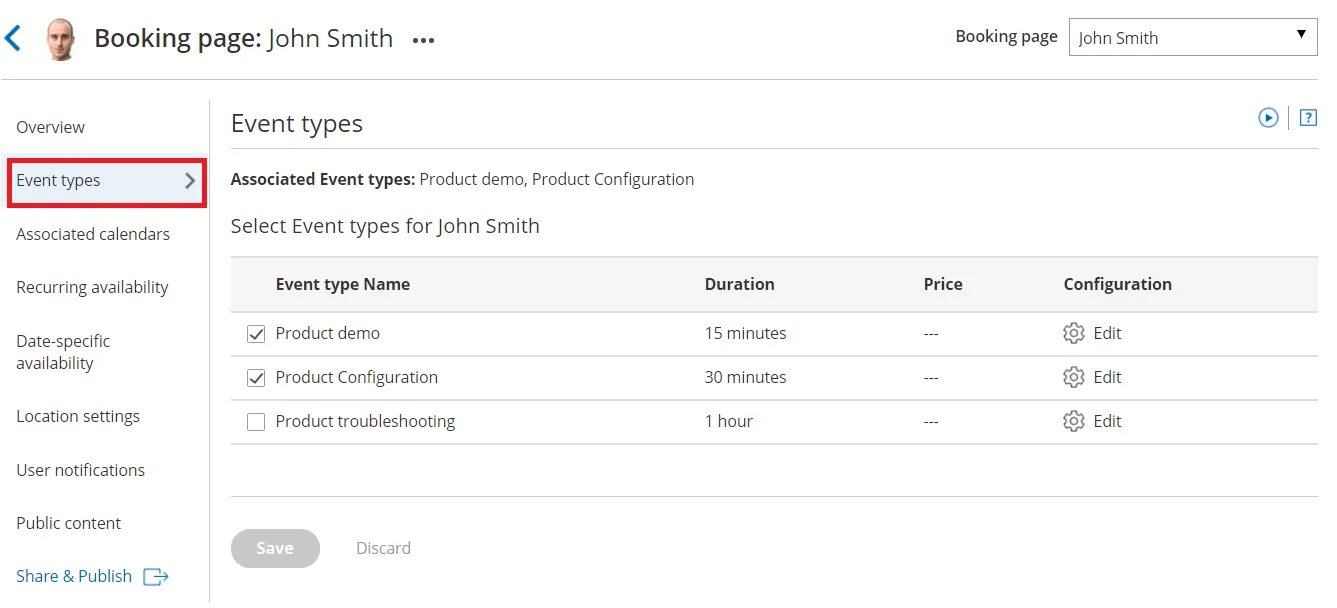 Figure 1: Event types section of the Booking page
 -
Click Save.
To test your Booking page with Event types, go to the Booking page Overview and make a test booking by using the public link in the Share & Publish section.
Using a Master page
Section titled “Using a Master page”If you would like to have more control over text and labels seen by your Customers, you can use a Master page. This provides you with more flexibility to customize the selection instructions and the public labels.
- Create a new Master page and add your personal details in the Public content section.
- In the Assignment section, add your Booking pages to the Master page.
- In the Labels and instructions section, customize the public labels and selection instructions.
To test your Master page, go to the Master page Overview and make a test booking by using the public link in the Share & Publish section.