
 OnceHub
 ScheduleOnce

System themes
The OnceHub Theme designer provides two system themes for your Booking pages and Master pages. You can use these themes as they are, or adjust them according to your needs.
In this article, you’ll learn about System themes.
Editing a system theme
Section titled “Editing a system theme”-
Go to Setup → OnceHub setup and open the lefthand sidebar.
-
In the Tools section, select Theme designer.
-
Select a System theme from the list on the left hand side of the page (Figure 1).
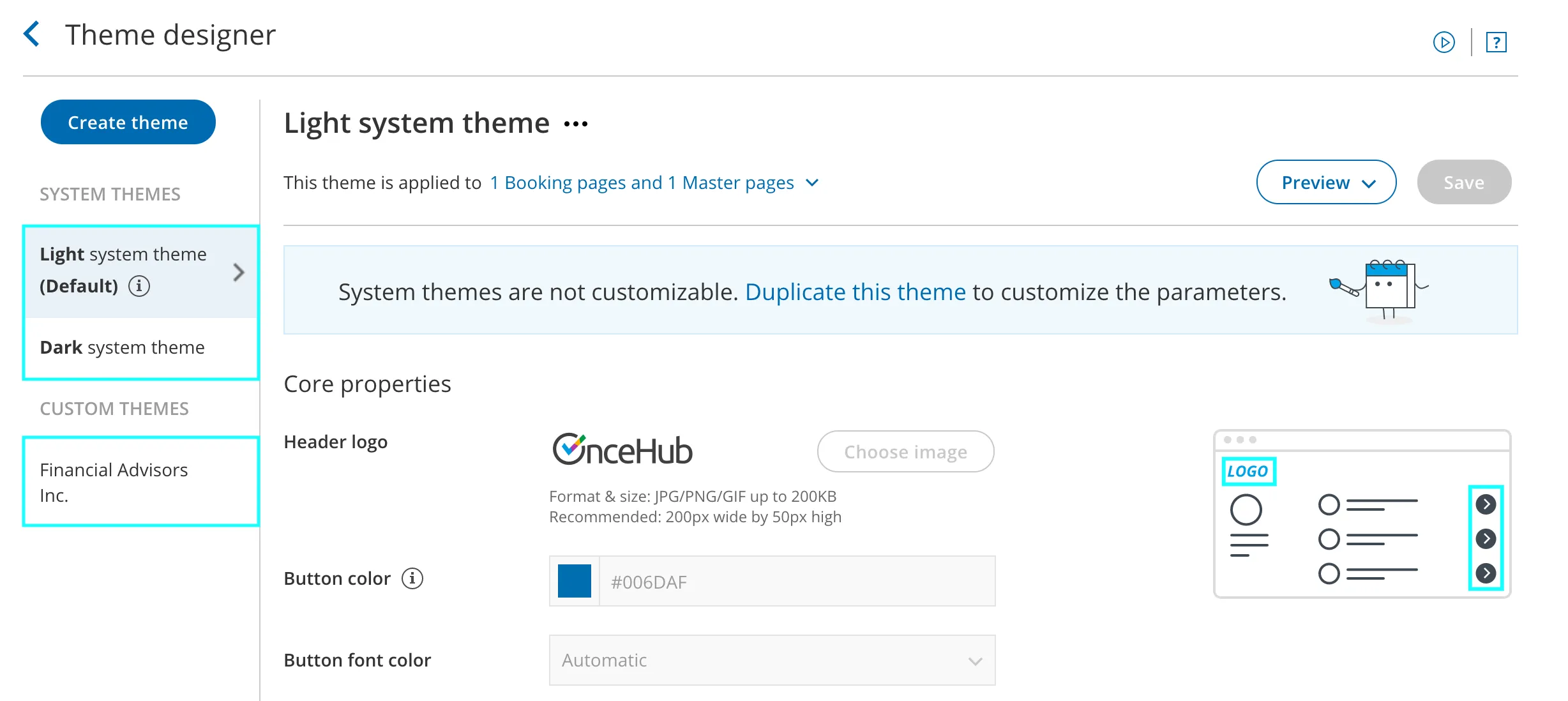
Figure 1: Select a System theme
-
If required, you can add a header logo, edit the button color, and edit the button font color.
-
When you’re done making changes, click Save.
Theme properties of a System theme
Section titled “Theme properties of a System theme”You can customize the following Theme properties of a System theme:
- Header logo: This image is visible to your Customers.
- Button color: This is the color of the buttons and other properties on your page. It is intended to attract your Customer’s attention to specific elements.
- Button font color: This can be used to maximize contrast against the button background color. We recommend keeping it on Automatic.
Previewing and applying a System theme
Section titled “Previewing and applying a System theme”To preview a theme on a Booking page or Master page, select it from the drop-down menu in the top right of the Theme designer and click the Preview button (Figure 2). Previewing a theme does not apply the theme to the page.
Figure 2: Preview a System theme
Learn more about applying a theme
Default theme
Section titled “Default theme”You can set any theme as your default theme, including a system theme. The default theme is automatically applied to all newly created pages, but not to existing pages.
Figure 3: Set as default theme
Available System themes
Section titled “Available System themes”-
Light (This is the default theme)
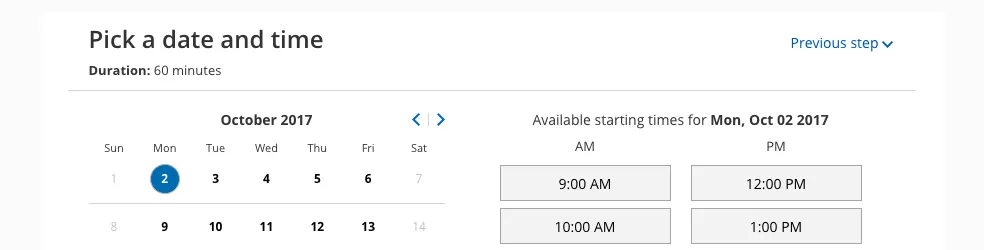
Figure 4: Light system theme
-
Dark
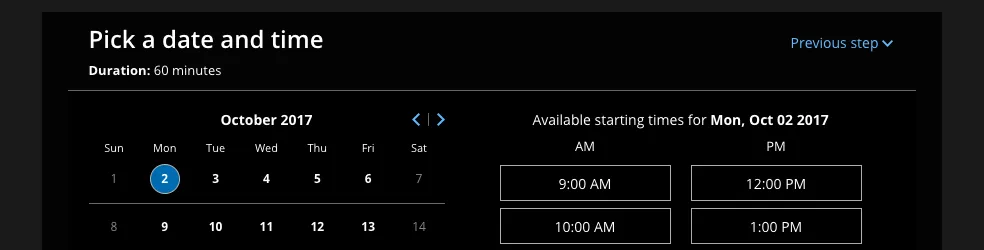 Figure 5: Dark system theme