
 OnceHub
 ScheduleOnce

Mapping OnceHub fields to non-mandatory Salesforce fields
The Salesforce setup process includes 5 phases: API connection, Installation, Field validation, Field mapping, and Creation rules. The Field mapping step includes a default mapping and the option to map any OnceHub fields to non-mandatory Salesforce fields.
In this article, you will learn how to map OnceHub fields to non-mandatory Salesforce fields.
Requirements
Section titled “Requirements”To map non-mandatory fields, you must:
- Be a OnceHub administrator.
- Have an active connection to your Salesforce API User.
Default mapping
Section titled “Default mapping”Some OnceHub fields are mapped to non-mandatory Salesforce fields by default. We recommend keeping the mapping as is and not removing mapped data from the integration. This will enable you to gather the basic Customer data and booking data in Salesforce.
Other OnceHub fields can be mapped to additional non-mandatory Salesforce fields. You can remove them from the mapping by unchecking each field.
Adding new OnceHub fields
Section titled “Adding new OnceHub fields”You can add OnceHub fields and map them to non-mandatory Salesforce fields. This allows you to map data tracked in OnceHub to Lead, Contact, Case, Account, or Event records.
You cannot map OnceHub fields to Salesforce universally required Custom fields. Required fields must be mapped in the Field validation mapping step.
To add a OnceHub field and map to a Salesforce field, follow these steps:
-
In the Salesforce connector setup, go to the Field Mapping tab.
-
At the bottom left of the table, click the Add OnceHub fields button.
-
The Add OnceHub fields pop-up will open (Figure 2). You can see the list of OnceHub System fields and Custom fields with corresponding field types that can be mapped to Salesforce field types.
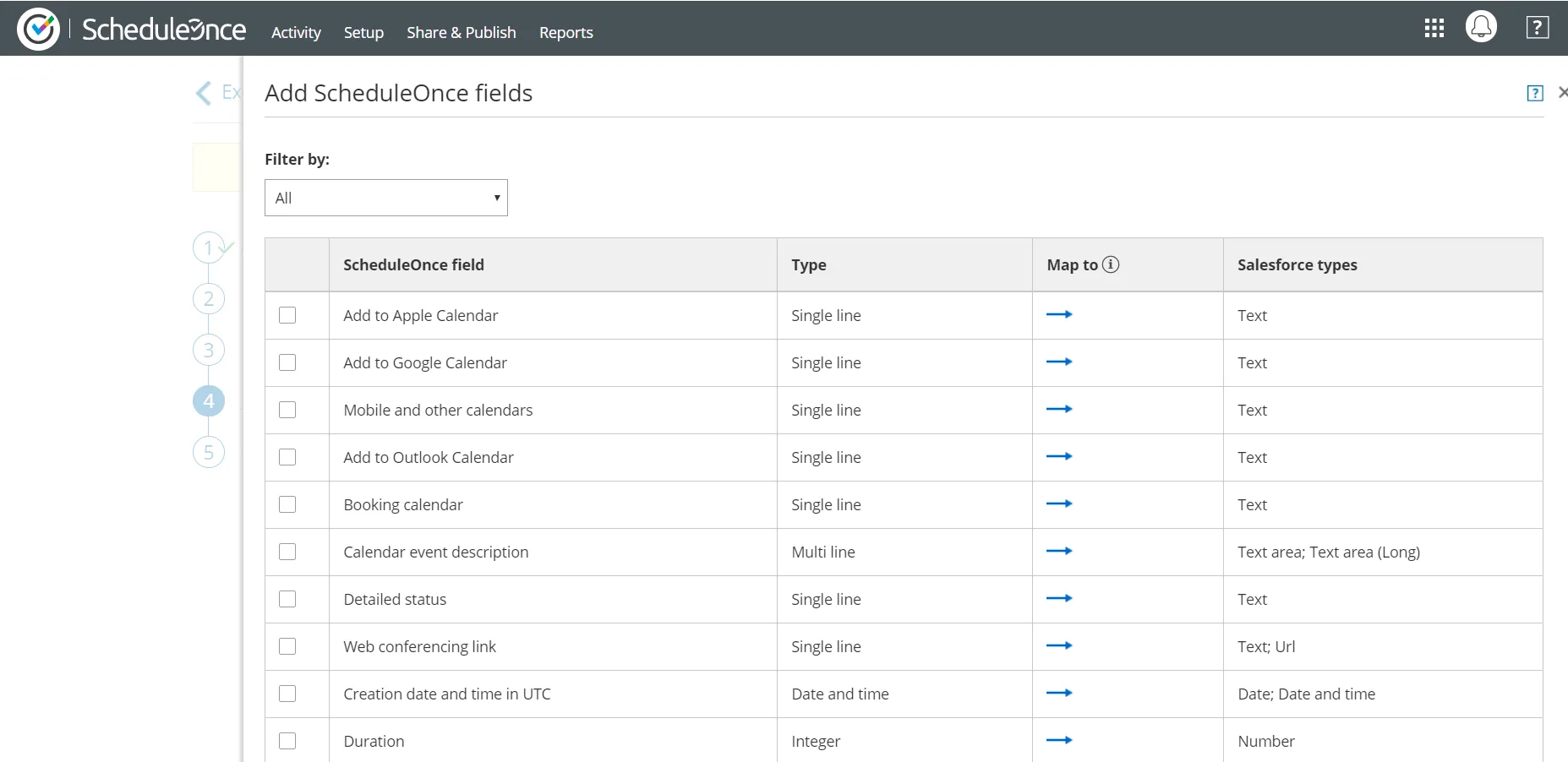 Figure 1: Add OnceHub fields pop-up
The Salesforce fields include all the fields stored in Salesforce (Custom and Standard fields) that are supported by the mapping for the selected OnceHub field. Learn more about the supported and non-supported Salesforce field types.
-
Use the Filter by drop-down menu to select a category if required.
-
Check the box next to each field you would like to add.
-
Click Add fields.
-
Click Save, or Save and Continue if you have completed mapping all fields.
Deleting a mapped field
Section titled “Deleting a mapped field”- In the OnceHub fields list, click the delete icon beside the added field you want to delete (Figure 3).
- In the Remove OnceHub field pop-up, click Yes.
- Click Save.