
 OnceHub
 ScheduleOnce

Mapping OnceHub fields to Infusionsoft fields
The Infusionsoft connector setup wizard includes 5 steps: Creation, Classification, Tagging, Mapping, and Tracking. Only OnceHub Administrators can setup their Infusionsoft connector. To access the Infusionsoft connector setup wizard:
- Click the gear icon located in the top-right corner of the page.
- Select Account Integrations from the dropdown menu.
- Filter for CRM.
- Click on the Infusionsoft (For Booking Pages) tile.
The Mapping step includes default account-level mapping recommended by OnceHub and the option to map almost all OnceHub fields to Infusionsoft fields. You can further define your field mapping by adding an Event type-level mapping. This will override account-level mappings when the Event type is selected when customers make a booking. Note that bookings are created based on the default Infusionsoft account date format (mm/dd/yyyy). If your Infusionsoft account is set to dd/mm/yyyy, make sure to switch the date format to in the Mapping step. In this article, you will learn how to map OnceHub fields to Infusionsoft fields.
Default mapping
Section titled “Default mapping”OnceHub fields are mapped to Infusionsoft fields by default. We do recommend to keep the mapping as-is and not to remove mapped data from the integration. This will enable you to gather the basic customer and booking data in Infusionsoft.
The Customer email and Subject fields are mandatory fields in the OnceHub Booking form and cannot be unchecked. However, you can choose to map them to different Infusionsoft fields.
Other OnceHub fields can be mapped to different Infusionsoft fields and are not mandatory. You can remove them from the mapping by unchecking each field.
Default mapping: 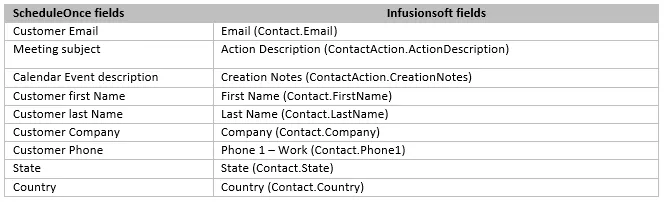
Adding new OnceHub fields
Section titled “Adding new OnceHub fields”You can add any OnceHub fields and map them to Infusionsoft fields. This allows you to map any data tracked in OnceHub to Appointment or Contact records.
-
To add a OnceHub field to the mapping, click the Add OnceHub fields button.
-
Select the OnceHub fields you want to add and click Add fields. The OnceHub field list includes all System fields and Custom fields organized by categories.
-
In the Mapping step, select an Infusionsoft field from the drop-down list.
The Infusionsoft fields include all the fields stored in Infusionsoft (Custom and standard fields) that are the same field type as the selected OnceHub field. Learn more about the supported and non-supported Infusionsoft field types