
 OnceHub
 ScheduleOnce

iCloud Calendar connection issues
This article describes potential issues with iCloud Calendar integration and how these issues can be fixed.
I cannot connect. What should I do?
Section titled “I cannot connect. What should I do?”This may be due to temporary communication problems with the iCloud API. Please try the following:
- Make sure you are using an iCloud app-specific password.
- Make sure cookies are enabled on your browser.
- Verify that you can log into your iCloud account.
- Try to connect again from OnceHub.
Connection error after a successful connection
Section titled “Connection error after a successful connection”Once a successful connection is established, it may fail due to a number of reasons. For example, If you change your primary Apple ID password, all your existing iCloud app-specific passwords are automatically revoked and must be generated again. In this case, your OnceHub Account must be reconnected with a new app-specific password.
To reconnect your iCloud calendar, sign in to your OnceHub Account, go to the left sidebar and click Profile → Calendar connection. Then click the Reconnect your iCloud Calendar button. You will need to reconnect your OnceHub account using an app-specific password. Learn more about iCloud app-specific passwords
Configuration issues in OnceHub
Section titled “Configuration issues in OnceHub”Busy time in iCloud Calendar is not blocking my availability in OnceHub
Section titled “Busy time in iCloud Calendar is not blocking my availability in OnceHub”If busy time is not blocking your availability, you can check the following settings:
-
On the relevant Booking page → Associated calendars: Make sure that you’re retrieving busy time from this calendar. Learn more about the Associated calendars section
-
On the relevant Booking page → Scheduling options → One-on-one or Group sessions: Make sure you haven’t set the option to Group sessions with multiple or unlimited bookings per slot.
-
If you are working in Booking with approval mode, make sure that you did not approve two separate bookings in the same time slot.
-
In your connected calendar, open the event that is not blocking your availability and check that the status of the event is not set to “Free”. Only events with a status of “Busy” block your availability.
New bookings are not added to my iCloud Calendar
Section titled “New bookings are not added to my iCloud Calendar”- On the relevant Booking page → Associated calendars.
- Make sure your calendar is marked as the Main booking calendar or an Additional booking calendar. Learn more about the Associated calendars section
I cannot see my scheduled booking in my iCloud Calendar
Section titled “I cannot see my scheduled booking in my iCloud Calendar”In your iCloud Calendar, make sure that you’ve selected the calendar that your meeting was scheduled in. Find it in the calendar list in the left bar and click it to select it.
In OnceHub, you can also select the activity in the Activity stream, then click the action menu (three dots) in the right-hand pane and select View Calendar event (Figure 1).
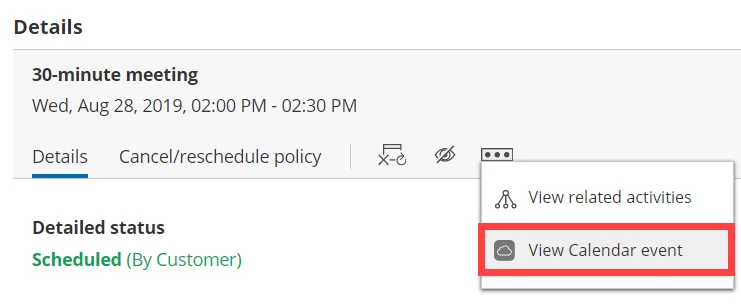 Figure 1: View Calendar event