
 OnceHub
 ScheduleOnce

Manual refunds via OnceHub
Our Payment integration feature fully handles all payments throughout the booking lifecycle, including manual issuing of refunds.
The ability to refund Customers manually via OnceHub enables you to:
- Handle cancellations and reschedule requests initiated by the User, rather than by the Customer.
- Deal with cancellations initiated by the Customer outside of OnceHub. For example, you might want to issue a refund when your Customer has cancelled a meeting via email.
You can issue manual refunds within OnceHub for any paid transaction directly from the Activity stream. Refunds issued via OnceHub are accessible in the Activity stream and in detailed Revenue reports.
In this article, you will learn how to issue a manual refund via OnceHub.
Requirements
Section titled “Requirements”To issue a refund via OnceHub, you must:
- Be the Owner or the Editor of the activity
- Have the permission to refund via OnceHub
- Enable the manual processing of refunds via OnceHub
Refunding via OnceHub
Section titled “Refunding via OnceHub”To issue a refund via OnceHub:
- Click on the Transaction from your Activity stream. In the Details pane, click Process a refund (Figure 1).
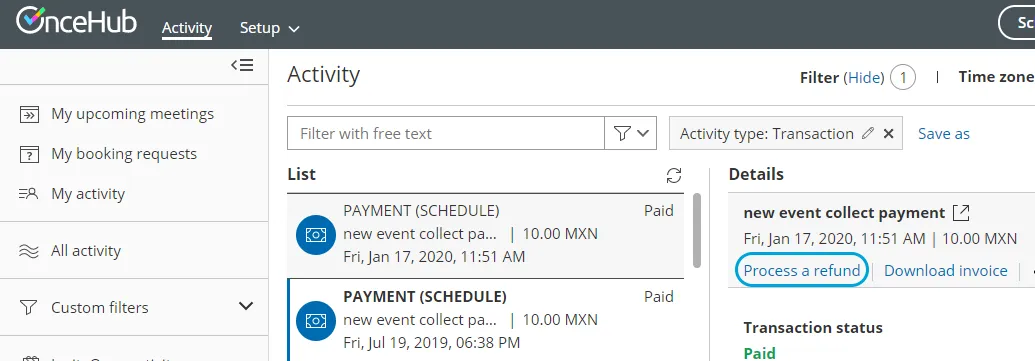 Figure 1: Issuing a manual refund
 - Enter the amount to refund and click Refund.
Refunding manually via PayPal
Refunds issued via PayPal are also captured in OnceHub via the PayPal API and are accessible in the Activity stream and in detailed Revenue reports, giving you full visibility of your refunds activity. We recommend you refund through OnceHub rather than through PayPal, as with OnceHub a credit invoice is automatically issued and sent to your Customers in the default email notifications.