
 OnceHub
 ScheduleOnce

Creating a Personalized link for a specific Customer
You can build a static Personalized link that includes a Customer’s personal details. Personalized links for a specific Customer are based on URL parameters and are best used when you want to send a single email to a particular Lead or Customer. These links are different from dynamic links that are used when you want to send Personalized links to a large group of leads or Customers as part of an email campaign.
For example, a Sales Representative wants to send an email to a specific lead named “John”. They want to include a personalized “Book time with me” link in the body of the email. This link will take John straight to a Booking page where he can choose a date and time for the meeting without needing to enter any personal information such as name and email.
The Sales Representative can create a Personalized link that looks like this: https://go.oncehub.com/dana?name=John&email=john@example.com&skip=1
Creating a Personalized link specific for a Customer
Section titled “Creating a Personalized link specific for a Customer”-
Go to Booking pages on the left.
-
Select the relevant Booking page or Master page.
-
In the Overview section of the selected page, click Personalize for a specific Customer (Figure 1).
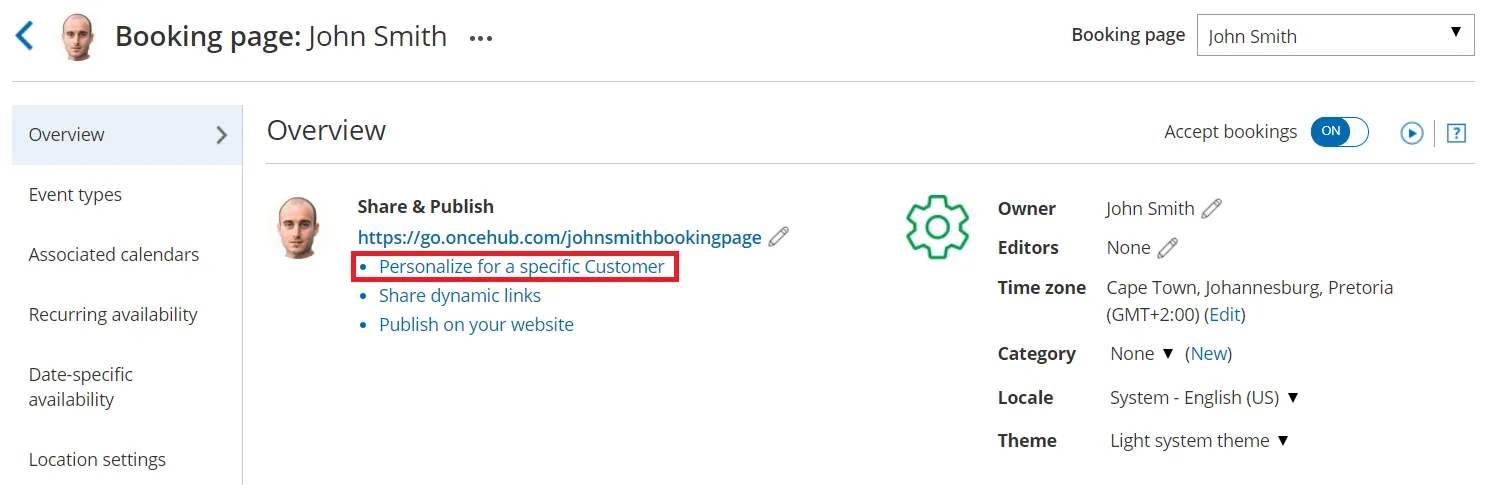 Figure 1: Booking page Overview section
 -
In the Personalize the link for a specific Customer pop-up, enter the Customer name and Customer email (Figure 2).
- By default, the Skip booking form field will be toggled ON once you’ve entered your Customer details. Skipping the Booking form step allows for a quicker booking process for your Customers.
- If you want to disable skipping the booking form, toggle the Skip booking form field to OFF.
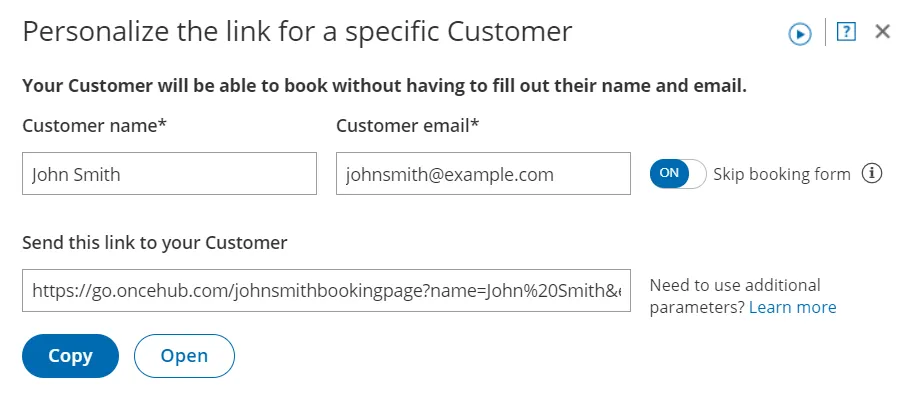 Figure 2: Personalize the link for a specific Customer pop-up
-
To test the link, click the Open button.
-
Click the Copy button to copy the link to your clipboard.
-
Finally, paste the link into your email.