
 OnceHub
 ScheduleOnce

Granting permissions to OnceHub
To connect the OnceHub User app to your PayPal account, you must connect to PayPal and grant permissions to OnceHub to run specific transactions via the PayPal API. OnceHub communicates with the PayPal API to charge Customers for bookings, issue refunds via OnceHub, and capture transactions in OnceHub invoicing and Revenue reports.
In this article, you will learn about granting permissions to OnceHub in your PayPal account.
Requirements
Section titled “Requirements”To grant permissions to OnceHub, you will need:
- A PayPal Administrator
- A OnceHub Administrator
Granting permissions to OnceHub
Section titled “Granting permissions to OnceHub”-
Hover over the lefthand menu and go to the Booking pages icon → open the lefthand sidebar → Integrations → Payment.
-
Click the Get started button. The Connect to PayPal wizard pop-up appears (Figure 1).
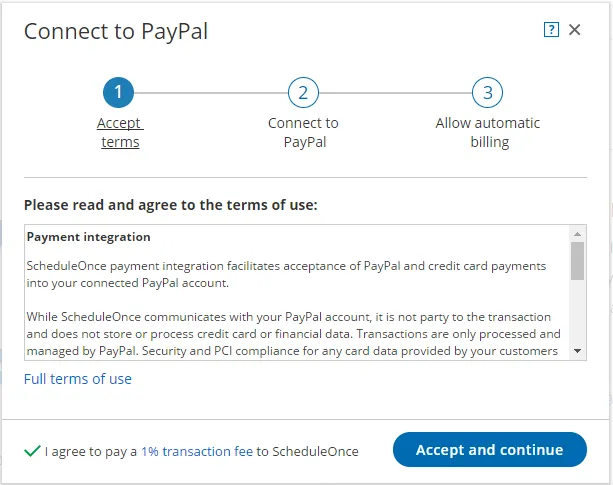 Figure 1: Accept Terms
 -
Once you accept the OnceHub terms, click Connect to PayPal button on the Connect to PayPal step (Figure 2). You will be redirected to the PayPal sign-in page where you’ll be required to enter your credentials.
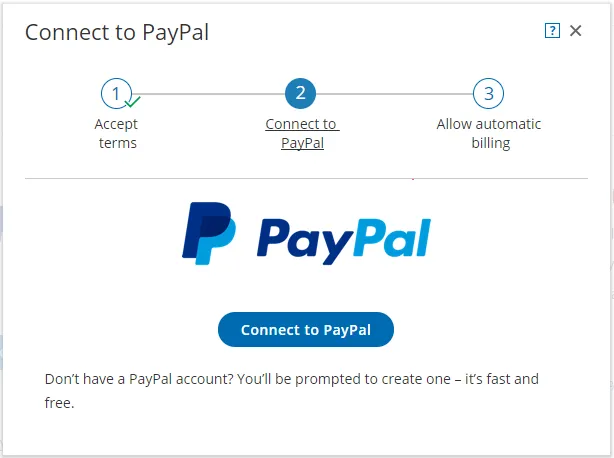 Figure 2: Connect to PayPal
 -
Sign in to your PayPal account using your PayPal credentials or create a new account. Once signed in, PayPal will automatically display a pop-up window including the list of permissions OnceHub needs to be granted (Figure 3).
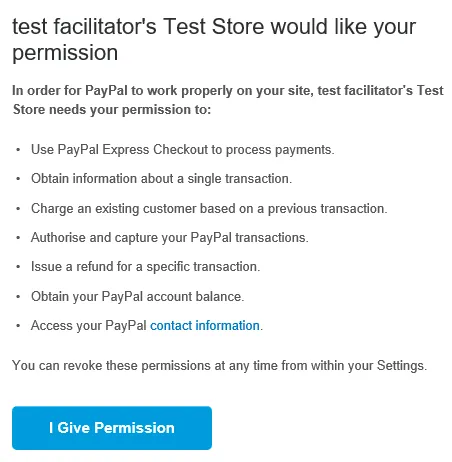 Figure 3: Granting permissions
 -
In your PayPal account, click the Grant permissions button. Once permissions are granted, OnceHub will receive a token from PayPal Permissions Service to run Express Checkout API calls on your behalf.
-
Next, PayPal will automatically take you through the In-Context Sign-Up flow. This allows OnceHub to use the In-Context API to determine whether your PayPal account can receive payments. OnceHub will only charge Customers for bookings if your PayPal account can accept payments. Otherwise, Customers won’t be able to make bookings when Payment integration is used. Learn more about troubleshooting Payment integration issues
-
At the end of the In-Context sign up flow in PayPal, click the PayPal return button to return to OnceHub.