
 OnceHub
 ScheduleOnce

Configuring connector settings on a Booking page
The Salesforce connector settings section of a Booking page enables you to map the Salesforce Record Types, configure the Salesforce Activity Event creation, and configure the integration when bookings are created using General links for your Booking page.
In this article, you’ll learn how to configure your personal Salesforce connector settings for your Booking page.
Requirements
Section titled “Requirements”To configure the Salesforce connector settings, you must:
Configuring the Salesforce connector settings
Section titled “Configuring the Salesforce connector settings”-
Hover over the lefthand menu and go to the Booking pages icon → Booking pages → your Booking page → Salesforce settings (Figure 1).
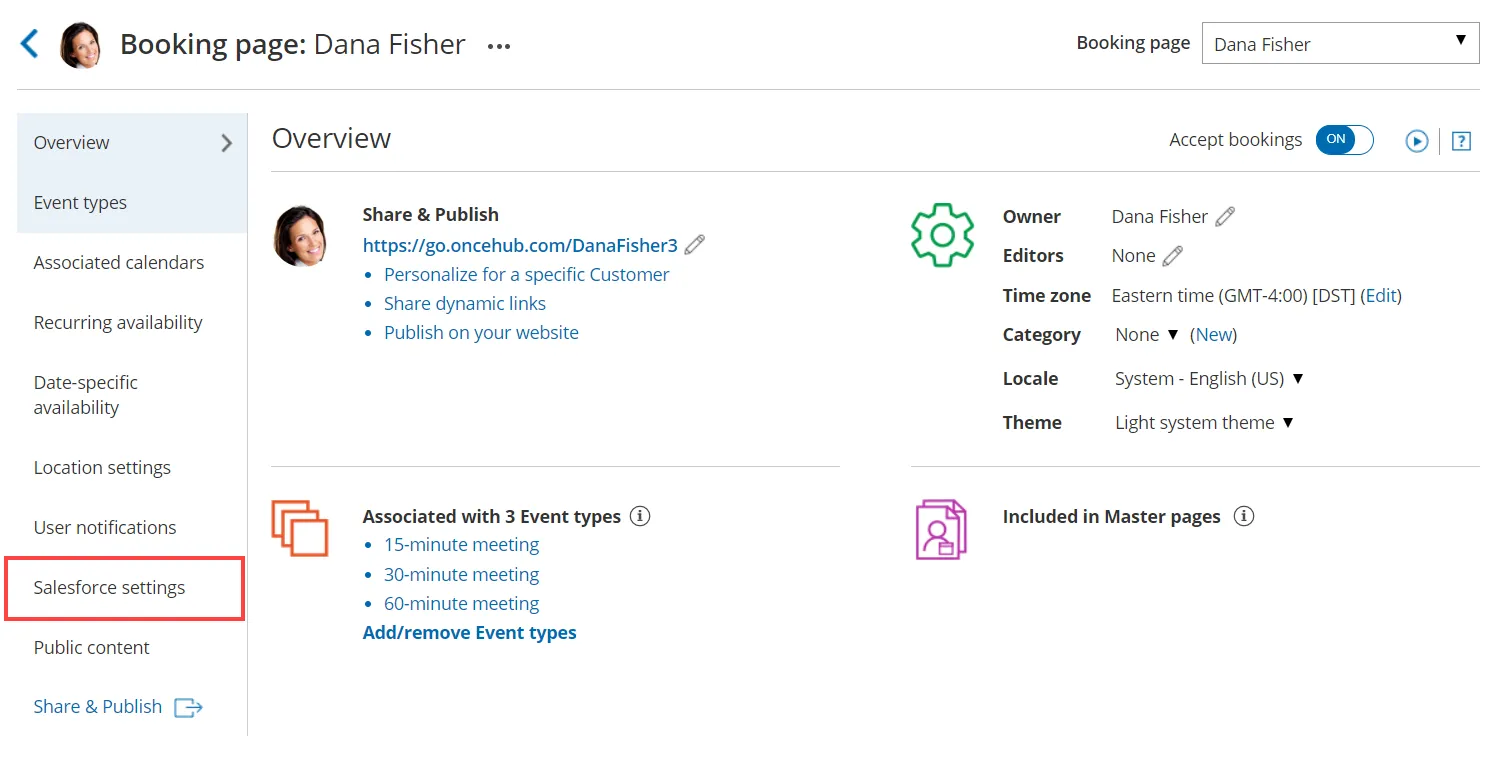 Figure 1: Salesforce settings on a Booking page
 -
On the Salesforce settings page (Figure 2), you can map the Record Types for the supported objects, set up the Salesforce Activity Event option, and choose the type of record to be created when using General links.
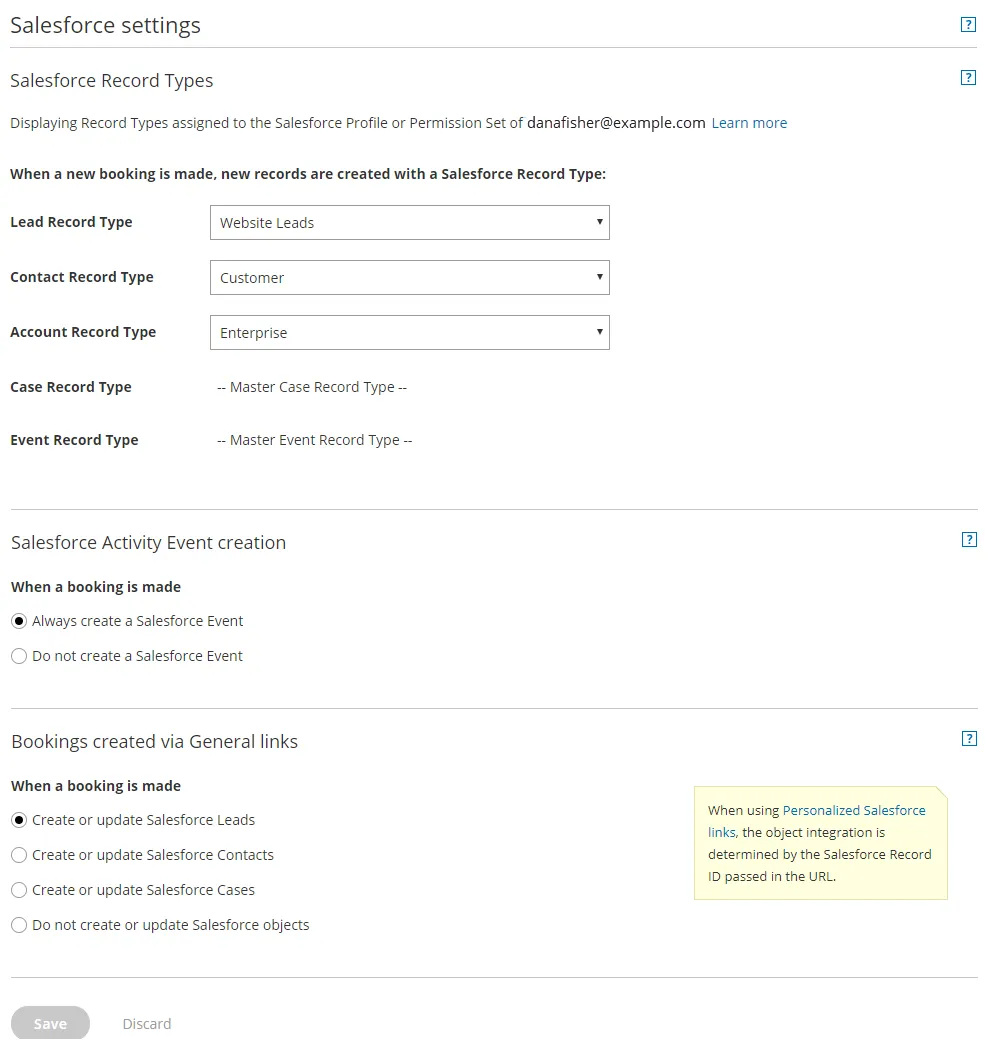 Figure 2: Salesforce settings
 -
In the Salesforce Record Types section, select the Record Type that should be assigned to the Lead, Account, Contact, Event, and Case objects. This section displays the Salesforce Record Types that are assigned to your Salesforce profile or Permission Set. When a booking is made, new records are created with an associated Record Type in your Salesforce organization. Learn more about working with Record Types
-
In the Salesforce Activity Event creation section, select if you want a Salesforce Activity Event to be created when a booking is made.
-
In the Bookings created via General links section, choose the object integration option you want for your General links. You can decide to integrate your Booking page with the Lead, Contact, or Case object, or you can decide not to integrate the Booking page with Salesforce. When you use Personalized links (Salesforce ID), the object integration is determined by the Salesforce Record ID passed in the URL.