
 OnceHub
 ScheduleOnce

Hiding fields on the Booking form
When you add a Custom field to your Booking form, the field is visible by default. You can choose to hide the field, so that it will not be displayed on the Booking form.
In this article, you’ll learn about hiding fields on the Booking form.
Why hide fields on the Booking form?
Section titled “Why hide fields on the Booking form?”Hiding fields is typically done to pass internal company information through the booking process, without exposing it to the Customer.
For example, you might have an ID for a particular marketing source that you need to track with the booking information. The ID is internal and Customers should not see it when they book. With hidden fields, you can include the ID in the URL parameters and pass it to a third party CRM integration, add it to a calendar event, or include it in User notifications.
Customers are not able to input a value for hidden fields, and hidden fields cannot be made into mandatory fields. To use a hidden field, you should provide a value with URL parameters.
Hidden fields should not be used to pass sensitive information because the data is still visible and editable in the Booking page URL.
Creating a hidden Custom field
Section titled “Creating a hidden Custom field”-
Go to Booking pages in the bar on the left.
-
On the left, select Booking forms editor.
-
In the Fields library section on the right of the page, click the Add Custom field to library button.
-
Select Single line text field as the Field type (Figure 1).
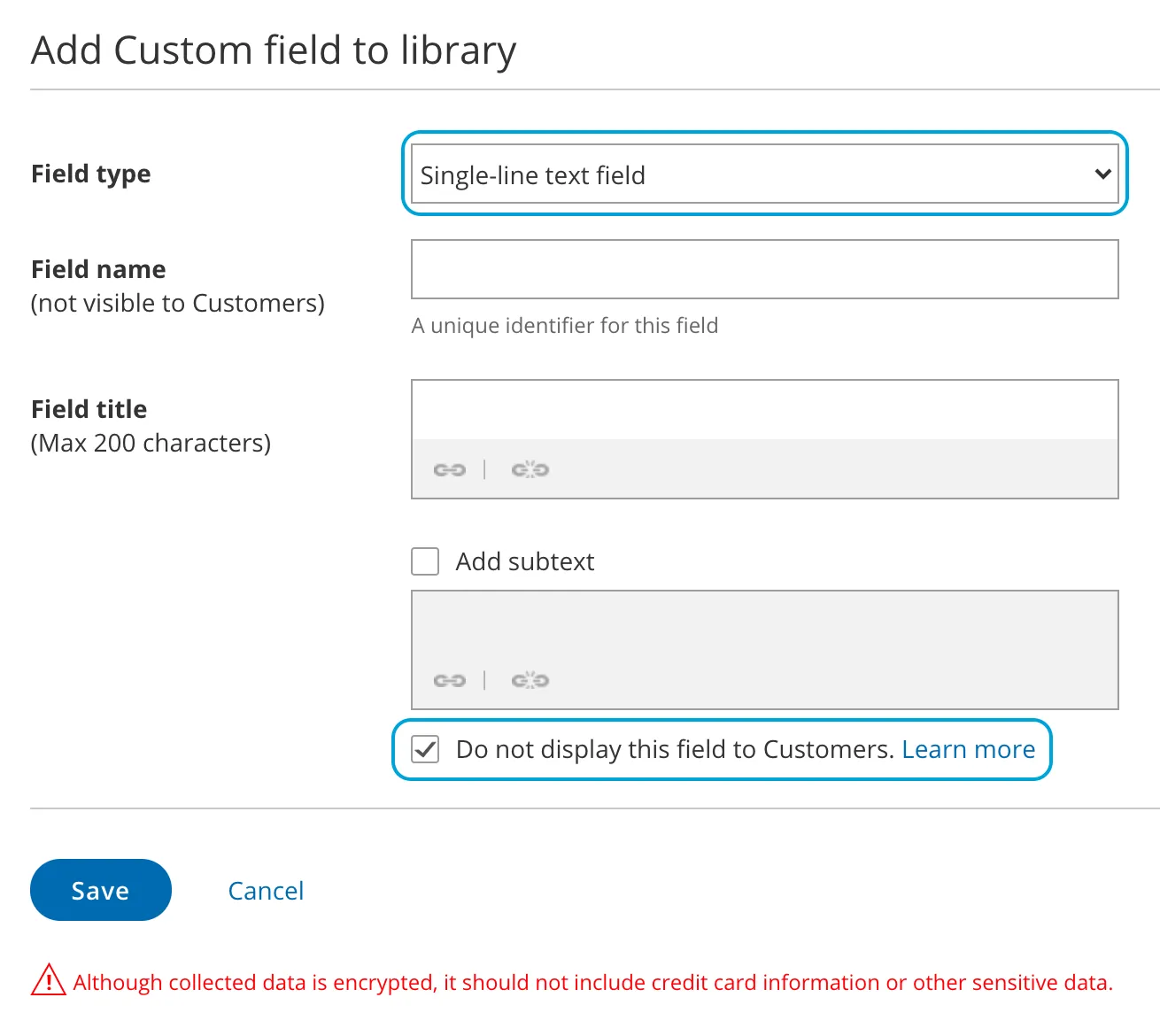
Figure 1: Creating a hidden Custom field
-
At the bottom of the Field editor, check the Do not display this field to Customers box.
-
Click Save.
To use a hidden Custom field, add it to your booking form.
Hidden field example
Section titled “Hidden field example”You may want to pass a marketing campaign ID in the URL and pass it to a Custom field in your CRM. To do this, you would follow these steps:
- Create a hidden Custom field for the marketing campaign ID and add it to your Booking form.
- In the CRM integration setup, map the hidden OnceHub field to the Custom field in your CRM.
- In the marketing campaign add the link to your Booking page with the marketing campaign ID in the URL. For example, go.oncehub.com/example?marketing-campaign-ID=1234
When a booking is made using this link, the marketing campaign ID (1234) will be mapped to the Customer record in your CRM.