
 OnceHub
 ScheduleOnce

Booking pages only (without Event types)
Master pages with Booking pages only (without Event types) allow Customers to only select which Booking page they prefer. Bookings are assigned according to the Customer’s selection. This option is useful if you don’t use Event types and there are no shared settings between your Booking pages.
In this article, you’ll learn about Master pages with Booking pages only.
The Customer flow
Section titled “The Customer flow”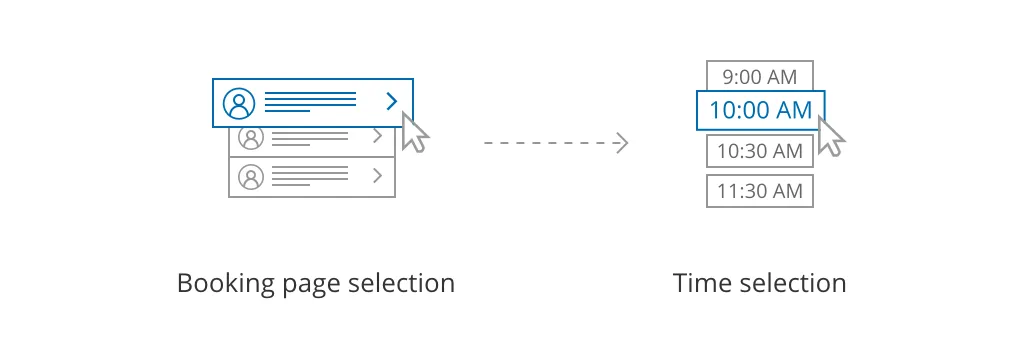 Figure 1: Customer flow for Booking pages only With Booking pages only, the Customer selects a Booking page and is presented with the Booking page’s availability. The Customer then selects a date and time and schedules the meeting.
Requirements
Section titled “Requirements”To create a Master page with a Booking pages only scenario, you must be a OnceHub Administrator.
Setting up a Master page with Booking pages only
Section titled “Setting up a Master page with Booking pages only”- Create a Master page by clicking the Plus button
 in the Master pages pane.
 - In the Scenario field of the New Master page pop-up (Figure 2), select Booking pages only (without Event types).
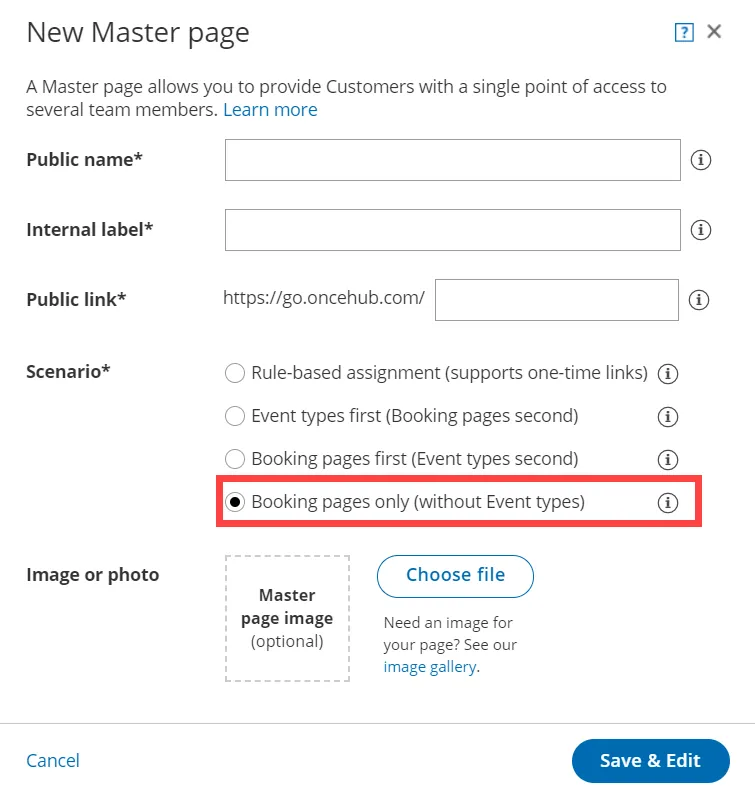 Figure 2: New Master page pop-up
 - Populate the pop-up with a Public name, Internal label, Public link, and an image if you choose. Then click Save & Edit. You’ll be redirected to the Master page Overview section to continue editing your settings.
- Go to the Assignment section of the Master page.
- Use the drop-down menu to select the Booking pages that you want to include in the Master page (Figure 3). Only Booking pages that are not associated with any Event types can be included in this Master page.
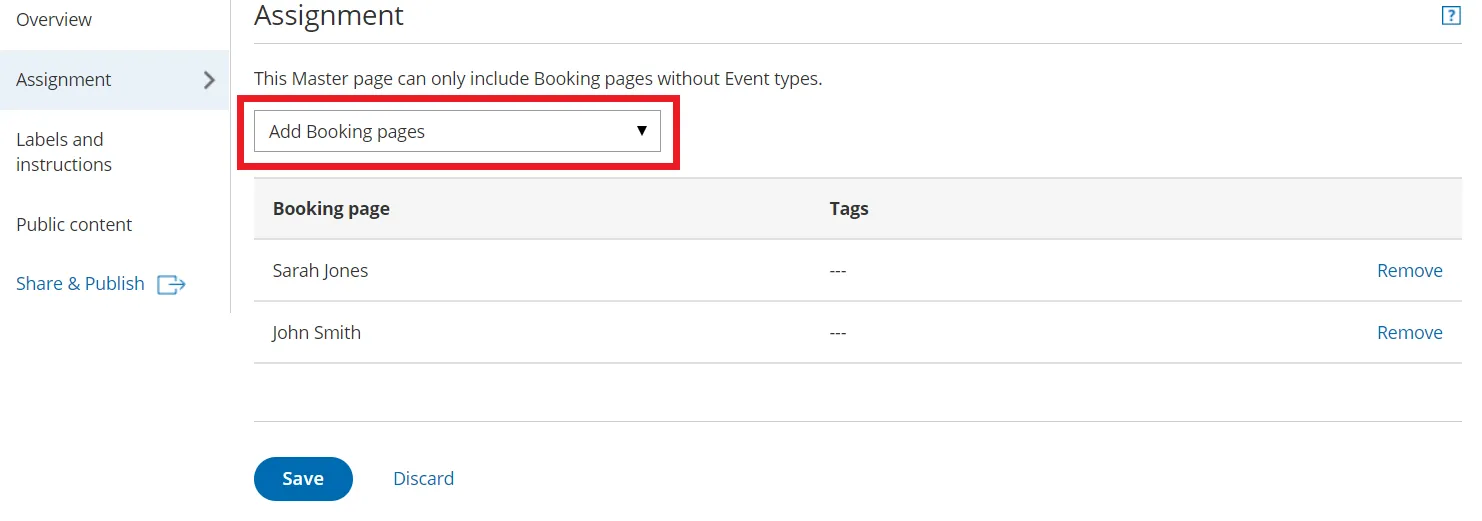 Figure 3: Add Booking pages to your Master page
 - Click Save.
© Copyright 2026 OnceHub. All rights reserved.