
 OnceHub
 ScheduleOnce

Changing Booking page and Master page links
In some cases, you may want to change the link that Customers use, such as when a Booking page is reassigned to a different User.
In this article, you’ll learn how to change a Booking page or Master page link.
What happens when you change your link?
Section titled “What happens when you change your link?”When you change the link, the former link will no longer work. Any sharing and publishing options that you used will need to be updated with the new link. Customers will not be able to cancel or reschedule any bookings that they made using the former link.
Requirements
Section titled “Requirements”To change the link, you must meet the following requirements:
- Be an Owner or an Editor of the page.
- Have the permission to edit the Overview section.
Learn more about Booking page access permissions
Changing your link
Section titled “Changing your link”-
Go to Booking pages in the bar on the left.
-
Select the Booking page or Master page that you would like to edit.
-
In the Overview section, click the Edit icon next to the link (Figure 1).
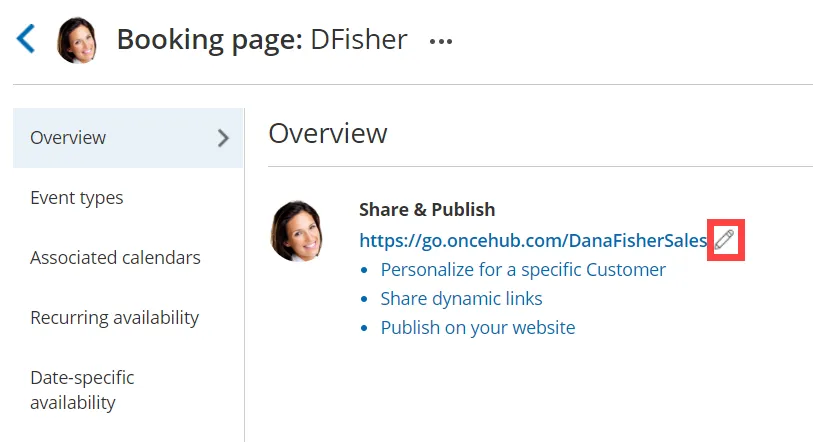 Figure 1: Booking link edit icon
 -
The Booking page or Master page Primary settings pop-up will open (Figure 2).
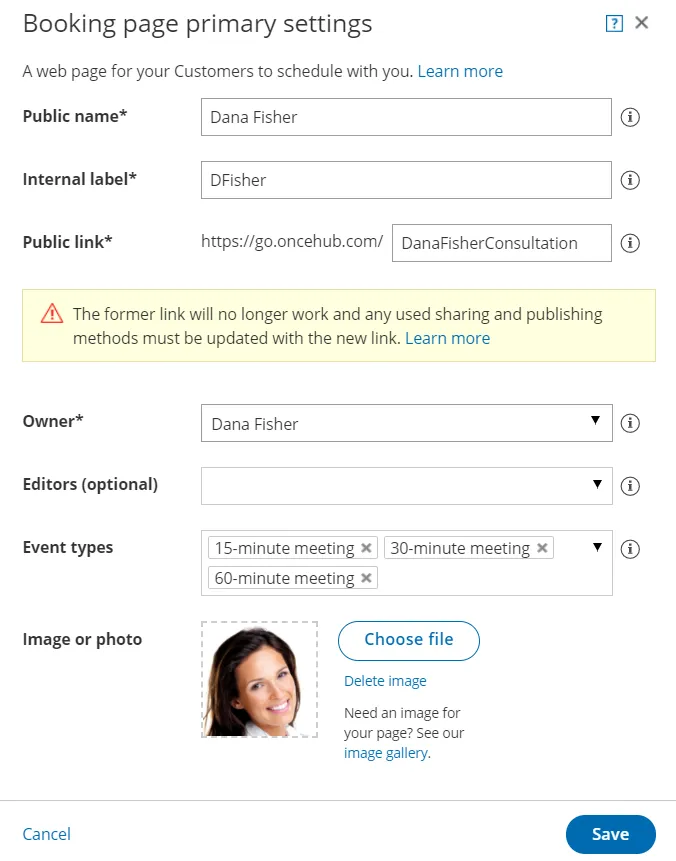 Figure 2: Booking page primary settings pop-up
 -
Change the Public link to the new link that you need.
-
Click Save.