
 OnceHub
 ScheduleOnce

User action: Cancel a Panel meeting
When the activity status of a Panel meeting is Scheduled, Rescheduled, No-show, or Completed, the User can cancel the Panel meeting directly from the Activity stream.
When you cancel a Panel meeting, it affects all panelists and the Customer.
Requirements
Section titled “Requirements”Any User who can see a Panel meeting activity in theirtheir Activity stream can cancel a Panel meeting.
Canceling a Panel meeting
Section titled “Canceling a Panel meeting”-
Select the Panel meeting activity in the Activity stream.
-
In the Details pane, click the Cancel/request reschedule button (Figure 1).
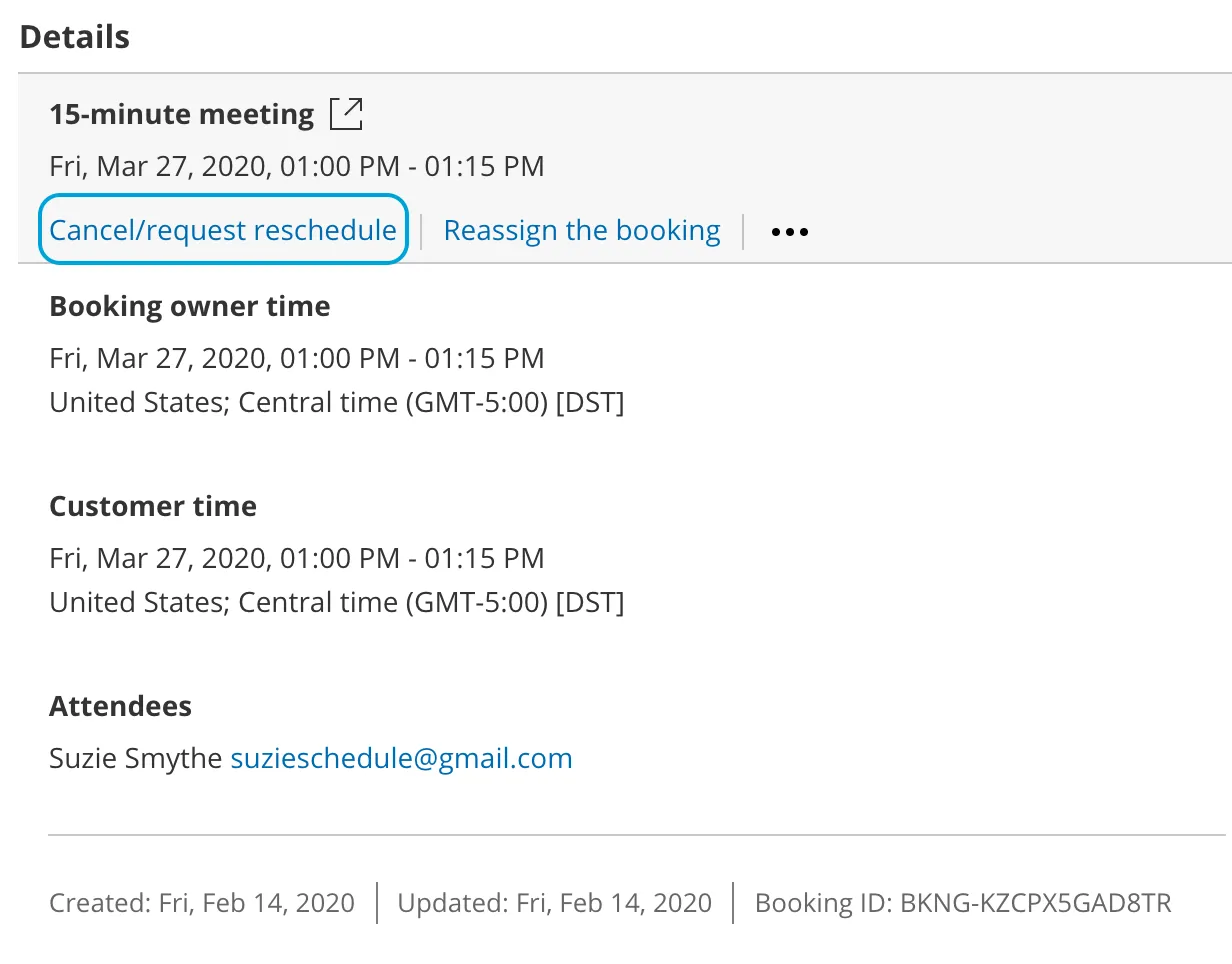 Figure 1: Cancel/request reschedule button
 -
The Cancel/request reschedule pop-up will appear (Figure 2). Select Cancel the booking.
-
Click Next.
-
In the Notification step, you can add a cancellation reason that will be provided to the Customer.
-
Click Next.
-
In the Review step (Figure 3), you can confirm the details of the Panel meeting that you’re about to cancel.
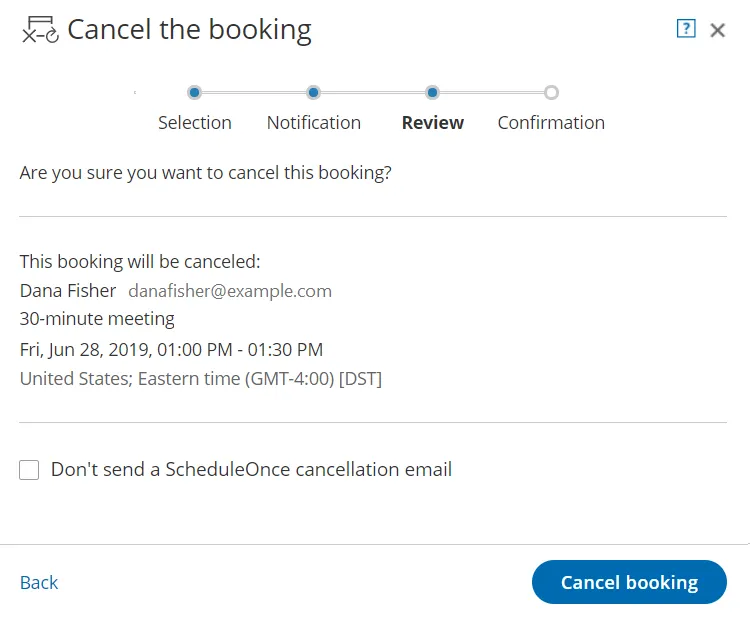 Figure 3: Cancel/request reschedule pop-up—Review step
 -
By default, a cancellation email is always sent to your Customer. If you do not want to send a cancellation email to the Customer, check the Don’t send a OnceHub cancellation email box.
-
Click Cancel booking. When a User cancels a Panel meeting, everyone involved is affected:
- By default, the Customer receives a cancellation email notification.
- The Primary team member receives a cancellation email notification and all Additional team members are cc’d in this email.
- The activity status is updated to Cancelled in the Activity stream for all panelists.
- If the Primary team member is connected to a calendar, the calendar event will automatically be cancelled.