
 OnceHub
 ScheduleOnce

Additional team members
Additional team members are members of your organization who participate in Panel meetings. Panel meetings allow you to offer meetings where Customers can meet with multiple members of your organization simultaneously.
Panel meetings have a Booking owner, who is the Booking assignment team member, and Additional team members who participate as panelists in the meeting. Panel meetings can be set up in Master pages using a team or panel page.
When you create a Panel meeting, you can include any number of Additional team members. Additional team members can be a specific Booking page or a Resource pool. If you choose Resource pools, a Team member from each pool will be assigned according to the pool’s distribution method. You can choose from Round robin, Pooled availability, or Pooled availability with priority.
When Customers visit your Master page, they will only see availability for possible panel combinations. This means that they will only see time slots when all panelists are available, whether the panelists are specific Booking pages or a relevant member of a Resource pool.
How are Additional team members added to a booking?
Section titled “How are Additional team members added to a booking?”If the Booking owner has a calendar connected to OnceHub, Additional team members are added as guests/attendees to the Booking owner’s calendar event.
If the Booking owner is not connected to a calendar and the Additional team members are, OnceHub will create a ‘dummy’ event in the Additional team members’ calendars to ensure that they don’t get double booked.
How are the Additional team members updated throughout the booking lifecycle?
Section titled “How are the Additional team members updated throughout the booking lifecycle?”The Panel meeting is added as a single shared activity to each Additional team member’s Activity stream, with the Booking owner and Additional team members listed. This means that if there are status changes, they will be updated.
Additional team members are also cc’d on all notifications sent to the Booking owner, including the initial confirmation, reminders, and updates about schedule changes. This ensures that all Panel members have the meeting details and are updated throughout the booking lifecycle.
Can Additional team members perform the same actions as the Booking owner?
Section titled “Can Additional team members perform the same actions as the Booking owner?”Yes. Any User who can see a Panel meeting activity in their Activity stream can cancel it or request to reschedule. If a User cancels or requests to reschedule, all Panelists will be affected.
Requirements
Section titled “Requirements”To create a Master page and add Additional team members, you must be a OnceHub Administrator.
How to add Additional team members to meetings
Section titled “How to add Additional team members to meetings”-
Click Setup → Booking Page setup in the top navigation bar.
-
Click the Plus button
 in the Master pages pane.
 -
The New Master page pop-up appears (Figure 1).
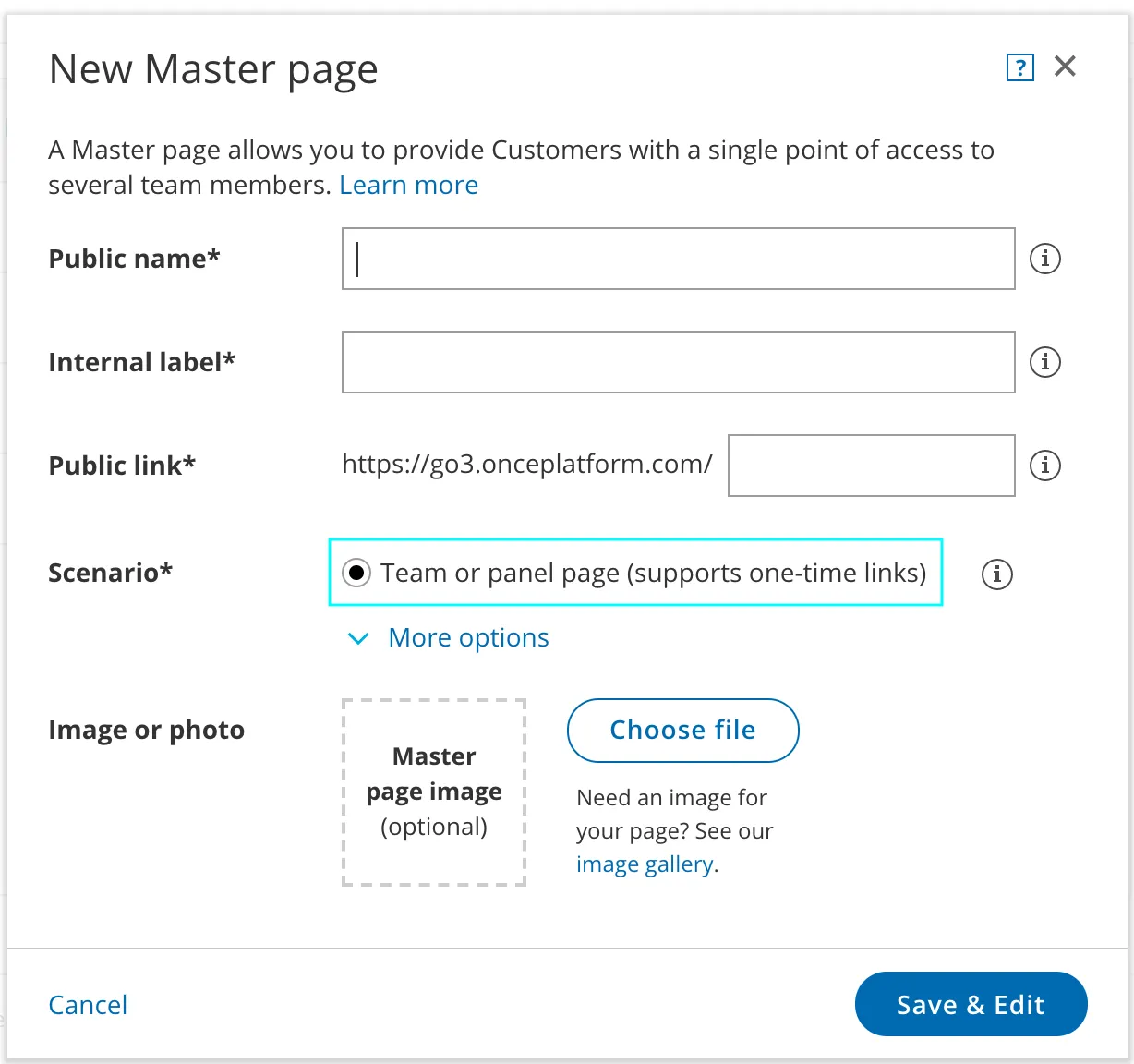 Figure 1: New Master page pop-up
 -
In the Scenario field of the New Master page pop-up, select the Team or panel page scenario (Figure 1).
-
Populate the pop-up with a Public name, Internal label, Public link and an image if you choose. Then, click Save & Edit. You’ll be redirected to the Master page Overview section to continue editing your settings.
-
Go to the Event types and assignment section of the Master page.
-
In the Event-based rules section, click Add Event type.
-
Select which Event types will be offered in your Master page (Figure 3). For each Event type you want to add, you’ll need to add a new rule. Master pages with Dynamic rules can only include Event types configured to Automatic booking and Single session. Learn more about conflicting settings when using team or panel pages
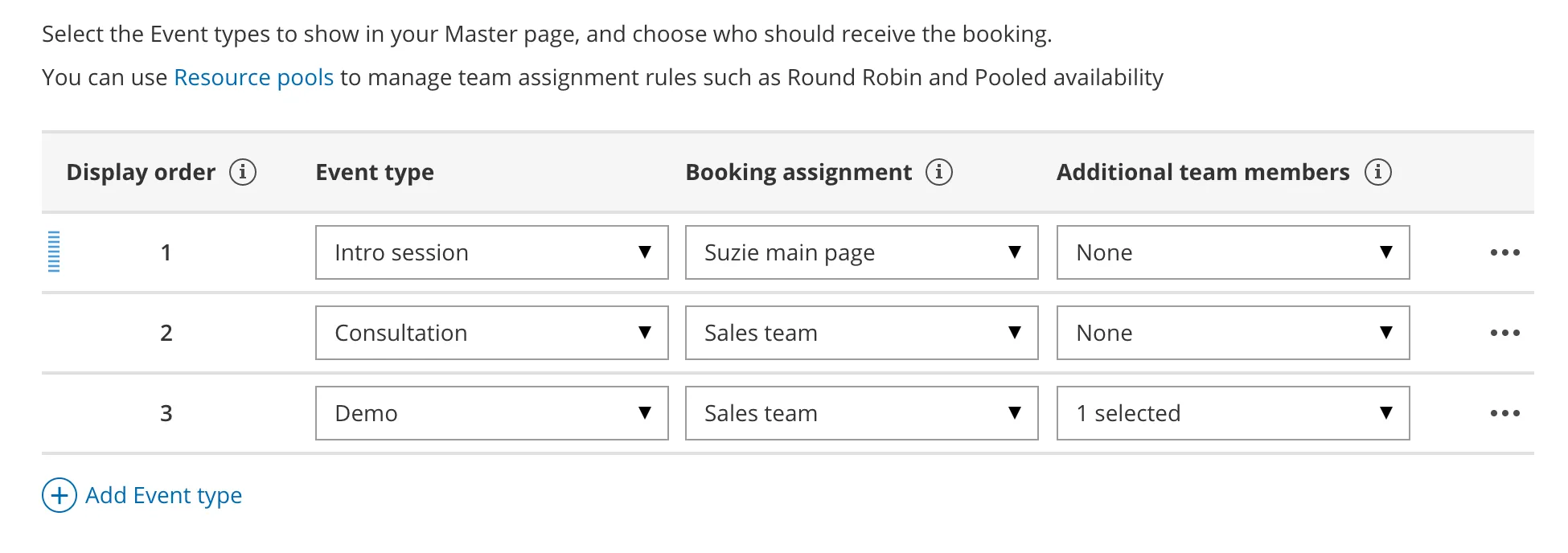 Figure 2: Add Event types
 -
Under Booking assignment, choose a Booking page or Resource pool from which the Booking owner will be assigned.
-
Under Additional team members, select additional Booking pages and Resource pools to participate in the meeting. You can select an unlimited number of Additional team members.
-
Click Save.