
 OnceHub
 ScheduleOnce

Using one-time links
With OnceHub, you can generate one-time links which are good for one booking only, eliminating any chance of unwanted repeat bookings. A Customer who receives the link will only be able to use it for the intended booking and will not have access to your underlying Booking page.
When you create a one-time link, it’s automatically copied to your clipboard with one click, allowing you to quickly generate multiple one-time links that can be sent to different Customers. One-time links can be personalized, allowing the Customer to pick a time and schedule without having to fill out the Booking form.
Customers can make bookings as normal using the one-time link, and Users and Customers can cancel and reschedule as usual based on your Cancel/reschedule policy. Bookings made using one-time links will also appear as normal bookings in your Activity stream and reports.
In this article, you’ll learn how to generate a one-time link.
Requirements
Section titled “Requirements”To create a Rule-based assignment Master page with Dynamic rules, you must be a OnceHub Administrator.
Generating a one-time link
Section titled “Generating a one-time link”You generate a one-time link for your booking links by following the steps below:
- Click on Booking Pages in the left-hand menu.
- Click on Share near the top-right.
- Select the Booking page or Master page you want to share from the dropdown menu.
- Toggle the One-time link option to ON
- Click on Copy & close to save it to you clipboard.
You can also generate a one-time link in the Overview section of the relevant Master page:
-
Go to Setup in the top navigation bar.
-
Select the relevant Master page that you would like to generate a one-time link for.
-
In the Master page Overview section, click Generate a one-time link in the Share & Publish section (Figure 1).
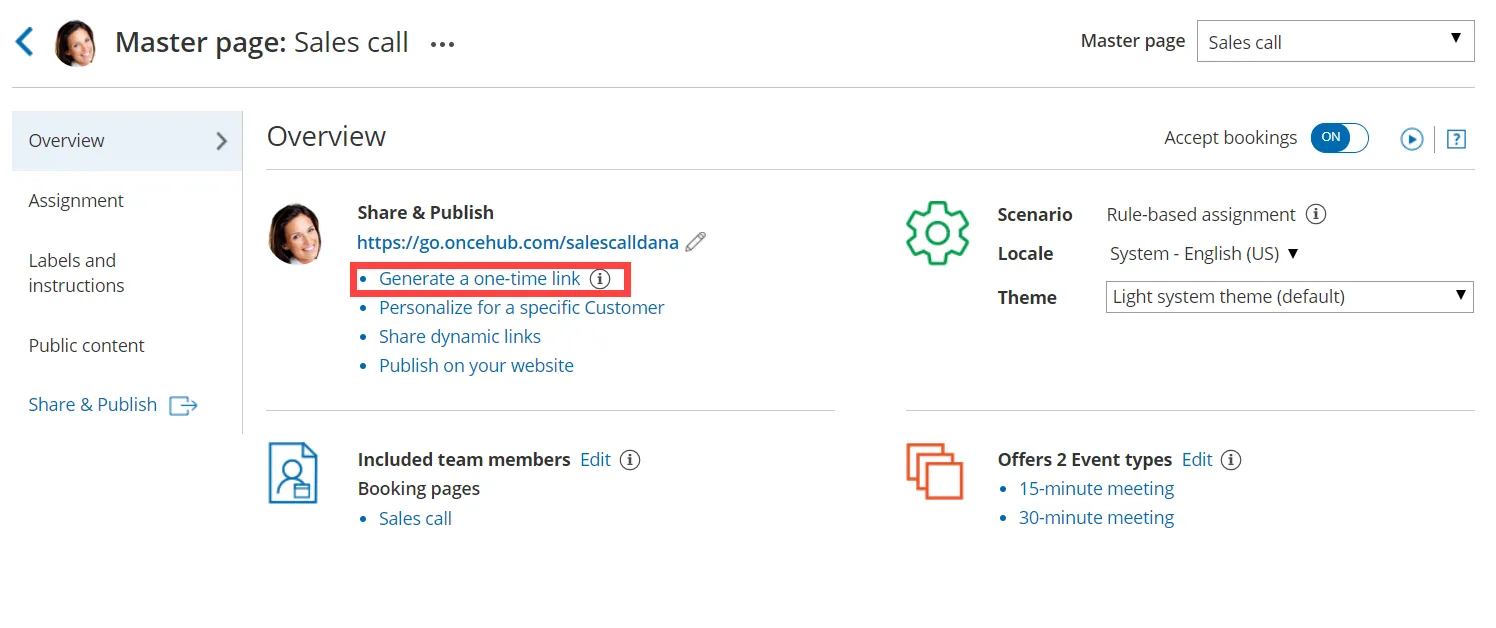 Figure 1: Generating a one-time link in the Master page Share & Publish section
 -
The One-time link pop-up will appear (Figure 2).
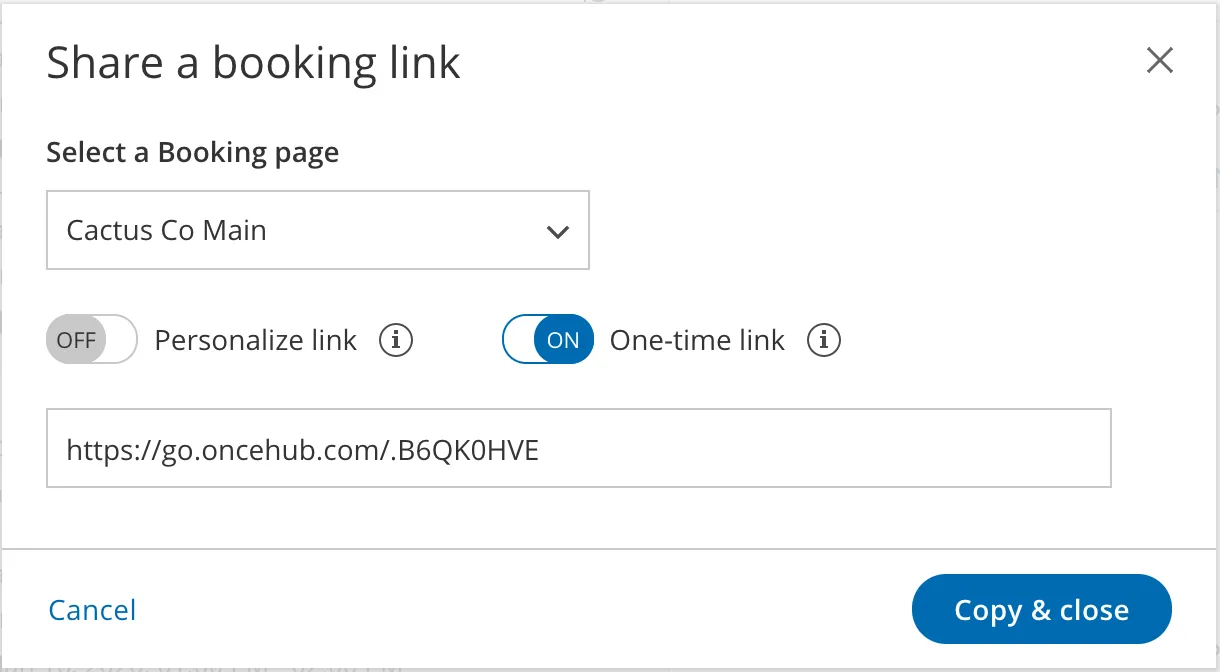 Figure 2: One-time link pop-up
 -
Toggle Personalize link to ON if you would like to personalize the one-time link for a Customer (Figure 3). Enter a Customer name and Customer email.
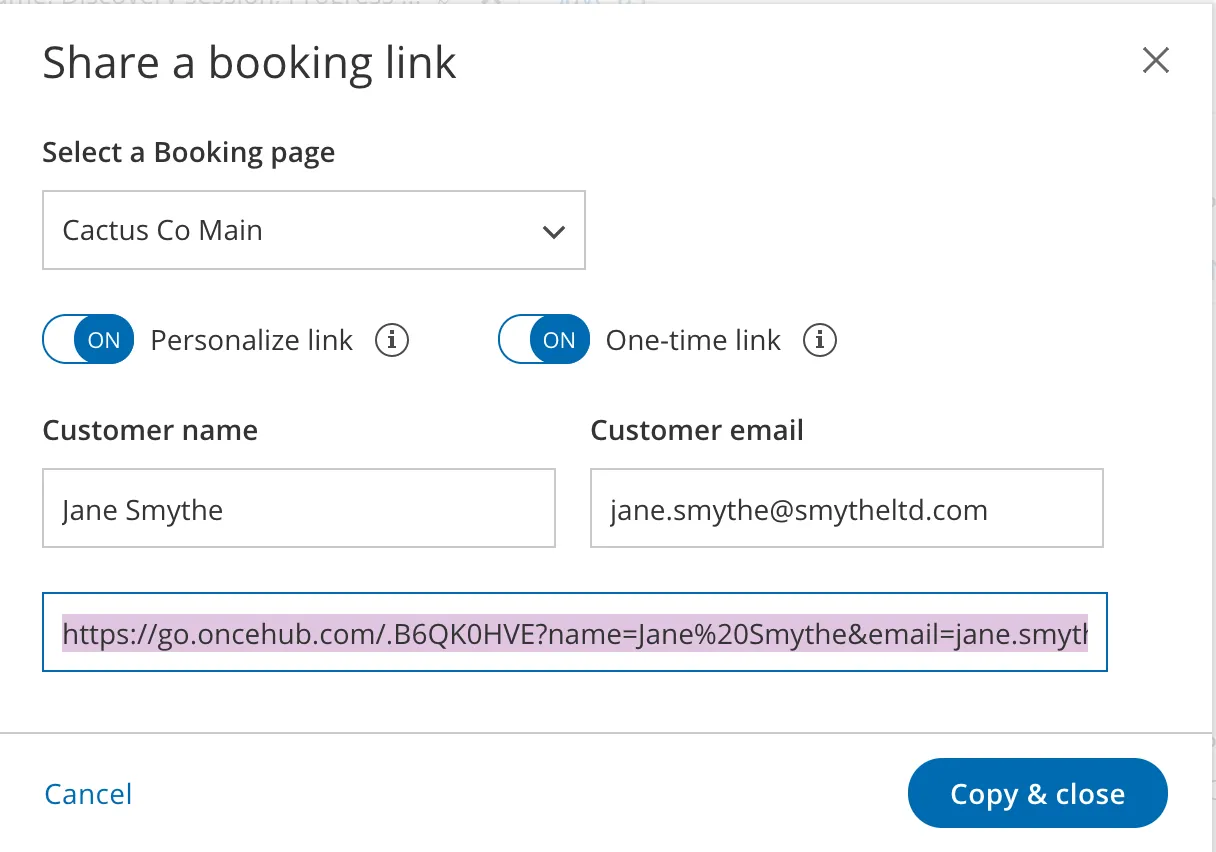 Figure 3: Personalize link enabled
 -
Click Copy & close to copy the one-time link to your clipboard and close the pop-up. You can then paste the one-time link into an email or instant message and send it to your Customer.
You can also generate a one-time link from the Booking page scheduling setup (Figure 4). Click the action menu (three dots) next to the Master page that you would like to generate a one-time link for. Then, select One-time link.
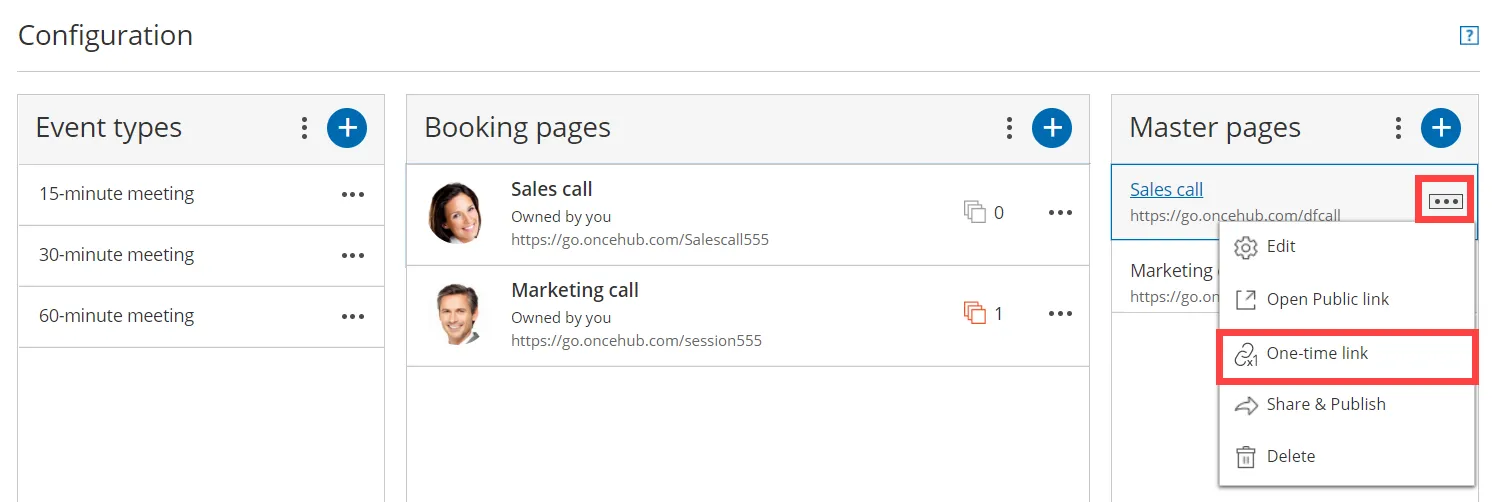 Figure 4: Generating a one-time link from the Booking page scheduling setup
Changing the Master page Rule type
Section titled “Changing the Master page Rule type”If you change the Rule type of your Master page from Dynamic to Static, Customers will not be able to use any one-time link that you previously generated.
If a Customer used the one-time link to make a booking before you changed the Rule type from Dynamic to Static, that booking can be cancelled but not rescheduled.