
 OnceHub
 ScheduleOnce

Customer action: Reschedule sessions in a package
Whether or not a Customer can reschedule sessions in a package is subject to the Cancel/reschedule policy you’ve set on your Booking page or Event type. The Reschedule policy only applies to scheduled bookings.
In this article, you’ll learn about the steps that a Customer takes to reschedule sessions in a package.
How Customers reschedule sessions in a package
Section titled “How Customers reschedule sessions in a package”- The Customer clicks the Cancel/Reschedule link in the scheduling confirmation email (Figure 1) or in the calendar event.
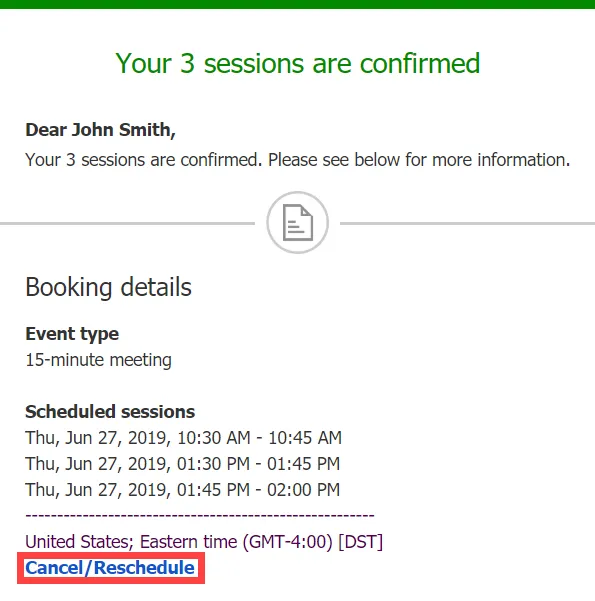 Figure 1: Booking confirmation email
 - The Cancel/reschedule page will open.
- In the Reschedule tab, the Customer selects the sessions to be rescheduled (Figure 2).
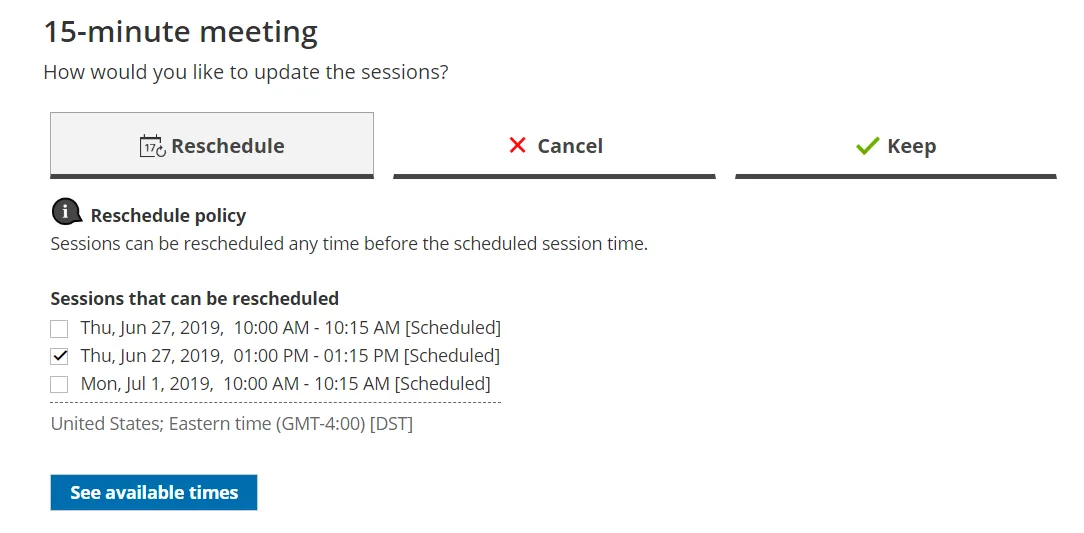 Figure 2: Rescheduling sessions in a package
 - The Customer clicks See available times and then selects new dates and times.
- Depending on your Cancel/reschedule policy, the Customer can be asked to provide a reason for rescheduling.
- The Booking form step is skipped since all the required information was already provided by the Customer when they made the booking.
- Once the sessions have been rescheduled, an email notification is sent to the Customer, the Booking page Owner, and any additional stakeholders.
© Copyright 2026 OnceHub. All rights reserved.