
 OnceHub
 ScheduleOnce

User action: Cancelling a booking request
When you work in Booking with approval mode and a Customer submits a booking request, you’ll receive an email with the suggested meeting times that the Customer selected. You can also access the suggested times directly from the activity in the Activity stream.
If the times suggested by the Customer don’t work for you, you can cancel the request or request new times. In both cases, email notifications will be sent to both the User and Customer. Learn more about the Customer notifications scenarios
In this article, you’ll learn how to cancel a booking request and request new times or cancel a booking request.
Requirements
Section titled “Requirements”To cancel a booking request or request new times, you must be the Owner, an Editor, or a Viewer of the Booking page that the booking was made on.
Canceling a booking request and requesting new times
Section titled “Canceling a booking request and requesting new times”-
Select the activity in the Activity stream.
-
In the Details pane, select Cancel/request new times (Figure 1).
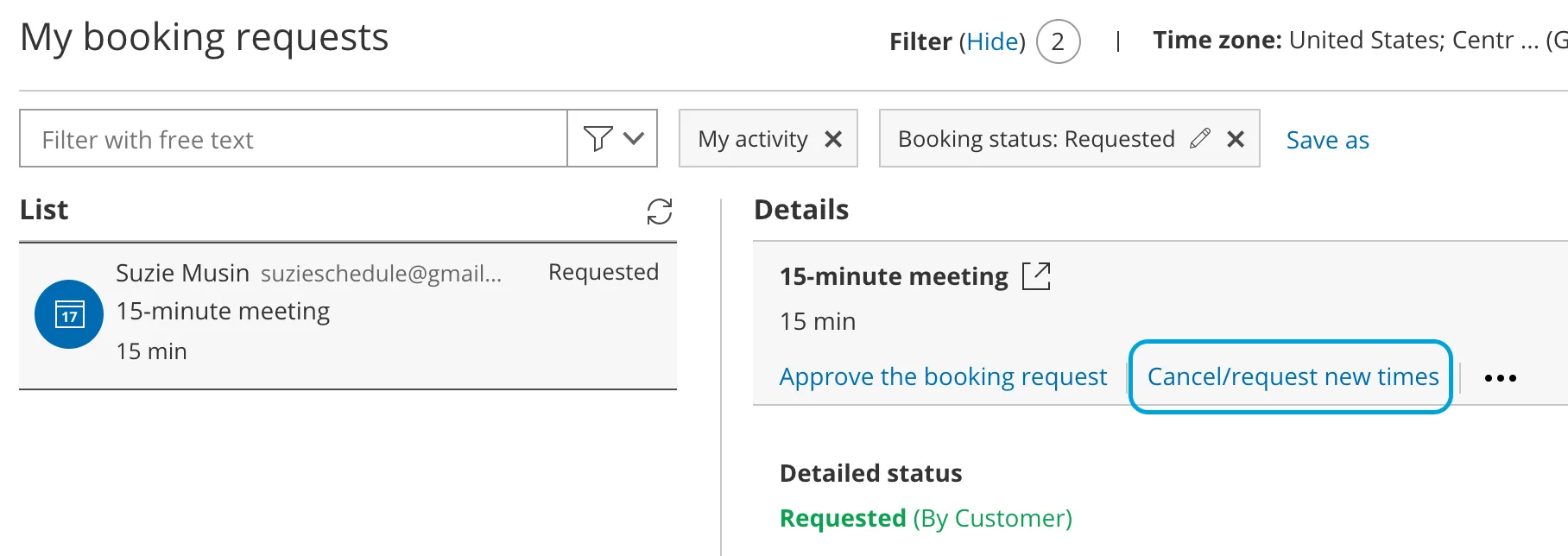
Figure 1: Cancel/request new times button
-
The Cancel/request new times pop-up will appear.
-
Select Cancel the booking request and request new times (Figure 2).
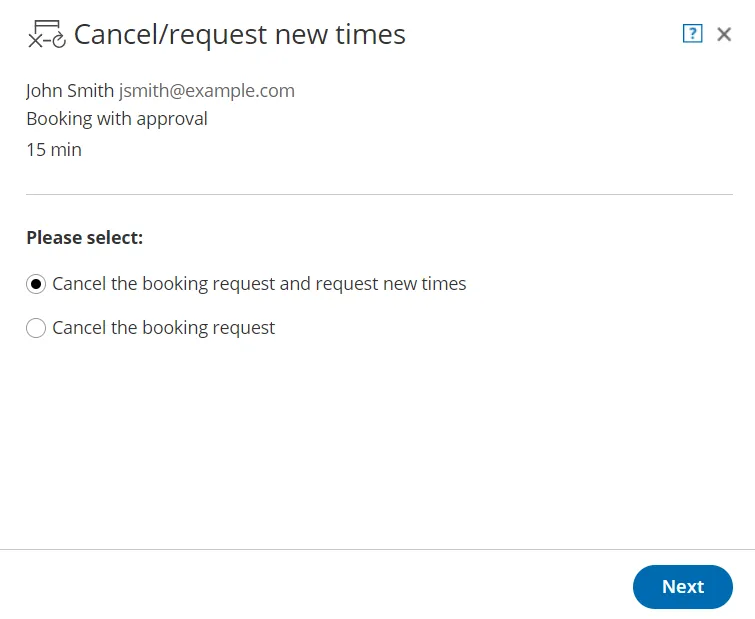
Figure 2: Cancel/request new times pop-up—selection step
-
Click Next.
-
In the Notification step, you can add a reschedule reason that will be provided to the Customer.
-
Click Next.
-
In the Review step, you can confirm the details of the booking request that you’re about to cancel and request new times for.
-
Click the Request new times button to cancel the booking request and request new times.
-
In the Confirmation step, you’ll see confirmation that your request for new times has been sent and that the former booking request has been canceled.
-
Both the User and the Customer will receive the Booking request resubmission requested by User email notification. Learn more about notification scenarios
Canceling a booking request
Section titled “Canceling a booking request”-
Select the activity in the Activity stream.
-
In the Details pane, click the Cancel/request new times button (Figure 3).
Figure 3: Cancel/request new times button
-
The Cancel/request new times pop-up will appear.
-
Select Cancel the booking request (Figure 4).
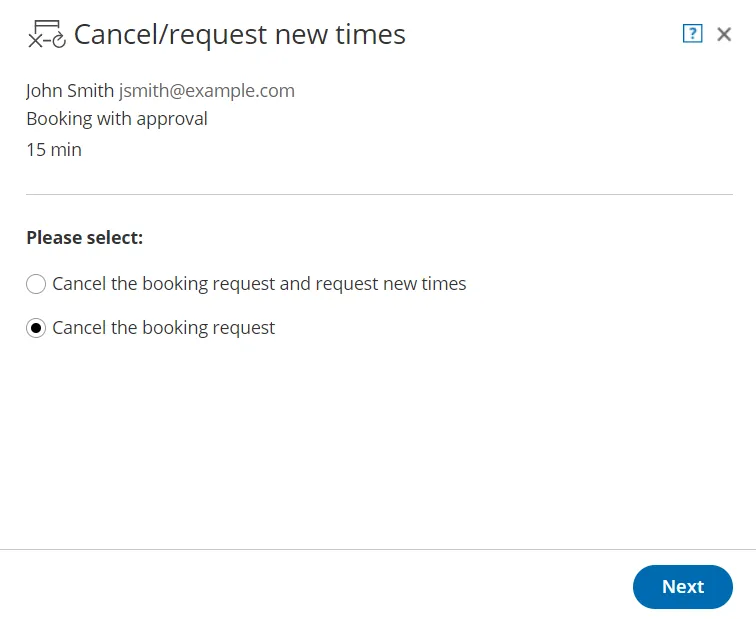 Figure 4: Cancel/request new times pop-up—selection step
 -
Click Next.
-
In the Notification step, you can add a reschedule reason that will be provided to the Customer.
-
Click Next.
-
In the Review step, you can confirm the details of the booking request that you’re about to cancel or request new times for.
-
Click Cancel the booking request to cancel the request.
-
In the Confirmation step, you’ll see confirmation that the activity has been canceled and all attendees have been notified.
-
Both the User and Customer will receive the Booking request canceled by User email notification. Learn more about notification scenarios