

Outlook connector FAQs
In this article, you’ll find answers to some of the most common questions related to your PC connector for Outlook
Frequently asked questions
Section titled “Frequently asked questions”How does OnceHub connect with Outlook Calendar?
Section titled “How does OnceHub connect with Outlook Calendar?”OnceHub uses a proprietary connector to establish a secure connection with your Outlook Calendar. Before you can use the OnceHub connector for Outlook, you must install the connector, configure the connector and perform a first sync and configure the Associated calendar settings for your Booking pages.
What are the system requirements for the connector?
Section titled “What are the system requirements for the connector?”The PC connector for Outlook is compatible with Microsoft Outlook 2007, 2010, 2013, and 2016 on a Windows PC using Windows Vista, Windows 7, Windows 8, or Windows 10. The connector is not compatible with Mac OS X. It is also not compatible with Windows XP, due to XP’s outdated security support.
Can I set up the connector with Exchange, Office 365, and Outlook.com?
Section titled “Can I set up the connector with Exchange, Office 365, and Outlook.com?”Yes, you can, so long as you have added that calendar to the Outlook client software on the desktop. The PC connector for Outlook is compatible with Outlook 2007, 2010, 2013, and 2016.
Which Outlook calendars can I sync with OnceHub?
Section titled “Which Outlook calendars can I sync with OnceHub?”You can sync any calendar available in your Outlook Calendar. These can be local calendars, Exchange calendars, resource calendars, or any other calendars that have been shared with you with full read/write permissions.
Can I use shared calendars?
Section titled “Can I use shared calendars?”When configuring the Outlook connector, you select the shared calendars that you want to sync with OnceHub. Calendars that do not have a checkbox next to them are those calendars to which you do not have full read/write permissions. These calendars cannot be synced with OnceHub.
If you do want to connect to one of these calendars, you can ask the calendar owner to grant you full read/write permissions to this calendar. After performing an initial sync, the Associated calendars section on your OnceHub Booking page(s) will list the shared calendars that you have selected for syncing.
Can I set default Outlook Calendar reminders when events are created via OnceHub?
Section titled “Can I set default Outlook Calendar reminders when events are created via OnceHub?”Yes, you can configure default Outlook Calendar reminders in the connected Outlook Calendar. To do so, in your OnceHub account, click on your profile pic or initials and select Calendar connection. On the Connected to Outlook Calendar page, simply select an option from the Default Outlook Calendar reminders drop-down list.
Does my Outlook or the connector need to be open on my Desktop in order for the connector to sync?
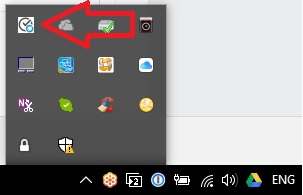
Section titled “Does my Outlook or the connector need to be open on my Desktop in order for the connector to sync?”No, you don’t need to have Outlook or the connector open for the connector to sync. However, you must have the OnceHub connector in the system tray icons for the sync to run automatically.
Can I cancel and reschedule in Outlook?
Section titled “Can I cancel and reschedule in Outlook?”Yes. The PC connector for Outlook can be set to allow you to cancel or reschedule directly in your connected calendar, while all bookings remain updated in OnceHub.
How secure is the connector?
Section titled “How secure is the connector?”All communication between the connector and the OnceHub servers are done over HTTPS. The security token used to establish the secure connection between the connector and OnceHub is tokenized to MD5 hash. Learn more about the connector’s security details
How do I disconnect from OnceHub from my Outlook Calendar?
Section titled “How do I disconnect from OnceHub from my Outlook Calendar?”To disconnect OnceHub from your Outlook Calendar, go to Setup -> Open left sidebar -> Integrations -> Calendar integration in your OnceHub account. Click the Disconnect my Outlook Calendar and connect to a different calendar link. Once you have done this, you can also uninstall the connector as you would uninstall any Windows program.
Can the connector work with a proxy server?
Section titled “Can the connector work with a proxy server?”Yes, it can. Learn more about using the connector with a proxy server