

Installing the PC connector for Outlook
OnceHub uses a proprietary connector to establish a secure connection with your Outlook Calendar. Once connected, all communication with your Outlook Calendar is encrypted, keeping your calendar data safe and secure.
In this article, you will learn how to generate OnceHub authentication credentials and how to install the PC connector for Outlook on your Windows PC (Mac is not supported).
Requirements:
Section titled “Requirements:”- A Windows PC
- Microsoft Outlook 2007 or newer
Downloading the connector:
Section titled “Downloading the connector:”-
Contact us to enable the PC connector as an option.
-
In OnceHub, select your profile picture or initials in the top right-hand corner → User Integrations.
-
Click Connect additional calendars in OnceHub.
-
Select the PC connector for Outlook option.
-
On the Connect your Outlook Calendar page, you can download the connector to your Windows PC.
After you download the PC connector for Outlook, you are in a pending connection state with your Outlook Calendar and you will not be able to accept bookings until you install the connector and perform the first sync. On the page, you will see your credentials and the step-by-step instructions to connect and configure the Outlook connector (see Figure 5). You will need these credentials to sign in to the connector.
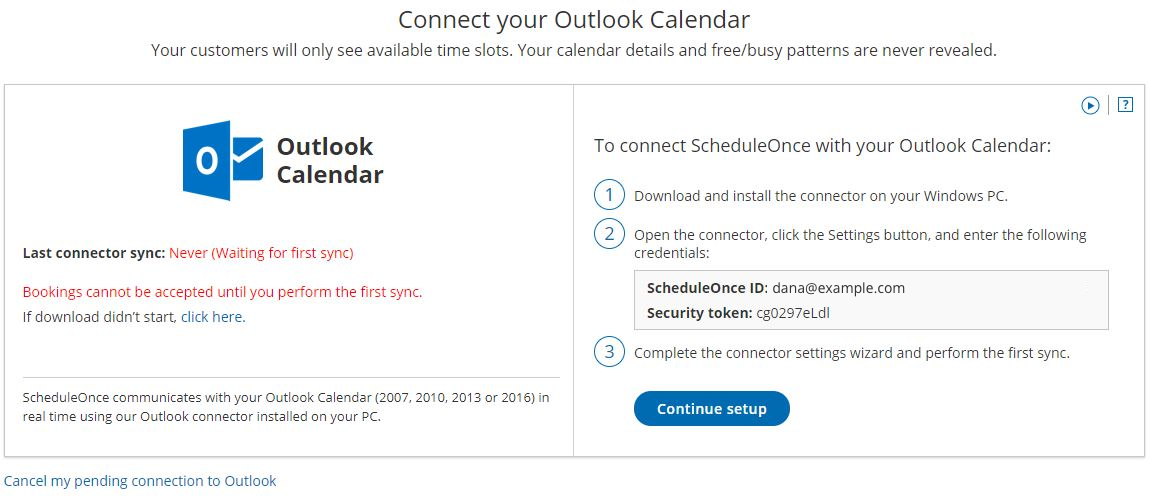 Figure 5: Outlook Calendar integration page - Setup
NoteThe connector is compatible with Outlook 2007, 2010, 2013, and 2016. The connector installation file size is about 16mb. The connector is not compatible with Macs.
In order to start syncing the connector, you will need to: