

User action: Cancel or reschedule when connected via the PC connector for Outlook
When you’re connected to an Outlook Calendar via the PC connector for Outlook, you can select whether changes made in your connected calendar are reflected in OnceHub.
In this article, you’ll learn how about cancelling and rescheduling in your Outlook calendar
Adjusting the Outlook Calendar action settings
Section titled “Adjusting the Outlook Calendar action settings”Log into OnceHub and go to Setup -> OnceHub setup -> Lefthand sidebar -> Integrations -> Calendar integration.
Under the Outlook Calendar actions heading, you’ll see two checkboxes (Figure 1). These control how the Outlook Calendar two-way sync will function. By default, both are unchecked.
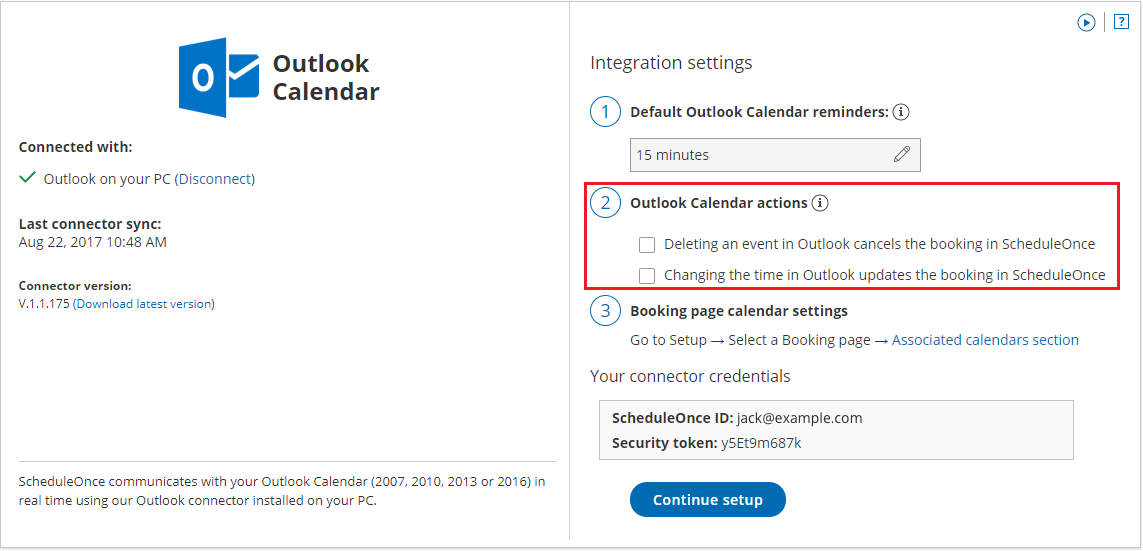 Figure 1: Outlook Calendar integration settings
Cancelling an event in your connected Outlook Calendar
Section titled “Cancelling an event in your connected Outlook Calendar”If you delete a calendar event created by a OnceHub booking while the Deleting an event in Outlook cancels the booking in OnceHub box is checked, the booking will automatically be canceled in OnceHub.
When you delete an event in your calendar, the following actions are performed as if you (the User) canceled the booking in OnceHub:
- Your Customer receives a cancellation notification.
- The event is deleted from your calendar, and the time is set to Free.
- If you’re using any other integrations (like CRM, video conferencing or Zapier), they are updated with the cancellation.
- If you are using Payment integration, no refund is issued. If your Customer is entitled to a refund, you can refund them manually via OnceHub or via PayPal.
If you delete a calendar event created by a OnceHub booking while this box is unchecked, the booking remains unchanged in OnceHub, no email notifications are sent and integrations are not updated.
Rescheduling an event in your connected Outlook Calendar
Section titled “Rescheduling an event in your connected Outlook Calendar”The Changing the time in Outlook updates the booking in OnceHub option determines how OnceHub is updated with the new time of the event. When you move a booking in your connected calendar, you’re actually rescheduling on behalf of your Customer. Therefore, the time change must be coordinated with your Customer. No email notifications are sent to you or your Customer.
When you move an event in your calendar while this box is checked, the following actions are performed:
- The OnceHub booking time is updated immediately.
- All reminders are sent on schedule.
- All integrations (CRM, video conferencing, Zapier, and payment) are updated as well.
- The status of future events is changed to Rescheduled.
If you move a calendar event created by a OnceHub booking while this box is unchecked, the OnceHub booking time is only updated when the next reminder is due, subsequent reminders are sent on schedule and integrations are not updated.
The Customer calendar event
Section titled “The Customer calendar event”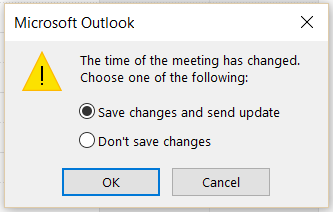 Figure 2: Send update to Customer Whether or not your Customer’s calendar will be updated is based on your choice in Outlook’s event update dialog box. Make sure to select Save changes and send update or Send cancellation, so that your Customer’s calendar is updated. Learn more about the Customer’s calendar event