
Adding Routing Forms to Your Wix Website
Adding a routing form to your Wix website is quick and easy.
Add a routing form to your website
Section titled “Add a routing form to your website”Create the routing form
Section titled “Create the routing form”- Go to Routing forms on the left.
- Click on the Create routing form button OR duplicate another form by clicking the three dots menu for that form and selecting Duplicate.
Create the form as you prefer, either duplicated from another, from scratch, or using a template.
When you’ve added the interactions you want, routed them, and designed the form as you like, navigate to the Embed on website tab.
Install the code
Section titled “Install the code”In OnceHub
Section titled “In OnceHub”You’ll grab the code you need for Wix.
- On the Publish tab, select Get the embed code.
- Copy the code.
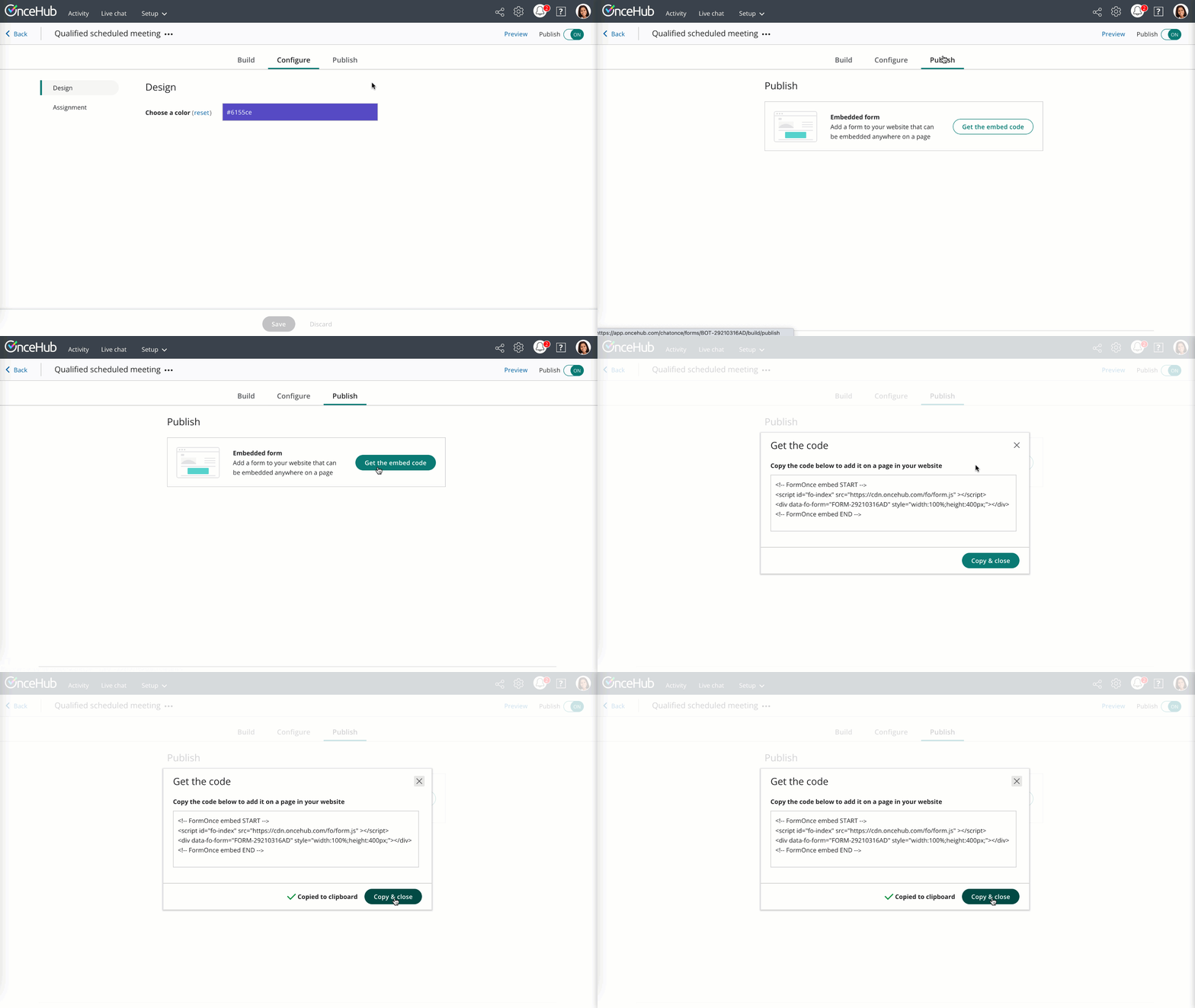 Figure 1: Copy the embed code
In Wix
Section titled “In Wix”You’ll embed a widget on your website, on each individual page where you want a form. This creates an iframe on the page, where your form will appear.
-
Edit your website.
-
Click + to add the widget.
-
Go to Embed → Embed a widget.
-
<style type="text/css">p.p1 {margin: 0.0px 0.0px 0.0px 0.0px; font: 13.0px 'Helvetica Neue'}</style>
Make sure the size of the widget is the right size on your page to hold the embedded form in it, as you want it displayed. This must be a large enough size to display any form interactions included on your form, including the schedule action if you intend to use it.
-
Paste the code from OnceHub and adjust as needed.
-
Save your website.
That’s it! Your website can now display your routing form in the place you added it.