
How Payment Transaction Details are Sent to Your Guests [New]
When a paid meeting is scheduled, guests can receive the payment transaction details in two ways:
- Via an invoice sent by Stripe.
- Via transaction details added to the guest notification.
Invoice Sent by Stripe
Section titled “Invoice Sent by Stripe”When a paid meeting is scheduled, an invoice is automatically emailed to your guests through Stripe.
Adding the Transaction Details to Guest Notifications
Section titled “Adding the Transaction Details to Guest Notifications”To ensure that guests receive a complete record of the meeting and the transaction in one place, we recommend adding the transaction details to the guest notifications sent by OnceHub using the following steps:
Navigating to the Guest Notification Template
Section titled “Navigating to the Guest Notification Template”- Click the gear icon in the top-right corner.
- Select Guest Notifications from the dropdown.
- Select the template that you are using on your Booking Calendar.
Adding the Transaction Details to the Guest Notification Template
Section titled “Adding the Transaction Details to the Guest Notification Template”-
Click Customize email to expand the email editor.
-
Left click where you want to add the transaction details.
-
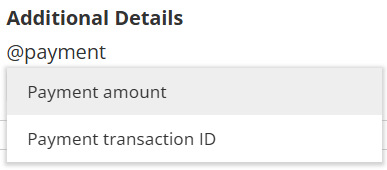
Type @ to bring up the list of variables you can add.
-
Add the Payment amount and Payment transaction ID variables as shown in the image below.
-
Click Save to confirm the changes.
For more detailed guide on guest notifications, please read Booking Calendar Guest Notifications.