
Outlook Calendar: Events not showing in the expected time zone [Classic]
If busy times appear in wrong hours on OnceHub or in your Outlook Calendar, there may be a time zone difference between your Outlook’s time zone and the time zone on your Booking page. To change the time zone:
-
Go to the relevant Booking page. In the Overview section, select the new time zone and save.
-
In your Outlook client: To change the time zone in Outlook, click on File -> Options -> Calendar settings. In the time zone area, select the new time zone and save. Note: The time zone of Outlook client is the same as your PC. Reload/refresh the OnceHub page to reflect the change.
-
In your web Outlook via the browser (Figure 2):
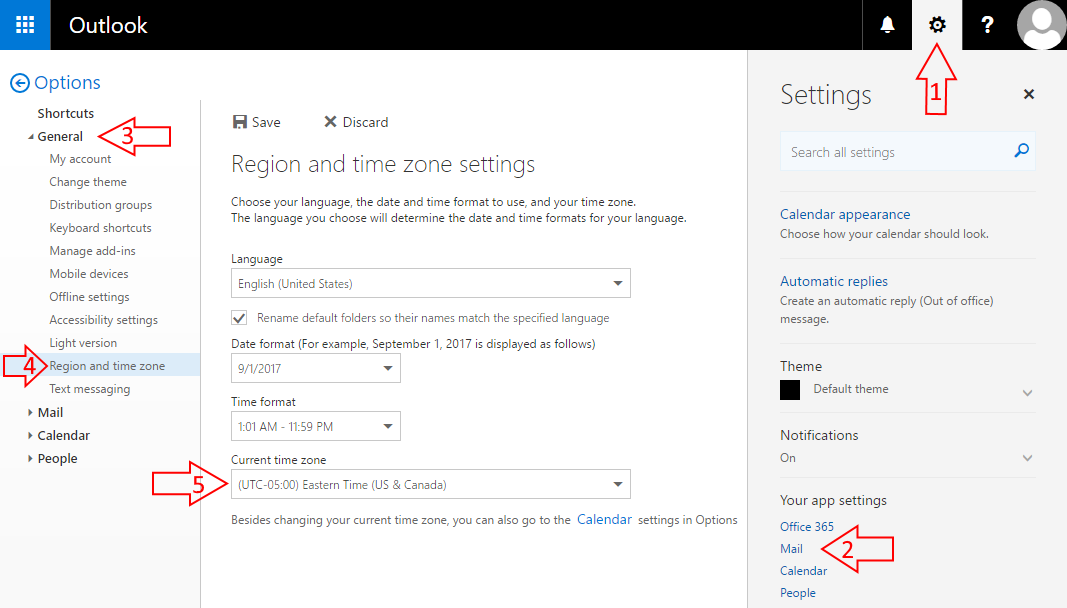 Figure 2: Outlook calendar region and time zone section
- Click settings icon.
- Click Mail.
- Click General.
- Click Region and time zone.
- Set your time zone.