
Microsoft 365 Calendar via OAuth 2.0 connection issues [Classic]
This article describes potential issues with your Office 365 Calendar via OAuth 2.0 connection and how these issues can be fixed. If you’re still having problems, please contact us and we will be happy to assist you.
<script id="snippet-prepend">$(function(){
/*disable in widget*/ if($('.w-documentation-article').length === 0){
var ToC = "<nav role='navigation' class='table-of-contents toc-top'><h4>In this article:" + "<ul>"; var el, title, link, header; //Define the heading levels you want to use in ascending order. Can add extra or remove unneeded. $(".hg-article-body h1, .hg-article-body h2, .hg-article-body h3, .hg-article-body h4").each(function() { el = $(this); title = el.text(); if(title != ''){ anchorTitle = el.text().replace(/([~!@#$%^&*()_+=`{}\[\]\|\\:;'<>,.\/\? ])+/g, '-').toLowerCase(); link = "#" + anchorTitle; //Set all headers to a 0-nesting level. header = 'header-nesting-0'; //Adjust header-nesting layers so that they point to the correct html tag. header-nesting-1 should match the second .hg-article-body h# listed above; header-nesting-2 should match the third, etc. if($(this).is('h2')){ header = 'header-nesting-1'; }else if($(this).is('h3')){ header = 'header-nesting-2' } el.html('<a id="'+anchorTitle+'" class="toc-anchor">' + el.html()); newLine = "<li class='"+header+"'>" + "<a class='article-anchor' href='" + link + "'>" + title + "" + "";
ToC += newLine; } }); ToC += "" + ""; $("#snippet-prepend").before(ToC); }});
</script><style>/* CSS to style the TOC as it displays and the auto-created anchors.toc-top styles the box for the TOC; adjust styles here to tweak look and feel */
.toc-top { background-color: #FAFAFA; /* set to #fff or delete entirely for no background */ border: 1px solid #C8C8C8; /* adjust the color hex here to change border color */ box-shadow: 0 1px 1px rgba(0, 0, 0, 0.05) inset; margin-top: 24px; margin-bottom: 36px; min-height: 20px; padding: 13px 20px; max-width: 75%;}.toc-top h4 { font-size: 18px; line-height: 26px; margin: 0 0 8px; font-weight: 400;}.toc-top ul { padding: 0 0 0 15px !important; margin-bottom: 0;}.toc-top > ul { margin-bottom: 13px!important;}.toc-anchor { display: block; height: 90px; margin-top: -90px; visibility: hidden;}
/* Set the indentation for the nesting levels. May need to be edited to match changes above. Increase or decrease the margin-left to get your desired level of indentation. */.header-nesting-1 { margin-left: 14px;}.header-nesting-1:before { background-image: url(https://dyzz9obi78pm5.cloudfront.net/app/image/id/5d31bcc88e121c9b25ba22c4/n/bulletv2.svg)!important;}.header-nesting-2 { margin-left: 28px;}.header-nesting-2:before { background-image: url(https://dyzz9obi78pm5.cloudfront.net/app/image/id/5d31be536e121cf22b0cc6ae/n/bulletv3.svg)!important;}</style>I cannot connect. What should I do?
Section titled “I cannot connect. What should I do?”This may be due to temporary communication problems with the Office 365 API. Please try the following:
- Make sure cookies are enabled on your browser.
- Verify that you can log in to your Office 365 account.
- Try to connect again from your OnceHub account.
If you are still seeing issues, please contact us and we’d be glad to assist. Please also check with your Office 365 admin to ensure that your Office 365 user has access to the Office 365 API.
Connection errors after a successful connection
Section titled “Connection errors after a successful connection”Once a successful connection was established, it may fail due to reasons described below.
ImportantDuring a connection failure, OnceHub Booking pages cannot accept bookings. This measure is taken to prevent the possibility of double bookings.
To re-enable bookings and meetings, you must either restore the connection by reconnecting, or disconnect your calendar by clicking the Disconnect link and then reconnect again.
Possible connection failure reasons include:
- Change of Office 365 or network configuration: Your administrator may have changed the Office 365 settings, firewall settings, or access permissions. Contact your IT support to find out about such changes.
- Temporary disconnection: Sometimes a connection may be temporarily lost, for example during network maintenance. Once the issue is resolved, the connection is restored automatically.
Configuration issues in OnceHub
Section titled “Configuration issues in OnceHub”Busy time in Office 365 Calendar is not blocking my availability in OnceHub
Section titled “Busy time in Office 365 Calendar is not blocking my availability in OnceHub”If busy time is not blocking your availability, you can check the following settings:
-
On the relevant Booking page -> Associated calendars: Make sure that you’re retrieving busy time from this calendar. Learn more about the Associated calendars section
-
On the relevant Booking page -> Scheduling options -> One-on-one or Group sessions: Make sure you haven’t set the option to Group sessions with multiple or unlimited bookings per slot.
NoteIf you’re using Event types, the Scheduling options section is located on the Event type. In this case, you will need to review the One-on-one or Group sessions setting in all Event types.
-
If you are working in Booking with approval mode, make sure that you did not approve two separate bookings in the same time slot.
-
In your connected calendar, open the event that is not blocking your availability and check that the status of the event is not set to “Free”. Only events with a status of “Busy” block your availability.
New bookings are not added to my Office 365 Calendar
Section titled “New bookings are not added to my Office 365 Calendar”- Hover over the lefthand menu and go to the Booking pages icon → Booking pages → your Booking page → Associated calendars.
- Make sure your calendar is marked as the Main booking calendar or an Additional booking calendar.
Learn more about the Associated calendars section
I cannot see my scheduled meeting in my Office 365 Calendar
Section titled “I cannot see my scheduled meeting in my Office 365 Calendar”In your Office 365 Calendar, make sure that you’ve selected the calendar that your meeting was scheduled in. Find it in the calendar list in the left bar and click it to select it.
In OnceHub, you can also select the activity in the Activity stream, then click the action menu (three dots) in the right-hand pane and select View Calendar event (Figure 1).
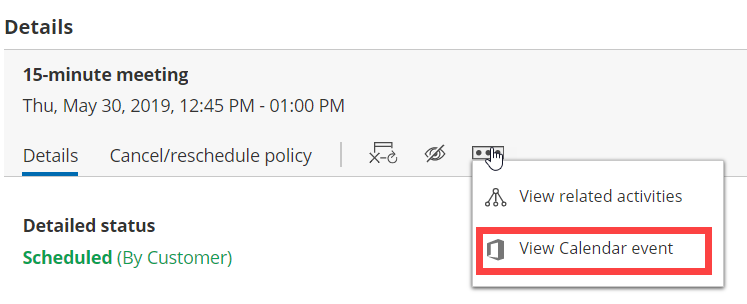 Figure 1: View Calendar event