
Domain Email Connection Issues [Classic]
This article is relevant to Users who have difficulty connecting to their domain mailbox and in cases where the feature has suddenly stopped working.
<script id="snippet-prepend">$(function(){
/*disable in widget*/ if($('.w-documentation-article').length === 0){
var ToC = "<nav role='navigation' class='table-of-contents toc-top'><h4>In this article:" + "<ul>"; var el, title, link, header; //Define the heading levels you want to use in ascending order. Can add extra or remove unneeded. $(".hg-article-body h1, .hg-article-body h2, .hg-article-body h3, .hg-article-body h4").each(function() { el = $(this); title = el.text(); if(title != ''){ anchorTitle = el.text().replace(/([~!@#$%^&*()_+=`{}\[\]\|\\:;'<>,.\/\? ])+/g, '-').toLowerCase(); link = "#" + anchorTitle; //Set all headers to a 0-nesting level. header = 'header-nesting-0'; //Adjust header-nesting layers so that they point to the correct html tag. header-nesting-1 should match the second .hg-article-body h# listed above; header-nesting-2 should match the third, etc. if($(this).is('h2')){ header = 'header-nesting-1'; }else if($(this).is('h3')){ header = 'header-nesting-2' } el.html('<a id="'+anchorTitle+'" class="toc-anchor">' + el.html()); newLine = "<li class='"+header+"'>" + "<a class='article-anchor' href='" + link + "'>" + title + "" + "";
ToC += newLine; } }); ToC += "" + ""; $("#snippet-prepend").before(ToC); }});
</script><style>/* CSS to style the TOC as it displays and the auto-created anchors.toc-top styles the box for the TOC; adjust styles here to tweak look and feel */
.toc-top { background-color: #FAFAFA; /* set to #fff or delete entirely for no background */ border: 1px solid #C8C8C8; /* adjust the color hex here to change border color */ box-shadow: 0 1px 1px rgba(0, 0, 0, 0.05) inset; margin-top: 24px; margin-bottom: 36px; min-height: 20px; padding: 13px 20px; max-width: 75%;}.toc-top h4 { font-size: 18px; line-height: 26px; margin: 0 0 8px; font-weight: 400;}.toc-top ul { padding: 0 0 0 15px !important; margin-bottom: 0;}.toc-top > ul { margin-bottom: 13px!important;}.toc-anchor { display: block; height: 90px; margin-top: -90px; visibility: hidden;}
/* Set the indentation for the nesting levels. May need to be edited to match changes above. Increase or decrease the margin-left to get your desired level of indentation. */.header-nesting-1 { margin-left: 14px;}.header-nesting-1:before { background-image: url(https://dyzz9obi78pm5.cloudfront.net/app/image/id/5d31bcc88e121c9b25ba22c4/n/bulletv2.svg)!important;}.header-nesting-2 { margin-left: 28px;}.header-nesting-2:before { background-image: url(https://dyzz9obi78pm5.cloudfront.net/app/image/id/5d31be536e121cf22b0cc6ae/n/bulletv3.svg)!important;}</style>Setup troubleshooting
Section titled “Setup troubleshooting”If one of your email details was entered incorrectly you will receive the following message: “Unable to connect to your mail server. Please check your details and try again.”
Be sure that the following fields are entered correctly, then try connecting again.
- Email address
- Password
- SMTP server
- Email port
Internally hosted email servers
Section titled “Internally hosted email servers”If your mail server is hosted in-house behind a firewall, you will need to update your firewall settings to allow OnceHub to access your mail server. Please contact us for more information on how to update your firewall settings.
Incorrect password
Section titled “Incorrect password”When you use G Suite 2-step verification, you’ll need to generate an app-specific password in the Google Account and use it as your password in the Corporate Email page.
Learn more about G Suite passwords
If you don’t use G Suite 2-step verification, but you’re still experiencing password issues, you’ll need to enable basic authentication for your Google Account.
Learn more about enabling basic authentication for your Google account
Delivery troubleshooting
Section titled “Delivery troubleshooting”Emails have never been received
Section titled “Emails have never been received”<style type="text/css">p.p1 {margin: 0.0px 0.0px 0.0px 0.0px; font: 13.0px 'Helvetica Neue'}</style>Hover over the lefthand menu and go to the Booking pages icon → Booking pages → your Booking page. Check the User notifications and Customer notifications sections to ensure that the email checkboxes are selected for the notifications you wish to receive (Figure 2). If you’re using Event types, the Customer notifications will be in each Event type.
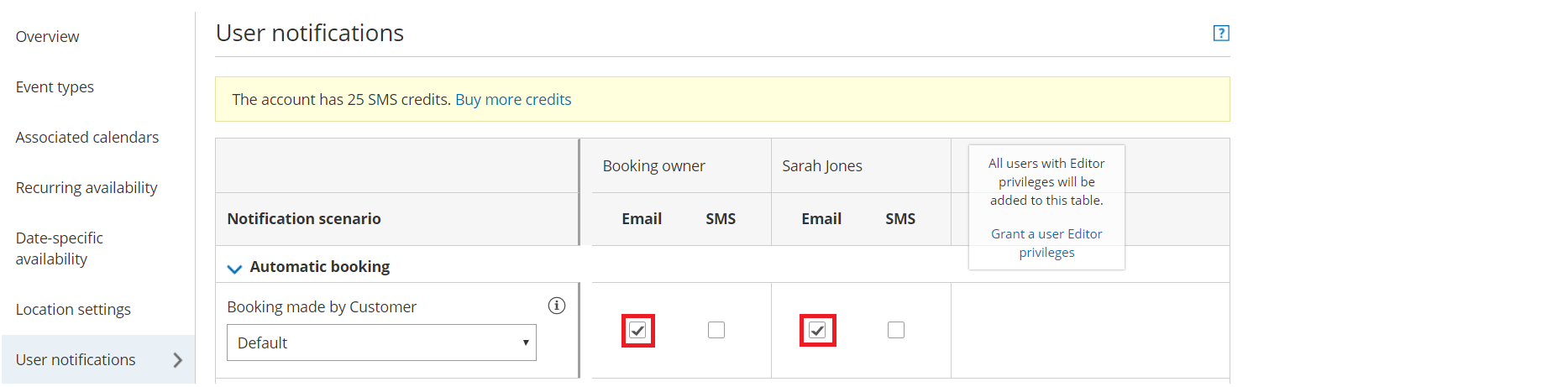 Figure 2: User notifications section
The emails could also be going to the SPAM folders of the receivers. You can verify this by sending yourself a test email and then checking your SPAM folder to see if the email is there. To send a test email, click the gear icon in the top right -> Security (and Compliance) -> Corporate Email -> enter your email address in Test your email -> click on Send.
Another issue could be that your email or domain has been blacklisted by the receiver’s email service provider. Email service providers sometimes blacklist emails that they consider to be problematic. To avoid this, don’t use your email account for activities that might be considered spamming.
Emails are no longer being received from your connected domain and are received from OnceHub Mailer
Section titled “Emails are no longer being received from your connected domain and are received from OnceHub Mailer”If you stopped receiving emails from your connected email domain and you’re receiving emails from the OnceHub Mailer instead, some settings on your email domain may have changed.
NoteConnection errors may be encountered when emails are sent from your domain. In such cases, an automatic fallback sends emails from the OnceHub mailer until the connection is restored. This ensures that Users and Customers will continue to receive booking-related notifications.
- If you’ve changed your email password, you’ll need to disconnect and reconnect your Corporate Email.
- If you’ve recently set up G Suite 2-step verification, you should generate an App password via Google and enter this in the password field under the Corporate Email settings. Learn more about G Suite passwords
- You might be over the daily sending quota for your connected mailbox that is allowed by your email service provider. Check with your email service provider.
- The emails could be going into SPAM. This can be verified by sending a test email and checking the SPAM folder to see if the email is there. To send a test email, go to the Corporate Email page.
- Your email or domain may have been blacklisted by the receiver’s email service provider. Email service providers sometimes blacklist emails that they consider to be problematic. To avoid this, don’t use your email account for activities that might be considered spamming.