
Introduction to Personalizing links with static parameters [Classic]
After setting up your Booking pages or Master pages, you’ll need to share them with your prospects and Customers. In this section, you will learn how to Personalize links with static parameters.
<script id="snippet-prepend">$(function(){
/*disable in widget*/ if($('.w-documentation-article').length === 0){
var ToC = "<nav role='navigation' class='table-of-contents toc-top'><h4>In this article:" + "<ul>"; var el, title, link, header; //Define the heading levels you want to use in ascending order. Can add extra or remove unneeded. $(".hg-article-body h1, .hg-article-body h2, .hg-article-body h3, .hg-article-body h4").each(function() { el = $(this); title = el.text(); if(title != ''){ anchorTitle = el.text().replace(/([~!@#$%^&*()_+=`{}\[\]\|\\:;'<>,.\/\? ])+/g, '-').toLowerCase(); link = "#" + anchorTitle; //Set all headers to a 0-nesting level. header = 'header-nesting-0'; //Adjust header-nesting layers so that they point to the correct html tag. header-nesting-1 should match the second .hg-article-body h# listed above; header-nesting-2 should match the third, etc. if($(this).is('h2')){ header = 'header-nesting-1'; }else if($(this).is('h3')){ header = 'header-nesting-2' } el.html('<a id="'+anchorTitle+'" class="toc-anchor">' + el.html()); newLine = "<li class='"+header+"'>" + "<a class='article-anchor' href='" + link + "'>" + title + "" + "";
ToC += newLine; } }); ToC += "" + ""; $("#snippet-prepend").before(ToC); }});
</script><style>/* CSS to style the TOC as it displays and the auto-created anchors.toc-top styles the box for the TOC; adjust styles here to tweak look and feel */
.toc-top { background-color: #FAFAFA; /* set to #fff or delete entirely for no background */ border: 1px solid #C8C8C8; /* adjust the color hex here to change border color */ box-shadow: 0 1px 1px rgba(0, 0, 0, 0.05) inset; margin-top: 24px; margin-bottom: 36px; min-height: 20px; padding: 13px 20px; max-width: 75%;}.toc-top h4 { font-size: 18px; line-height: 26px; margin: 0 0 8px; font-weight: 400;}.toc-top ul { padding: 0 0 0 15px !important; margin-bottom: 0;}.toc-top > ul { margin-bottom: 13px!important;}.toc-anchor { display: block; height: 90px; margin-top: -90px; visibility: hidden;}
/* Set the indentation for the nesting levels. May need to be edited to match changes above. Increase or decrease the margin-left to get your desired level of indentation. */.header-nesting-1 { margin-left: 14px;}.header-nesting-1:before { background-image: url(https://dyzz9obi78pm5.cloudfront.net/app/image/id/5d31bcc88e121c9b25ba22c4/n/bulletv2.svg)!important;}.header-nesting-2 { margin-left: 28px;}.header-nesting-2:before { background-image: url(https://dyzz9obi78pm5.cloudfront.net/app/image/id/5d31be536e121cf22b0cc6ae/n/bulletv3.svg)!important;}</style>Options for sharing your booking links in email and other apps
Section titled “Options for sharing your booking links in email and other apps”Booking pages can be shared using a General link, a Personalized link (URL parameters), a Personalized link (Salesforce ID), or a Personalized link (Infusionsoft ID).
To access the links available to you, go the Share icon in the top navigation bar and select Share a booking link. From there, you can select the relevant Booking page or Master page.
Learn more about sharing your booking links in email and other apps
Using Personalized links
Section titled “Using Personalized links”Each Booking page and Master page has its own unique Public link that can be shared with your prospects and Customers. The links that you share can be personalized to improve the experience for prospects and Customers.
You can personalize booking links in several ways:
- Using static variables
- Using specific Customers details
- Using dynamic variables
- Using dynamic URL parameters
- Using CRM record IDs
- Pre-populating information from a booking form
Learn more about using Personalized links
OnceHub URL parameters and processing rules
Section titled “OnceHub URL parameters and processing rules”You can share your Booking page or Master page using Personalized links (URL parameters), or publish them on your website using Web form integration. If required, you can replace the OnceHub placeholder parameters with your own parameters.
Learn more about OnceHub URL parameters and processing rules
Creating a Personalized link for a specific Customer
Section titled “Creating a Personalized link for a specific Customer”You can create a static Personalized link using a Customer’s personal details. The easiest way to do this is by selecting the Share icon in your top navigation bar:
- Click on Booking Pages in the left-hand menu.
- Click on Share near the top-right.
- Select the Booking page or Master page you want to share from the dropdown menu.
- Toggle the Personalize link option to ON.
- Enter the customer’s name and email address.
- Click on Copy & close to save it to you clipboard.
You can also navigate to the Overview section of the selected page, and click Personalize for a specific Customer (Figure 1).
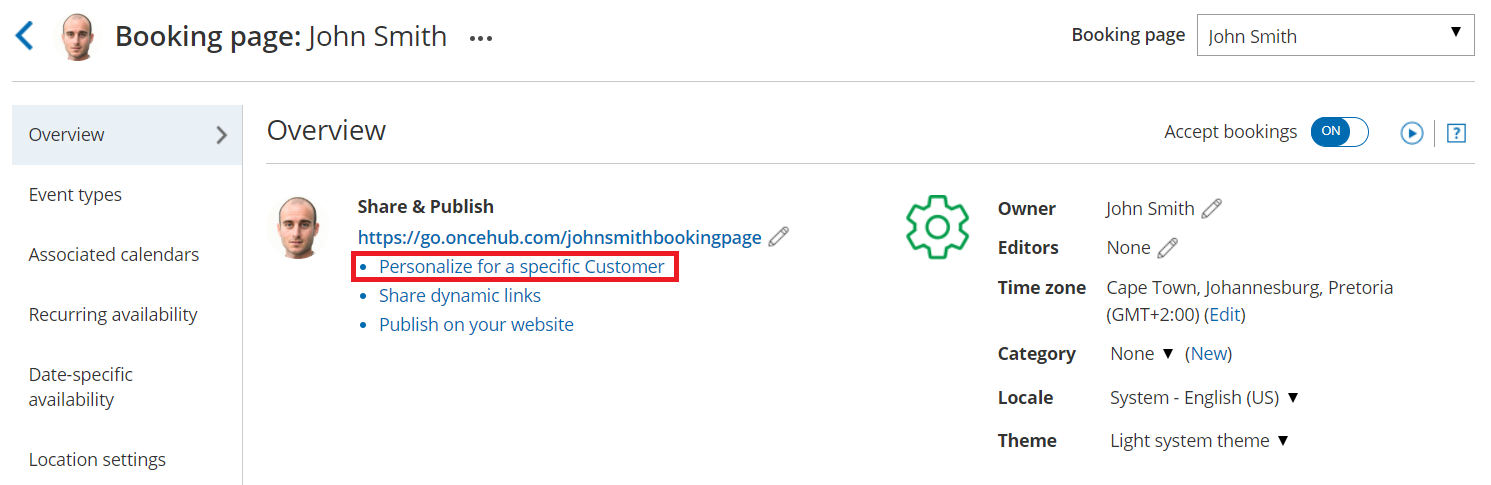
Figure 1: Booking page Overview section
Learn more about Creating a Personalized link for a specific Customer