
Configuring connector settings on a Booking page [Classic]
The Salesforce connector settings section of a Booking page enables you to map the Salesforce Record Types, configure the Salesforce Activity Event creation, and configure the integration when bookings are created using General links for your Booking page.
In this article, you’ll learn how to configure your personal Salesforce connector settings for your Booking page.
<script id="snippet-prepend">$(function(){
/*disable in widget*/ if($('.w-documentation-article').length === 0){
var ToC = "<nav role='navigation' class='table-of-contents toc-top'><h4>In this article:" + "<ul>"; var el, title, link, header; //Define the heading levels you want to use in ascending order. Can add extra or remove unneeded. $(".hg-article-body h1, .hg-article-body h2, .hg-article-body h3, .hg-article-body h4").each(function() { el = $(this); title = el.text(); if(title != ''){ anchorTitle = el.text().replace(/([~!@#$%^&*()_+=`{}\[\]\|\\:;'<>,.\/\? ])+/g, '-').toLowerCase(); link = "#" + anchorTitle; //Set all headers to a 0-nesting level. header = 'header-nesting-0'; //Adjust header-nesting layers so that they point to the correct html tag. header-nesting-1 should match the second .hg-article-body h# listed above; header-nesting-2 should match the third, etc. if($(this).is('h2')){ header = 'header-nesting-1'; }else if($(this).is('h3')){ header = 'header-nesting-2' } el.html('<a id="'+anchorTitle+'" class="toc-anchor">' + el.html()); newLine = "<li class='"+header+"'>" + "<a class='article-anchor' href='" + link + "'>" + title + "" + "";
ToC += newLine; } }); ToC += "" + ""; $("#snippet-prepend").before(ToC); }});
</script><style>/* CSS to style the TOC as it displays and the auto-created anchors.toc-top styles the box for the TOC; adjust styles here to tweak look and feel */
.toc-top { background-color: #FAFAFA; /* set to #fff or delete entirely for no background */ border: 1px solid #C8C8C8; /* adjust the color hex here to change border color */ box-shadow: 0 1px 1px rgba(0, 0, 0, 0.05) inset; margin-top: 24px; margin-bottom: 36px; min-height: 20px; padding: 13px 20px; max-width: 75%;}.toc-top h4 { font-size: 18px; line-height: 26px; margin: 0 0 8px; font-weight: 400;}.toc-top ul { padding: 0 0 0 15px !important; margin-bottom: 0;}.toc-top > ul { margin-bottom: 13px!important;}.toc-anchor { display: block; height: 90px; margin-top: -90px; visibility: hidden;}
/* Set the indentation for the nesting levels. May need to be edited to match changes above. Increase or decrease the margin-left to get your desired level of indentation. */.header-nesting-1 { margin-left: 14px;}.header-nesting-1:before { background-image: url(https://dyzz9obi78pm5.cloudfront.net/app/image/id/5d31bcc88e121c9b25ba22c4/n/bulletv2.svg)!important;}.header-nesting-2 { margin-left: 28px;}.header-nesting-2:before { background-image: url(https://dyzz9obi78pm5.cloudfront.net/app/image/id/5d31be536e121cf22b0cc6ae/n/bulletv3.svg)!important;}</style>Requirements
Section titled “Requirements”To configure the Salesforce connector settings, you must:
Configuring the Salesforce connector settings
Section titled “Configuring the Salesforce connector settings”-
<style type="text/css">p.p1 {margin: 0.0px 0.0px 0.0px 0.0px; font: 13.0px 'Helvetica Neue'}</style>
Hover over the lefthand menu and go to the Booking pages icon → Booking pages → your Booking page → Salesforce settings (Figure 1).
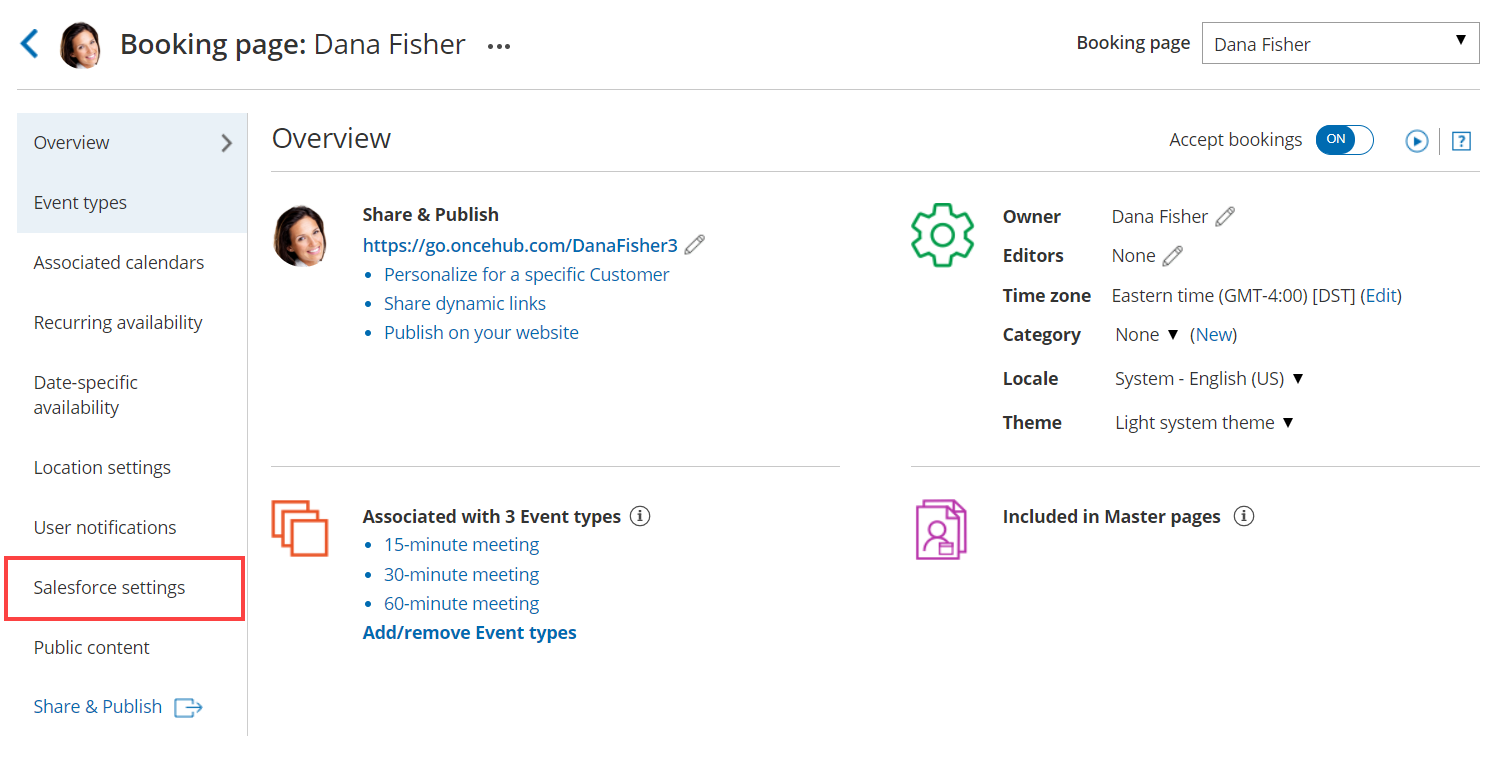 Figure 1: Salesforce settings on a Booking page
 -
On the Salesforce settings page (Figure 2), you can map the Record Types for the supported objects, set up the Salesforce Activity Event option, and choose the type of record to be created when using General links.
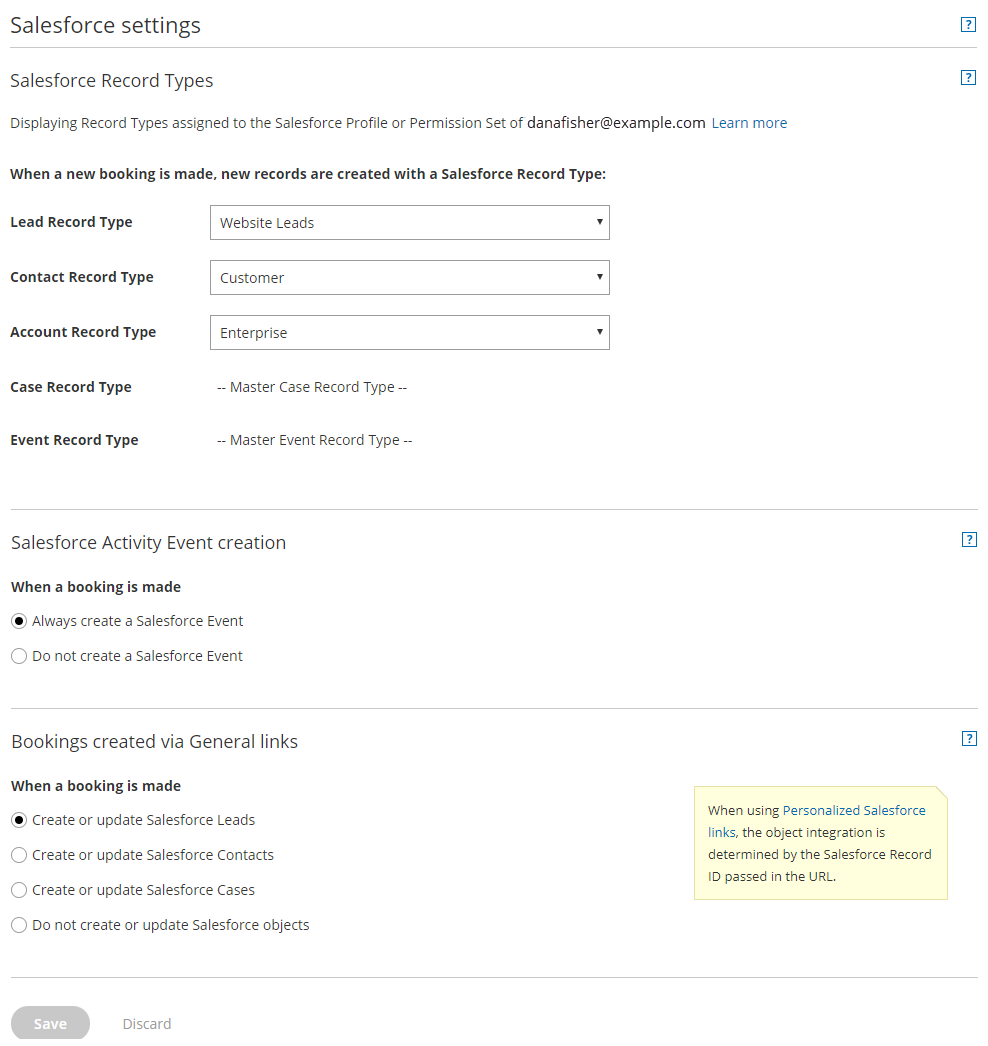 Figure 2: Salesforce settings
 -
In the Salesforce Record Types section, select the Record Type that should be assigned to the Lead, Account, Contact, Event, and Case objects. This section displays the Salesforce Record Types that are assigned to your Salesforce profile or Permission Set.
When a booking is made, new records are created with an associated Record Type in your Salesforce organization.
Learn more about working with Record Types -
In the Salesforce Activity Event creation section, select if you want a Salesforce Activity Event to be created when a booking is made.
Note If you’re using a third-party solution that syncs between your calendar and Salesforce, you should select the option Do not create a Salesforce Event. Learn more about Salesforce Activity Events
-
In the Bookings created via General links section, choose the object integration option you want for your General links. You can decide to integrate your Booking page with the Lead, Contact, or Case object, or you can decide not to integrate the Booking page with Salesforce.
When you use Personalized links (Salesforce ID), the object integration is determined by the Salesforce Record ID passed in the URL.NoteWhen you work with Salesforce Person Accounts, you will need to configure your Booking page to work with Contacts. When a booking is made, the Salesforce Person Account is automatically updated and a Salesforce Activity Event is added.