
Assigning the OnceHub permission set to the Salesforce API user [Classic]
The Salesforce setup process includes 5 phases: API connection, Installation, Field validation, Field mapping, and Creation rules.
In this article, you’ll learn how to assign the OnceHub Permission Set to the API User in Salesforce.
<script id="snippet-prepend">$(function(){
/*disable in widget*/ if($('.w-documentation-article').length === 0){
var ToC = "<nav role='navigation' class='table-of-contents toc-top'><h4>In this article:" + "<ul>"; var el, title, link, header; //Define the heading levels you want to use in ascending order. Can add extra or remove unneeded. $(".hg-article-body h1, .hg-article-body h2, .hg-article-body h3, .hg-article-body h4").each(function() { el = $(this); title = el.text(); if(title != ''){ anchorTitle = el.text().replace(/([~!@#$%^&*()_+=`{}\[\]\|\\:;'<>,.\/\? ])+/g, '-').toLowerCase(); link = "#" + anchorTitle; //Set all headers to a 0-nesting level. header = 'header-nesting-0'; //Adjust header-nesting layers so that they point to the correct html tag. header-nesting-1 should match the second .hg-article-body h# listed above; header-nesting-2 should match the third, etc. if($(this).is('h2')){ header = 'header-nesting-1'; }else if($(this).is('h3')){ header = 'header-nesting-2' } el.html('<a id="'+anchorTitle+'" class="toc-anchor">' + el.html()); newLine = "<li class='"+header+"'>" + "<a class='article-anchor' href='" + link + "'>" + title + "" + "";
ToC += newLine; } }); ToC += "" + ""; $("#snippet-prepend").before(ToC); }});
</script><style>/* CSS to style the TOC as it displays and the auto-created anchors.toc-top styles the box for the TOC; adjust styles here to tweak look and feel */
.toc-top { background-color: #FAFAFA; /* set to #fff or delete entirely for no background */ border: 1px solid #C8C8C8; /* adjust the color hex here to change border color */ box-shadow: 0 1px 1px rgba(0, 0, 0, 0.05) inset; margin-top: 24px; margin-bottom: 36px; min-height: 20px; padding: 13px 20px; max-width: 75%;}.toc-top h4 { font-size: 18px; line-height: 26px; margin: 0 0 8px; font-weight: 400;}.toc-top ul { padding: 0 0 0 15px !important; margin-bottom: 0;}.toc-top > ul { margin-bottom: 13px!important;}.toc-anchor { display: block; height: 90px; margin-top: -90px; visibility: hidden;}
/* Set the indentation for the nesting levels. May need to be edited to match changes above. Increase or decrease the margin-left to get your desired level of indentation. */.header-nesting-1 { margin-left: 14px;}.header-nesting-1:before { background-image: url(https://dyzz9obi78pm5.cloudfront.net/app/image/id/5d31bcc88e121c9b25ba22c4/n/bulletv2.svg)!important;}.header-nesting-2 { margin-left: 28px;}.header-nesting-2:before { background-image: url(https://dyzz9obi78pm5.cloudfront.net/app/image/id/5d31be536e121cf22b0cc6ae/n/bulletv3.svg)!important;}</style>Permission sets
Section titled “Permission sets”Permission Sets in Salesforce define what functions and features your Users have access to in Salesforce. To use the OnceHub connector for Salesforce, you must assign the appropriate Permission Set to your API User.
The OnceHub Permission Set assigns permissions to work with Lead, Contact, Case, Account, and Activity records. This will allow the OnceHub connector to create and update records through the API User.
Requirements
Section titled “Requirements”To assign the OnceHub permission set, you will need:
- A Salesforce Administrator for your organization.
- An installed OnceHub connector for Salesforce.
Assigning the OnceHub permission Set
Section titled “Assigning the OnceHub permission Set”-
Sign in to Salesforce as your API User.
-
Go to the Setup page.
-
In the Administration section, go to Users -> Permission Sets (Figure 1).
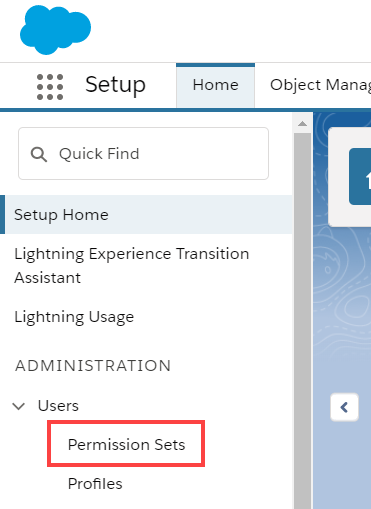 Figure 1: Permission Sets in the Users menu
 -
In the Permission Sets pane, click OnceHub connector for Salesforce permission set (Figure 2).
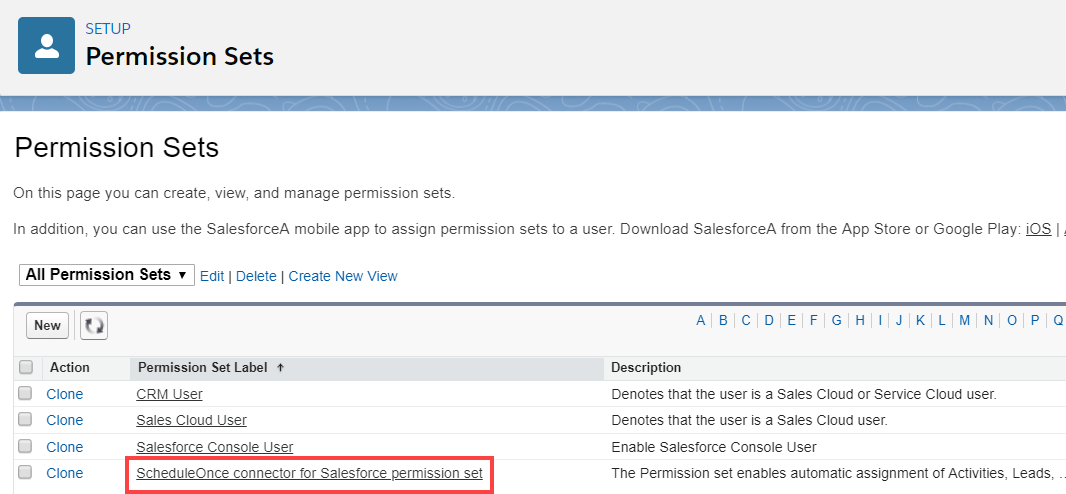 Figure 2: OnceHub connector for Salesforce permission set
 -
On the OnceHub connector for Salesforce permission set page, click the Manage Assignments button (Figure 3).
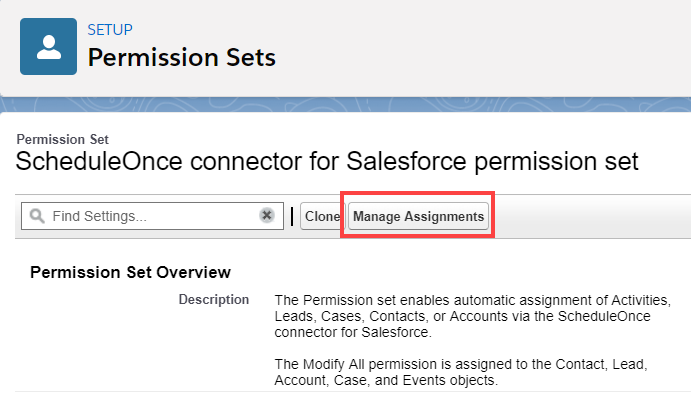 Figure 3: Manage Assignments
 -
On the Assigned Users page, click the Add Assignments button (Figure 4).
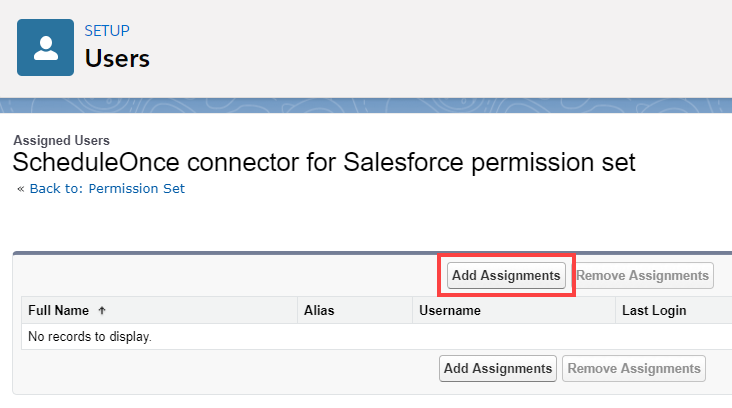 Figure 4: Add Assignments
 -
In the All Users list, check the box next to your API User and click Assign (Figure 5).
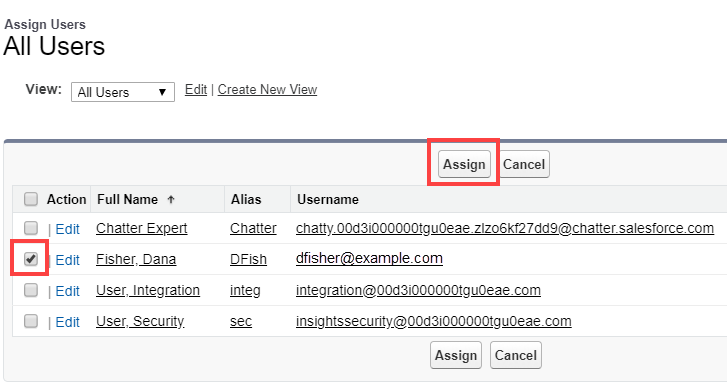 Figure 5: Assign API user
 -
Click Done.
-
Go back to the Salesforce setup page in OnceHub.
-
After you refresh the page, the Installation tab will now be updated to show that you have completed Step 2: Assign OnceHub Permission set.
ImportantThe API User must be connected to OnceHub for the page to update correctly. Learn more about connecting the Salesforce API User
That’s it! You’ve completed Step 2 of the Installation process. You can now proceed to Step 3, which is described in the Adding Custom fields to the Salesforce Activity Event layout article.