
Booking reassignment FAQs [Classic]
Booking reassignment allows you to reassign bookings in your Activity stream from one Team member to another. This is useful in situations such as when a Team member is unavailable, or when a different Team member is better able to serve a specific Customer.
In this article, you’ll find answers to some of the most common questions related to Booking reassignment.
<script id="snippet-prepend">$(function(){
/*disable in widget*/ if($('.w-documentation-article').length === 0){
var ToC = "<nav role='navigation' class='table-of-contents toc-top'><h4>In this article:" + "<ul>"; var el, title, link, header; //Define the heading levels you want to use in ascending order. Can add extra or remove unneeded. $(".hg-article-body h1, .hg-article-body h2, .hg-article-body h3, .hg-article-body h4").each(function() { el = $(this); title = el.text(); if(title != ''){ anchorTitle = el.text().replace(/([~!@#$%^&*()_+=`{}\[\]\|\\:;'<>,.\/\? ])+/g, '-').toLowerCase(); link = "#" + anchorTitle; //Set all headers to a 0-nesting level. header = 'header-nesting-0'; //Adjust header-nesting layers so that they point to the correct html tag. header-nesting-1 should match the second .hg-article-body h# listed above; header-nesting-2 should match the third, etc. if($(this).is('h2')){ header = 'header-nesting-1'; }else if($(this).is('h3')){ header = 'header-nesting-2' } el.html('<a id="'+anchorTitle+'" class="toc-anchor">' + el.html()); newLine = "<li class='"+header+"'>" + "<a class='article-anchor' href='" + link + "'>" + title + "" + "";
ToC += newLine; } }); ToC += "" + ""; $("#snippet-prepend").before(ToC); }});
</script><style>/* CSS to style the TOC as it displays and the auto-created anchors.toc-top styles the box for the TOC; adjust styles here to tweak look and feel */
.toc-top { background-color: #FAFAFA; /* set to #fff or delete entirely for no background */ border: 1px solid #C8C8C8; /* adjust the color hex here to change border color */ box-shadow: 0 1px 1px rgba(0, 0, 0, 0.05) inset; margin-top: 24px; margin-bottom: 36px; min-height: 20px; padding: 13px 20px; max-width: 75%;}.toc-top h4 { font-size: 18px; line-height: 26px; margin: 0 0 8px; font-weight: 400;}.toc-top ul { padding: 0 0 0 15px !important; margin-bottom: 0;}.toc-top > ul { margin-bottom: 13px!important;}.toc-anchor { display: block; height: 90px; margin-top: -90px; visibility: hidden;}
/* Set the indentation for the nesting levels. May need to be edited to match changes above. Increase or decrease the margin-left to get your desired level of indentation. */.header-nesting-1 { margin-left: 14px;}.header-nesting-1:before { background-image: url(https://dyzz9obi78pm5.cloudfront.net/app/image/id/5d31bcc88e121c9b25ba22c4/n/bulletv2.svg)!important;}.header-nesting-2 { margin-left: 28px;}.header-nesting-2:before { background-image: url(https://dyzz9obi78pm5.cloudfront.net/app/image/id/5d31be536e121cf22b0cc6ae/n/bulletv3.svg)!important;}</style>How do I reassign a booking?
Section titled “How do I reassign a booking?”To reassign a booking, select the booking activity in your Activity stream. Then, in the Details pane, select Reassign the booking (Figure 1).
Follow the steps in the Reassign the booking pop-up to reassign the booking from one Team member to another.
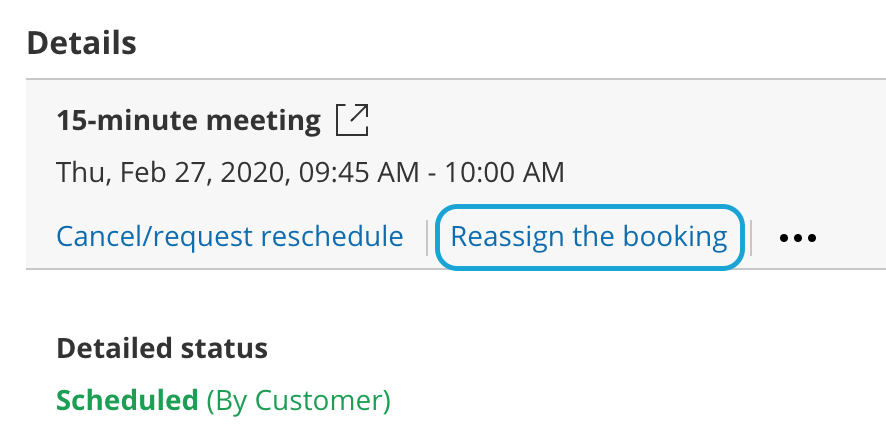 Figure 1: Reassign the booking
Learn more how to reassign bookings from the Activity stream
Why don’t I see the ‘Reassign the booking’ option?
Section titled “Why don’t I see the ‘Reassign the booking’ option?”If you don’t see the Reassign the booking option in the Details pane of a particular activity, this means the booking activity is not eligible for reassignment. There are a number of reasons why the booking may not be eligible for reassignment.
- Only OnceHub Administrators can reassign booking.
- Additionally, you must be the Owner, an Editor, or a Viewer of the Booking page that the booking was made on.
- A booking must be a one-on-one meeting to be eligible for reassignment.
Can I reassign a booking to a Booking page that already has a booking at the same time?
Section titled “Can I reassign a booking to a Booking page that already has a booking at the same time?”Yes, you can. In the Reassign the booking pop-up, Booking pages that are eligible for reassignment but not available during that specific time slot are marked in the Available column as No (Figure 2).
You can still reassign bookings to these Booking pages, but this will create a double-booking. To resolve this, you’ll need to reschedule, cancel, or reassign one of the bookings.
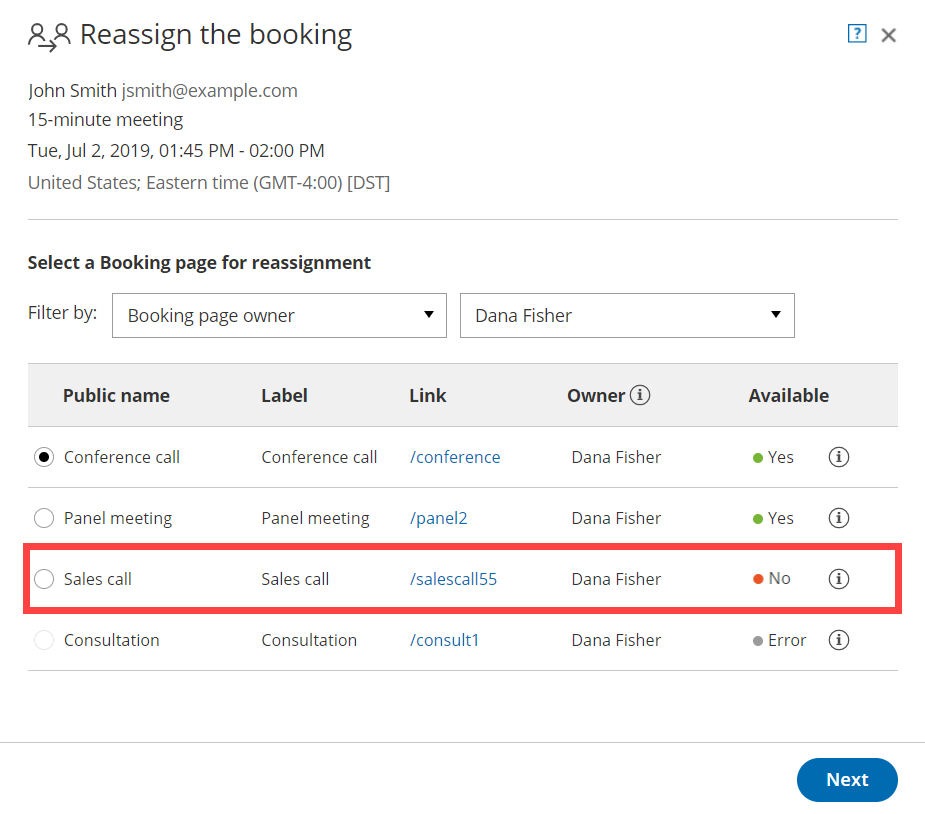 Figure 2: Reassign the booking pop-up
Can I reassign a booking to a Booking page that has no availability at the meeting time?
Section titled “Can I reassign a booking to a Booking page that has no availability at the meeting time?”Yes, you can. In the Reassign the booking pop-up, Booking pages that are eligible for reassignment but not available during that specific time slot are marked in the Available column as No (Figure 3).
However, the booking might be scheduled outside of the Booking page’s recurring or date-specific availability.
Figure 3: Reassign the booking pop-up
Can I reassign a booking to a new Booking page when the location of the original booking page is not the same as the location of the new Booking page?
Section titled “Can I reassign a booking to a new Booking page when the location of the original booking page is not the same as the location of the new Booking page?”Yes, you can. However, you’ll need to update the location details for the booking manually. The location details will not appear in future User notifications or Customer notifications, calendar events, or the Activity stream for the reassigned booking.
Why can’t I see all the Booking pages in my account in the Reassign the booking pop-up?
Section titled “Why can’t I see all the Booking pages in my account in the Reassign the booking pop-up?”Only Booking pages that are eligible for reassignment appear in the Reassign the booking pop-up.
For example, a Booking page that only offers Group sessions will not be eligible for reassignment.
Why does the Reassign the booking pop-up say there is an Error with a certain Booking page?
Section titled “Why does the Reassign the booking pop-up say there is an Error with a certain Booking page?”A Booking page may be marked as Error if the page cannot accept bookings due to a system error. This can happen because the target Booking page is disabled, or there may be a calendar connection error with the Booking page.
Does the Customer know that reassignment is taking place?
Section titled “Does the Customer know that reassignment is taking place?”No. When a booking is reassigned, the experience is invisible to Customers. From your Customer’s perspective, the event remains as originally scheduled. The Customer will receive notifications for the event as originally planned.
If required, you can provide the Customer with a Booking reassignment reason in the Notification step of the Reassign the booking pop-up (Figure 4).
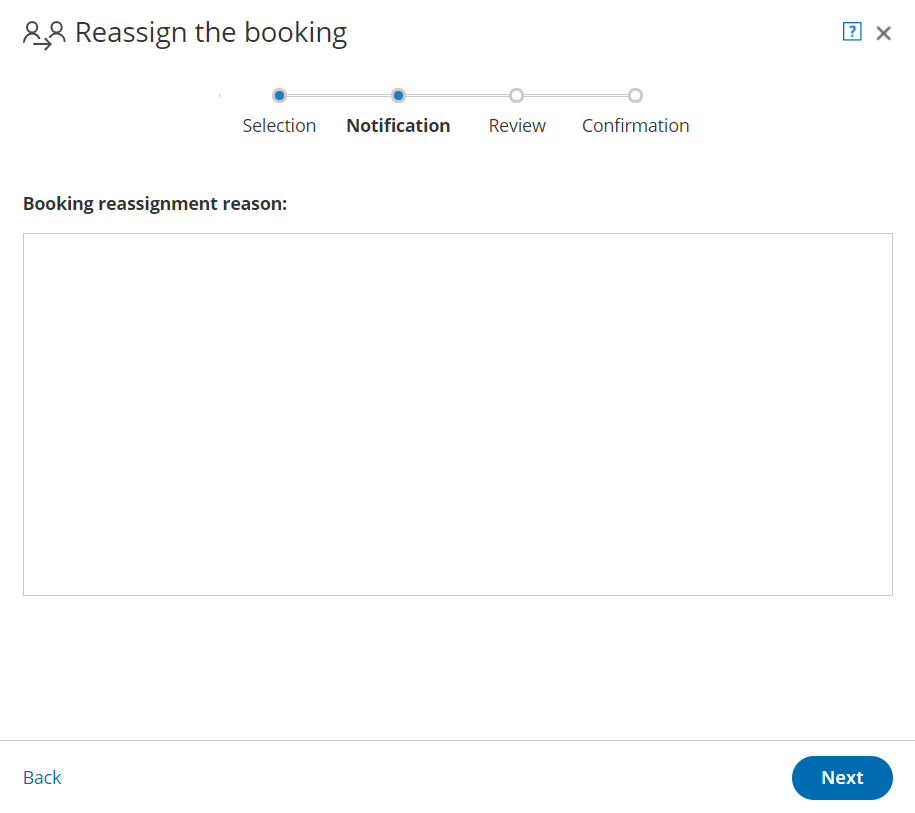 Figure 4: Reassign the booking pop-up—Notification step
Learn more about the effects of Booking reassignment
Who is notified when I reassign a booking?
Section titled “Who is notified when I reassign a booking?”The original Booking owner and Reassigned Booking owner, and associated Booking page Editors are notified of the reassignment via email and, if selected, SMS notification.
Can I reassign a booking multiple times?
Yes. You can reassign a booking as many times as you need to. Each time you reassign a booking, the original Booking owner, the Reassigned Booking owner and associated Editors are notified of the Booking reassignment.
If you reassign a booking more than once, the original Booking owner is always notified, along with the new Reassigned booking owner. However, any previous Reassigned Booking owners are not notified.
If I am the original Booking owner or Editor of a booking, do I get reminder notifications and follow-up notifications after it has been reassigned?
Section titled “If I am the original Booking owner or Editor of a booking, do I get reminder notifications and follow-up notifications after it has been reassigned?”No. All reminder and follow-up notifications are sent to the Reassigned Booking owner and associated Editors, based on the User notification settings of the reassigned Booking page.
What happens when a request to reschedule is sent or the booking is rescheduled after reassignment?
Section titled “What happens when a request to reschedule is sent or the booking is rescheduled after reassignment?”The rescheduling process is always based on the original Booking page settings. Notifications are sent to the original Booking owner, the Reassigned booking owner and associated Editors based on the original Booking page’s User notifications setting.
What happens when the booking is canceled after reassignment?
Section titled “What happens when the booking is canceled after reassignment?”If the booking is canceled, the Reassigned Booking owner and Editors may be notified based on the reassigned Booking page’s User notifications setting.
The original Booking owner and associated Editors will not receive any notifications.
Who has access to the reassigned booking in the Activity stream?
Section titled “Who has access to the reassigned booking in the Activity stream?”The Reassigned Booking owner, Editors, and Viewers can access the booking in the Activity stream. If the booking is reassigned multiple times, previous Reassigned Booking owners, Editors, and Viewers will not have access to the booking in the Activity stream.
Which calendars support Booking reassignment?
Section titled “Which calendars support Booking reassignment?”Booking reassignment is available between Users who are both connected to Google Calendar, or between Users who are both not connected to any calendar. Learn more about Booking reassignment eligibility
NoteReassignment when connected to Zoom is only supported when both parties have a Professional-level Zoom account.