
User action: Cancel/reschedule in Google Calendar [Classic]
<iframe width="640" height="360" src="https://www.youtube.com/embed/N-dyqUCI-Qk?&feature=youtu.be&wmode=opaque&rel=0" frameborder="0" allowfullscreen="" class="fr-draggable"></iframe>When you’re connected to a Google Calendar, you can select whether changes made in your connected calendar are reflected in OnceHub .
In this article, you’ll learn about canceling and rescheduling from your Google Calendar.
<script id="snippet-prepend">$(function(){
/*disable in widget*/ if($('.w-documentation-article').length === 0){
var ToC = "<nav role='navigation' class='table-of-contents toc-top'><h4>In this article:" + "<ul>"; var el, title, link, header; //Define the heading levels you want to use in ascending order. Can add extra or remove unneeded. $(".hg-article-body h1, .hg-article-body h2, .hg-article-body h3, .hg-article-body h4").each(function() { el = $(this); title = el.text(); if(title != ''){ anchorTitle = el.text().replace(/([~!@#$%^&*()_+=`{}\[\]\|\\:;'<>,.\/\? ])+/g, '-').toLowerCase(); link = "#" + anchorTitle; //Set all headers to a 0-nesting level. header = 'header-nesting-0'; //Adjust header-nesting layers so that they point to the correct html tag. header-nesting-1 should match the second .hg-article-body h# listed above; header-nesting-2 should match the third, etc. if($(this).is('h2')){ header = 'header-nesting-1'; }else if($(this).is('h3')){ header = 'header-nesting-2' } el.html('<a id="'+anchorTitle+'" class="toc-anchor">' + el.html()); newLine = "<li class='"+header+"'>" + "<a class='article-anchor' href='" + link + "'>" + title + "" + "";
ToC += newLine; } }); ToC += "" + ""; $("#snippet-prepend").before(ToC); }});
</script><style>/* CSS to style the TOC as it displays and the auto-created anchors.toc-top styles the box for the TOC; adjust styles here to tweak look and feel */
.toc-top { background-color: #FAFAFA; /* set to #fff or delete entirely for no background */ border: 1px solid #C8C8C8; /* adjust the color hex here to change border color */ box-shadow: 0 1px 1px rgba(0, 0, 0, 0.05) inset; margin-top: 24px; margin-bottom: 36px; min-height: 20px; padding: 13px 20px; max-width: 75%;}.toc-top h4 { font-size: 18px; line-height: 26px; margin: 0 0 8px; font-weight: 400;}.toc-top ul { padding: 0 0 0 15px !important; margin-bottom: 0;}.toc-top > ul { margin-bottom: 13px!important;}.toc-anchor { display: block; height: 90px; margin-top: -90px; visibility: hidden;}
/* Set the indentation for the nesting levels. May need to be edited to match changes above. Increase or decrease the margin-left to get your desired level of indentation. */.header-nesting-1 { margin-left: 14px;}.header-nesting-1:before { background-image: url(https://dyzz9obi78pm5.cloudfront.net/app/image/id/5d31bcc88e121c9b25ba22c4/n/bulletv2.svg)!important;}.header-nesting-2 { margin-left: 28px;}.header-nesting-2:before { background-image: url(https://dyzz9obi78pm5.cloudfront.net/app/image/id/5d31be536e121cf22b0cc6ae/n/bulletv3.svg)!important;}</style>Adjusting OnceHub advanced integration settings
Section titled “Adjusting OnceHub advanced integration settings”Open OnceHub and click on your profile image or initials in the top right corner and select Calendar connection.
Under the OnceHub advanced integration settings heading, you’ll see two toggles (Figure 1). These control how your Google Calendar two-way sync will function. By default, both toggles are set to OFF.
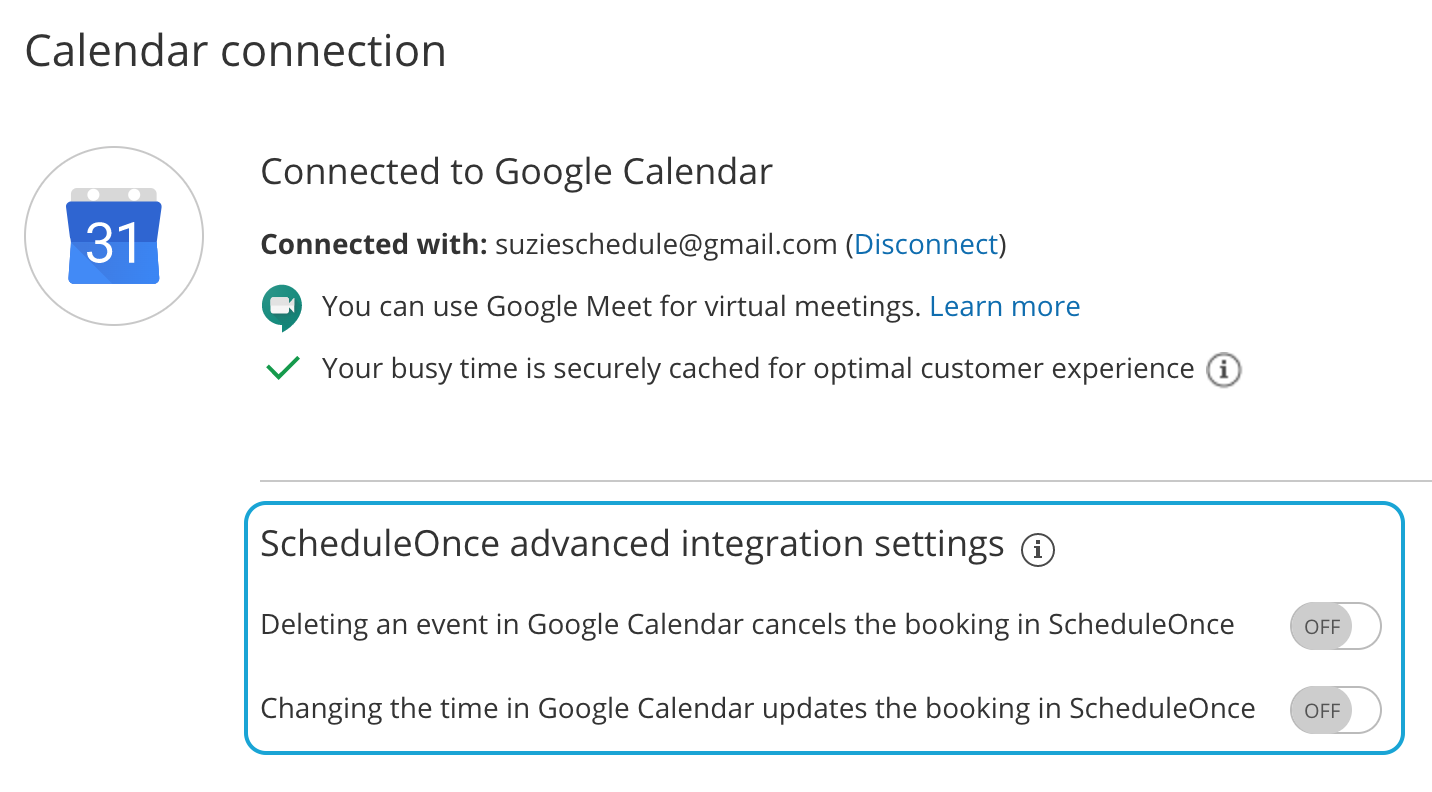 Figure 1: Calendar connection—OnceHub advanced integration settings
Canceling an event in your connected Google Calendar
Section titled “Canceling an event in your connected Google Calendar”If you delete a calendar event created by a OnceHub booking while the Deleting an event in Google Calendar cancels the booking in OnceHub toggle is set to ON, the booking will be automatically canceled in OnceHub. The following actions are performed, as if you (the User) canceled the booking in OnceHub:
- Your Customer receives a cancellation notification.
- The event is deleted from your calendar, and the time is set to available.
- If you are using any other integrations (like CRM, video conferencing or Zapier) – they are updated with the cancellation.
- If you are using Payment integration, no refund is issued. If your Customer is entitled to a refund, you can refund them manually via OnceHub or via PayPal.
If you delete a calendar event created by a OnceHub booking while the first toggle is set to OFF, the booking remains unchanged in OnceHub, no email notifications are sent, and no integrations are updated.
NoteIn cases of Panel meetings, if the Primary team member deletes the calendar event, the booking is automatically canceled in OnceHub for all Panel members. That means for both the Primary team member and all Additional team members.
Rescheduling an event in your connected Google Calendar
Section titled “Rescheduling an event in your connected Google Calendar”The Changing the time in Google Calendar updates the booking in OnceHub option determines how OnceHub is updated with the new time of the event. When you move a booking in your connected calendar, you’re actually rescheduling on behalf of your Customer. Therefore, the time change must be coordinated with your Customer. No email notifications are sent to you or your Customer.
NoteThe reschedule functionality will only work when events are modified in the same calendar. Modifications in Additional booking calendars are disregarded.
When you move an event in your calendar while the second toggle is set to ON, the following actions are performed:
- The OnceHub booking time is updated immediately.
- All reminders are sent on schedule.
- All integrations (CRM, video conferencing, Zapier, and payment) are updated as well.
- The status of future events is changed to “Rescheduled”.
If the second toggle is set to OFF, the OnceHub booking time is only updated when the next reminder is due, subsequent reminders are sent on schedule and Integrations are not updated.
Note In cases of a Panel meeting, if the Primary team member moves or delete a booking in their connected calendar, the booking is automatically rescheduled or canceled for all panel members. That means for both the Primary team member and all Additional team members.
The Customer calendar event
Section titled “The Customer calendar event”Whether your Customer’s calendar will be updated or not depends on your choice in Google’s Would you like to send update emails to existing Google Calendar guests pop-up. Make sure to click the Send button, so that your Customer’s calendar is updated. Learn more about the Customer’s calendar event
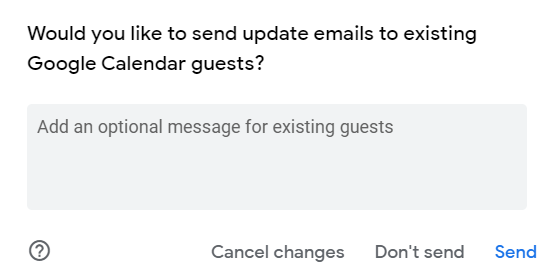 Figure 2: Send updates to Calendar guests