
The Customer cancel/reschedule policy [Classic]
OnceHub allows you to set up independent cancellation and reschedule policies that are fully configurable. The policies allow you to specify the exact rules for when Customers are allowed to cancel or reschedule.
<script id="snippet-prepend">$(function(){
/*disable in widget*/ if($('.w-documentation-article').length === 0){
var ToC = "<nav role='navigation' class='table-of-contents toc-top'><h4>In this article:" + "<ul>"; var el, title, link, header; //Define the heading levels you want to use in ascending order. Can add extra or remove unneeded. $(".hg-article-body h1, .hg-article-body h2, .hg-article-body h3, .hg-article-body h4").each(function() { el = $(this); title = el.text(); if(title != ''){ anchorTitle = el.text().replace(/([~!@#$%^&*()_+=`{}\[\]\|\\:;'<>,.\/\? ])+/g, '-').toLowerCase(); link = "#" + anchorTitle; //Set all headers to a 0-nesting level. header = 'header-nesting-0'; //Adjust header-nesting layers so that they point to the correct html tag. header-nesting-1 should match the second .hg-article-body h# listed above; header-nesting-2 should match the third, etc. if($(this).is('h2')){ header = 'header-nesting-1'; }else if($(this).is('h3')){ header = 'header-nesting-2' } el.html('<a id="'+anchorTitle+'" class="toc-anchor">' + el.html()); newLine = "<li class='"+header+"'>" + "<a class='article-anchor' href='" + link + "'>" + title + "" + "";
ToC += newLine; } }); ToC += "" + ""; $("#snippet-prepend").before(ToC); }});
</script><style>/* CSS to style the TOC as it displays and the auto-created anchors.toc-top styles the box for the TOC; adjust styles here to tweak look and feel */
.toc-top { background-color: #FAFAFA; /* set to #fff or delete entirely for no background */ border: 1px solid #C8C8C8; /* adjust the color hex here to change border color */ box-shadow: 0 1px 1px rgba(0, 0, 0, 0.05) inset; margin-top: 24px; margin-bottom: 36px; min-height: 20px; padding: 13px 20px; max-width: 75%;}.toc-top h4 { font-size: 18px; line-height: 26px; margin: 0 0 8px; font-weight: 400;}.toc-top ul { padding: 0 0 0 15px !important; margin-bottom: 0;}.toc-top > ul { margin-bottom: 13px!important;}.toc-anchor { display: block; height: 90px; margin-top: -90px; visibility: hidden;}
/* Set the indentation for the nesting levels. May need to be edited to match changes above. Increase or decrease the margin-left to get your desired level of indentation. */.header-nesting-1 { margin-left: 14px;}.header-nesting-1:before { background-image: url(https://dyzz9obi78pm5.cloudfront.net/app/image/id/5d31bcc88e121c9b25ba22c4/n/bulletv2.svg)!important;}.header-nesting-2 { margin-left: 28px;}.header-nesting-2:before { background-image: url(https://dyzz9obi78pm5.cloudfront.net/app/image/id/5d31be536e121cf22b0cc6ae/n/bulletv3.svg)!important;}</style>Defining your cancellation and reschedule policy
Section titled “Defining your cancellation and reschedule policy”On the Cancel/reschedule policy page, you can customize the policy description presented to your Customers and choose whether or not Customers will be requested to provide a reason when they cancel or reschedule. You can choose to make providing the reason Mandatory, Optional, or choose not to display the field at all by selecting Don’t ask.
You can define different policies for different scheduling scenarios. The policies you define are displayed on the Customer Cancel/reschedule section. This allows your Customers to make an informed decision before they proceed with the cancel/reschedule action.
The three timeframe options available for when cancellations and reschedules can be made by your Customers are:
- Any time before the meeting: This means that Customers can cancel right before the scheduled meeting time. This can be a matter of minutes before the meeting.
- Up to a certain time before the meeting: In this case, you can select how long before the scheduled meeting time that the Customer can cancel. The possible values range from 15 minutes to 14 days.
- Never: In this case, the Customer will never be able to cancel the booking.
Location of the Cancel/reschedule policy page
Section titled “Location of the Cancel/reschedule policy page”Depending on whether or not your Booking pages are associated with Event types, the location of the Cancel/reschedule policy page and the options available to you change.
Booking pages not associated with Event types
Section titled “Booking pages not associated with Event types”When you use Booking pages without Event types, the cancellation and reschedule policies are set at the Booking page level under the Cancel/reschedule policy section (Figure 1). Learn more about the Cancel/reschedule policy section
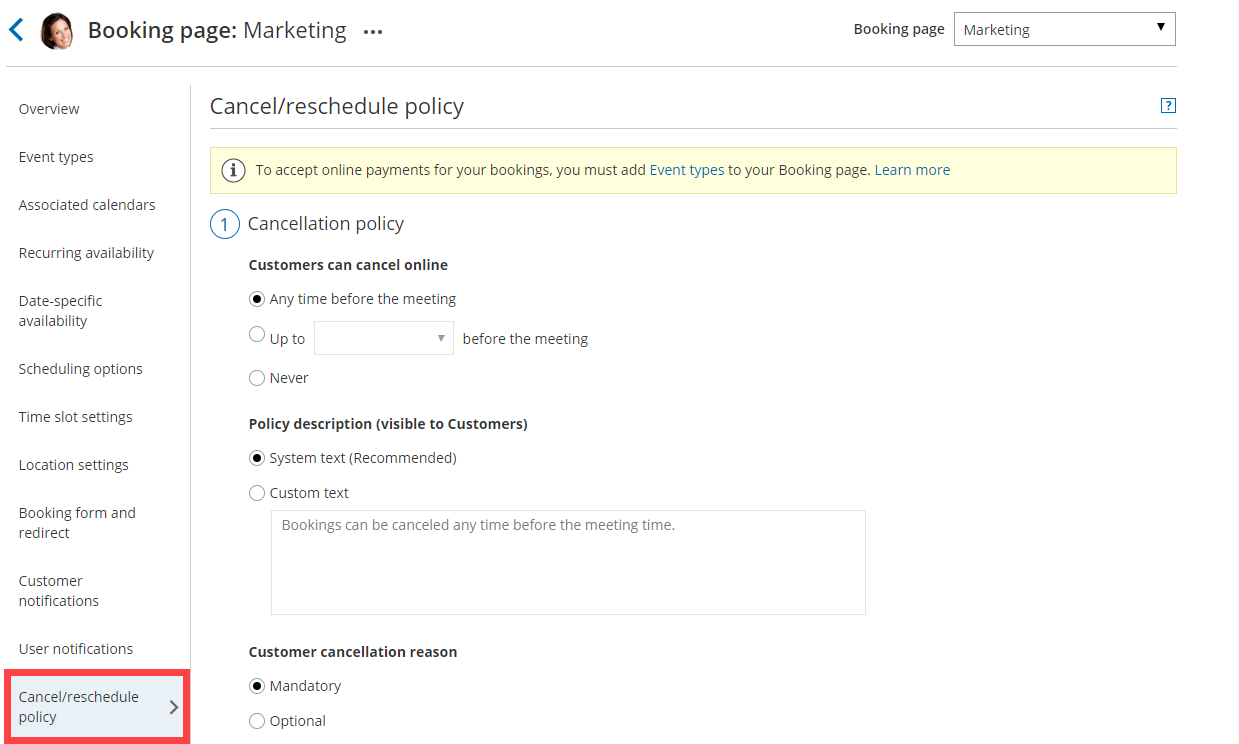 Figure 1: Cancel/reschedule policy on a Booking page not associated with Event types
Booking pages associated with Event types
Section titled “Booking pages associated with Event types”If you have associated your Booking page with at least one Event type, the cancellation and reschedule policies are set at the Event type level under the Payment and Cancel/reschedule policy section (Figure 2).
Learn more about the payment and cancel/reschedule policy section
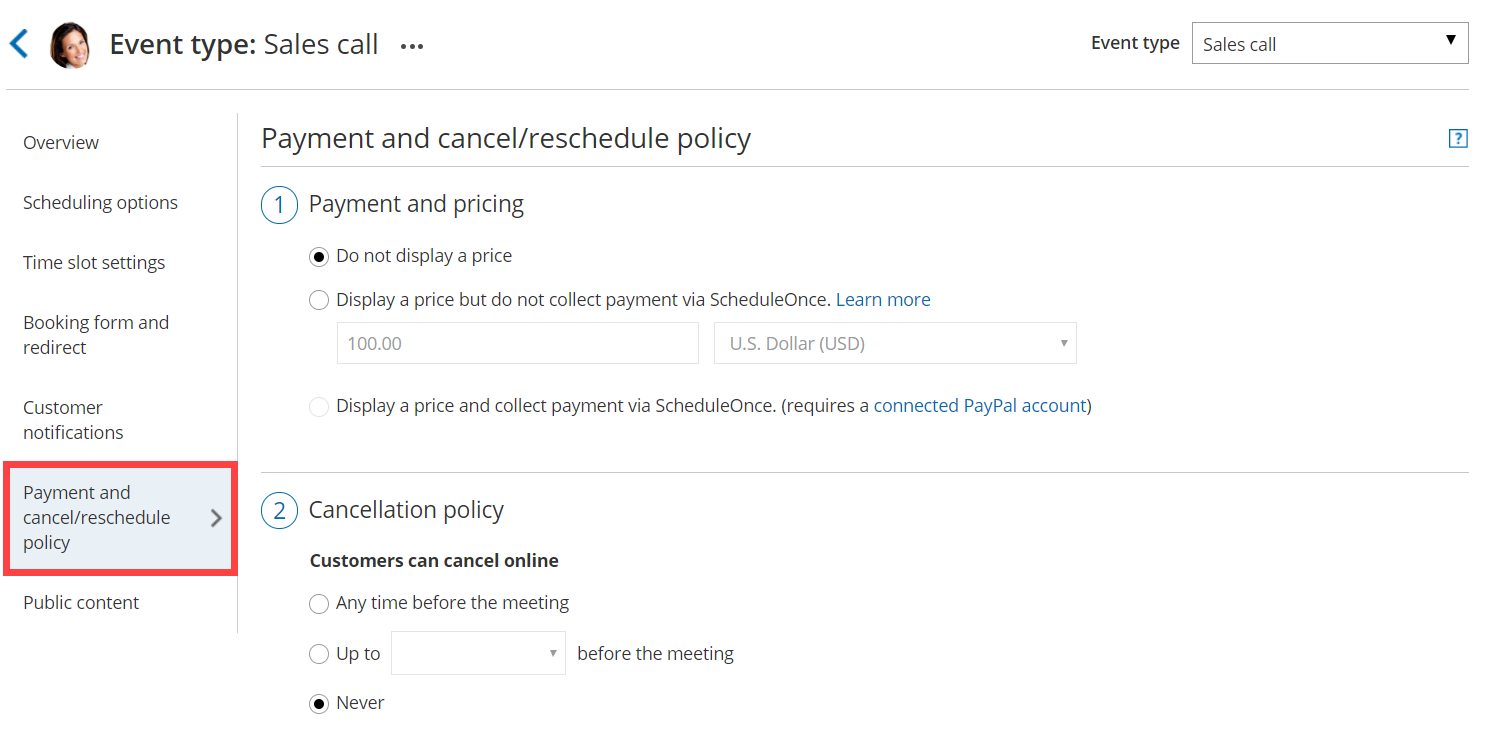 Figure 2: Payment and cancel/reschedule policy section
The cancellation/reschedule policies in Event types are configured together with payments. In addition to specifying the timeframe for canceling or rescheduling, you can also define the monetary penalties that Customers will face if they cancel or reschedule.
Depending on which Payment and pricing option you pick, the ability to set up policies with monetary penalties and automatically handle refunds and rescheduling fees changes.
Do not display a price
Section titled “Do not display a price”This option only allows you to set the timeframe during which Customers can cancel or reschedule. This option does not allow you to set up monetary penalties within your cancellation and reschedule policies.
Learn more about the cancel/reschedule policy when a price is not displayed
Display a price but do not collect payment via OnceHub
Section titled “Display a price but do not collect payment via OnceHub”This option allows you to set the timeframe during which Customers can cancel or reschedule, as well as define the monetary penalties that Customers will face when cancelling or rescheduling.
However, because you are only displaying a price and are not collecting payments via OnceHub, refunds and rescheduling fees can only be defined in text in the description policy. These policies cannot be enforced in OnceHub. In other words, you remain in charge of processing the rescheduling fees and refunds.
Learn more about the cancel/reschedule policy when a price is displayed
Display a price and collect payment via OnceHub
Section titled “Display a price and collect payment via OnceHub”This options allows you to set the timeframe during which Customers can cancel or reschedule, as well as define and enforce the monetary penalties that Customers will face when cancelling or rescheduling.
Since your OnceHub account is connected to PayPal with this option, the handling of refunds and rescheduling fees can be completely automated. This allows you to streamline your payments throughout the booking lifecycle. If you prefer, you can still choose to manually process refunds.
Learn more about the cancel/reschedule policy when collecting payment via OnceHub