
The Customer cancel/reschedule page [Classic]
The Cancel/reschedule page allows Customers to cancel and reschedule bookings subject to the Cancel/reschedule policy you set on your Booking page or Event type. Customers access the Cancel/reschedule page by clicking the Cancel/reschedule link in the scheduling confirmation email or the calendar event for the booking.
<script id="snippet-prepend">$(function(){
/*disable in widget*/ if($('.w-documentation-article').length === 0){
var ToC = "<nav role='navigation' class='table-of-contents toc-top'><h4>In this article:" + "<ul>"; var el, title, link, header; //Define the heading levels you want to use in ascending order. Can add extra or remove unneeded. $(".hg-article-body h1, .hg-article-body h2, .hg-article-body h3, .hg-article-body h4").each(function() { el = $(this); title = el.text(); if(title != ''){ anchorTitle = el.text().replace(/([~!@#$%^&*()_+=`{}\[\]\|\\:;'<>,.\/\? ])+/g, '-').toLowerCase(); link = "#" + anchorTitle; //Set all headers to a 0-nesting level. header = 'header-nesting-0'; //Adjust header-nesting layers so that they point to the correct html tag. header-nesting-1 should match the second .hg-article-body h# listed above; header-nesting-2 should match the third, etc. if($(this).is('h2')){ header = 'header-nesting-1'; }else if($(this).is('h3')){ header = 'header-nesting-2' } el.html('<a id="'+anchorTitle+'" class="toc-anchor">' + el.html()); newLine = "<li class='"+header+"'>" + "<a class='article-anchor' href='" + link + "'>" + title + "" + "";
ToC += newLine; } }); ToC += "" + ""; $("#snippet-prepend").before(ToC); }});
</script><style>/* CSS to style the TOC as it displays and the auto-created anchors.toc-top styles the box for the TOC; adjust styles here to tweak look and feel */
.toc-top { background-color: #FAFAFA; /* set to #fff or delete entirely for no background */ border: 1px solid #C8C8C8; /* adjust the color hex here to change border color */ box-shadow: 0 1px 1px rgba(0, 0, 0, 0.05) inset; margin-top: 24px; margin-bottom: 36px; min-height: 20px; padding: 13px 20px; max-width: 75%;}.toc-top h4 { font-size: 18px; line-height: 26px; margin: 0 0 8px; font-weight: 400;}.toc-top ul { padding: 0 0 0 15px !important; margin-bottom: 0;}.toc-top > ul { margin-bottom: 13px!important;}.toc-anchor { display: block; height: 90px; margin-top: -90px; visibility: hidden;}
/* Set the indentation for the nesting levels. May need to be edited to match changes above. Increase or decrease the margin-left to get your desired level of indentation. */.header-nesting-1 { margin-left: 14px;}.header-nesting-1:before { background-image: url(https://dyzz9obi78pm5.cloudfront.net/app/image/id/5d31bcc88e121c9b25ba22c4/n/bulletv2.svg)!important;}.header-nesting-2 { margin-left: 28px;}.header-nesting-2:before { background-image: url(https://dyzz9obi78pm5.cloudfront.net/app/image/id/5d31be536e121cf22b0cc6ae/n/bulletv3.svg)!important;}</style>Customer action: Cancel or reschedule a booking
Section titled “Customer action: Cancel or reschedule a booking”To cancel a booking or reschedule a booking, the Customer can click the Cancel/Reschedule link in the scheduling confirmation email or calendar event. This will take them to the same Booking page or Master page where the Booking was previously made.
On the Cancel/reschedule page (Figure 1), the Customer has the option to keep the original time, reschedule the booking, cancel a single booking, or cancel one or more sessions in a package. If the Customer clicks See available times, they will be prompted to select a new time and reschedule the meeting.
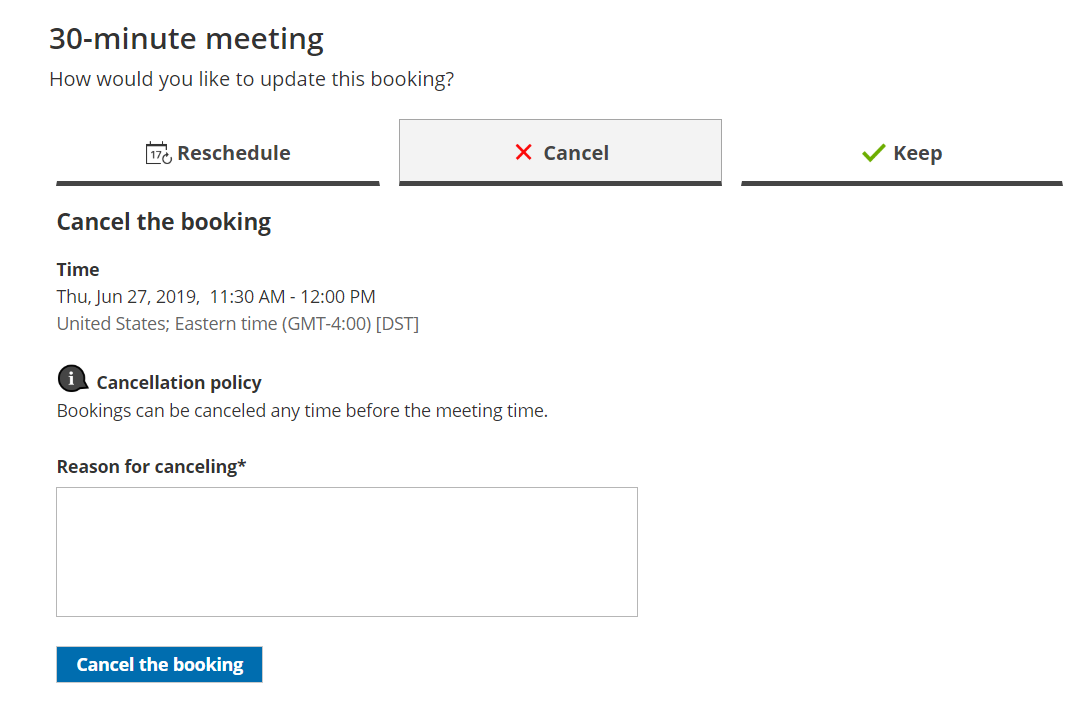 Figure 1: Canceling a booking
Note
If you’re using Payment integration, you can charge the Customer a reschedule fee or automatically send refunds when they reschedule or cancel bookings. The policy settings will vary based on the Payment and cancel/reschedule policy options that you choose.
Customer action: Cancel or reschedule sessions in a package
Section titled “Customer action: Cancel or reschedule sessions in a package”To cancel sessions or reschedule sessions in a package, the Customer selects one or more sessions on the Cancel/Reschedule page and then cancels or reschedules the selected sessions (Figure 2).
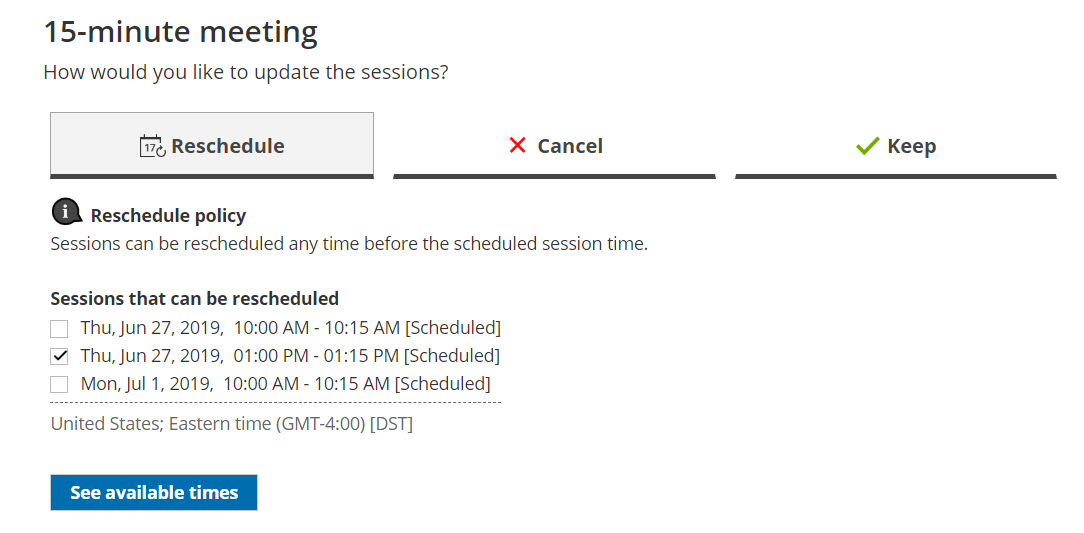 Figure 2: Rescheduling sessions in a package
Note
If you are using Payment integration, you can charge the Customer a reschedule fee or automatically send refunds when they reschedule or cancel bookings. The reschedule fee or refund amount is always relative to the number of sessions included in the Session package.
Customer action: Cancel/reschedule a booking request
Section titled “Customer action: Cancel/reschedule a booking request”Booking requests that are not yet scheduled are not subject to the Customer Cancel/reschedule policy. The Customer can cancel or reschedule a booking request any time before it is approved. Learn more about booking requests
To cancel a booking request, the Customer can click Cancel the booking request on the Cancel tab (Figure 3). To request new times, the Customer can click See available times on the Reschedule tab.
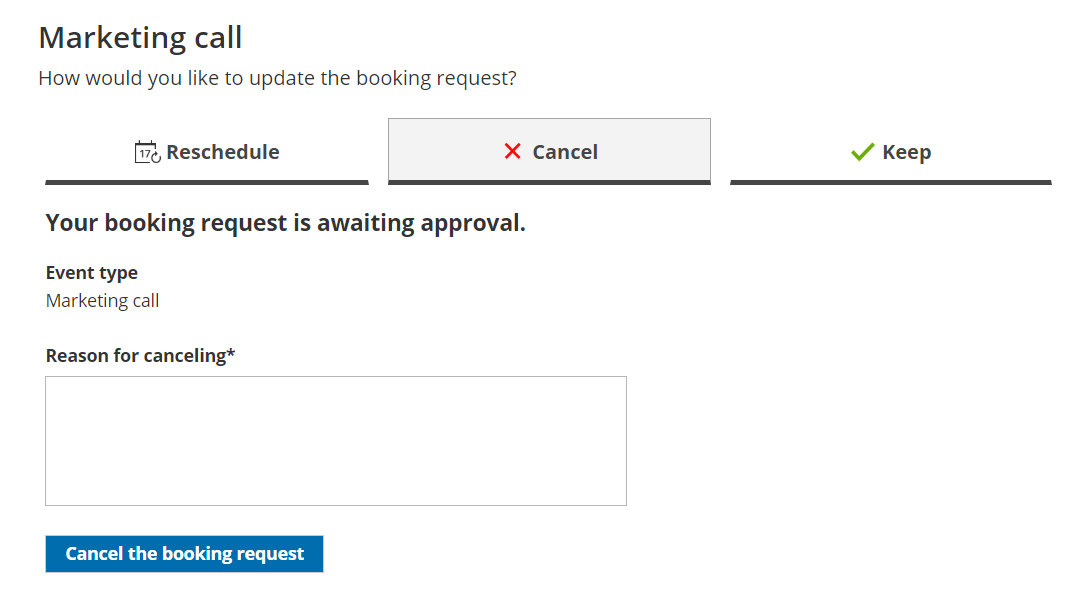 Figure 3: Cancel a booking request