Sending SMS notifications to Users [Classic]
SMS notifications are a quick and reliable way to keep on top of booking activity for yourself and other Users. Any OnceHub User can receive SMS notifications related to Booking activity in their organization’s account. You do not need an assigned product license to be an Editor on a Booking page and subscribe to booking notifications. Learn more
In this article, you’ll learn about sending SMS notifications to Users.
<script id="snippet-prepend">$(function(){
/*disable in widget*/ if($('.w-documentation-article').length === 0){
var ToC = "<nav role='navigation' class='table-of-contents toc-top'><h4>In this article:" + "<ul>"; var el, title, link, header; //Define the heading levels you want to use in ascending order. Can add extra or remove unneeded. $(".hg-article-body h1, .hg-article-body h2, .hg-article-body h3, .hg-article-body h4").each(function() { el = $(this); title = el.text(); if(title != ''){ anchorTitle = el.text().replace(/([~!@#$%^&*()_+=`{}\[\]\|\\:;'<>,.\/\? ])+/g, '-').toLowerCase(); link = "#" + anchorTitle; //Set all headers to a 0-nesting level. header = 'header-nesting-0'; //Adjust header-nesting layers so that they point to the correct html tag. header-nesting-1 should match the second .hg-article-body h# listed above; header-nesting-2 should match the third, etc. if($(this).is('h2')){ header = 'header-nesting-1'; }else if($(this).is('h3')){ header = 'header-nesting-2' } el.html('<a id="'+anchorTitle+'" class="toc-anchor">' + el.html()); newLine = "<li class='"+header+"'>" + "<a class='article-anchor' href='" + link + "'>" + title + "" + "";
ToC += newLine; } }); ToC += "" + ""; $("#snippet-prepend").before(ToC); }});
</script><style>/* CSS to style the TOC as it displays and the auto-created anchors.toc-top styles the box for the TOC; adjust styles here to tweak look and feel */
.toc-top { background-color: #FAFAFA; /* set to #fff or delete entirely for no background */ border: 1px solid #C8C8C8; /* adjust the color hex here to change border color */ box-shadow: 0 1px 1px rgba(0, 0, 0, 0.05) inset; margin-top: 24px; margin-bottom: 36px; min-height: 20px; padding: 13px 20px; max-width: 75%;}.toc-top h4 { font-size: 18px; line-height: 26px; margin: 0 0 8px; font-weight: 400;}.toc-top ul { padding: 0 0 0 15px !important; margin-bottom: 0;}.toc-top > ul { margin-bottom: 13px!important;}.toc-anchor { display: block; height: 90px; margin-top: -90px; visibility: hidden;}
/* Set the indentation for the nesting levels. May need to be edited to match changes above. Increase or decrease the margin-left to get your desired level of indentation. */.header-nesting-1 { margin-left: 14px;}.header-nesting-1:before { background-image: url(https://dyzz9obi78pm5.cloudfront.net/app/image/id/5d31bcc88e121c9b25ba22c4/n/bulletv2.svg)!important;}.header-nesting-2 { margin-left: 28px;}.header-nesting-2:before { background-image: url(https://dyzz9obi78pm5.cloudfront.net/app/image/id/5d31be536e121cf22b0cc6ae/n/bulletv3.svg)!important;}</style>To receive SMS notifications on Booking activity for a specific Booking page, complete the following steps:
- Enable User notifications and add your mobile number to your profile.
- Make sure you are the Owner or Editor of the Booking page.
- Subscribe to User SMS notifications in the User notifications section of the Booking page.
- Make sure you have SMS credits available.
Adding your mobile number to your Profile
Section titled “Adding your mobile number to your Profile”To receive SMS notifications, you must first add your mobile number to your Profile.
-
Sign in to your OnceHub Account.
-
Go to My profile (your profile image or initials in the top right corner) → Profile settings → SMS notifications (Figure 1).
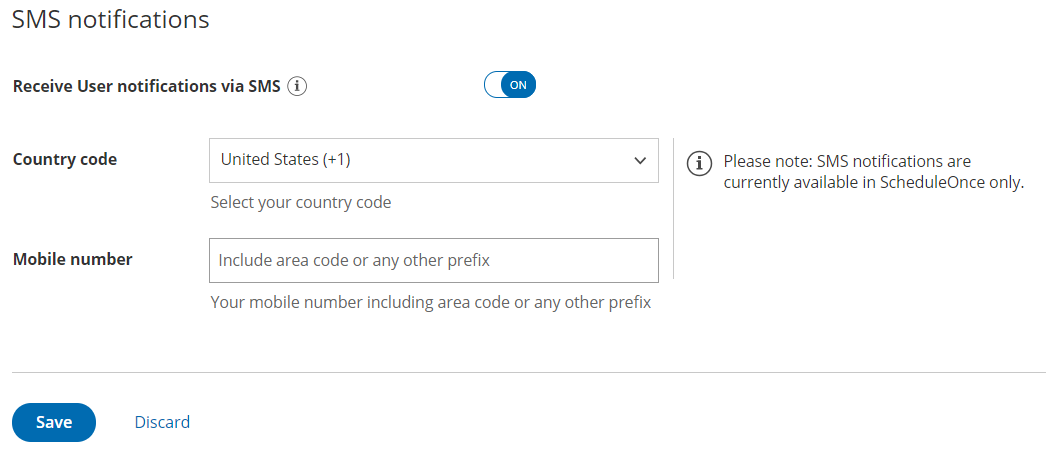
Figure 1: SMS Notifications
-
Toggle the Receive User notifications via SMS field to ON.
-
Select your Country code and enter your Mobile number, including the area code.
-
Click Save.
Making sure you are the Booking page Owner or Editor
Section titled “Making sure you are the Booking page Owner or Editor”Booking notifications are unique for every Booking page. To receive Booking notifications for a Booking page, you must be either the Owner or an Editor of the Booking page. Booking page Owners automatically receive email notifications. Booking page Editors can receive notifications and make changes to the page.
To see if you are an Owner or Editor of a Booking page, go to Booking pages in the bar on the left → check the relevant Booking page in the Booking pages section (Figure 2). You should see Owned by you or You are an Editor on the relevant Booking page.
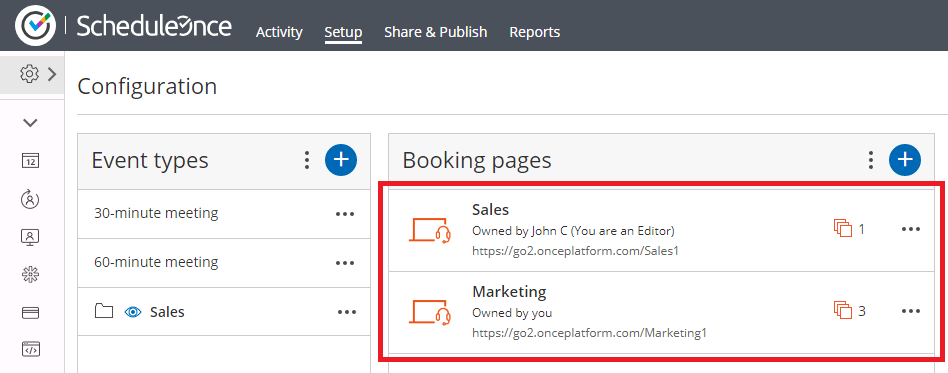 Figure 2: An Admin’s setup page
If you are not a Booking page Owner or Editor, a OnceHub Administrator must grant you Editor permissions to that page. This can be done in two ways:
- Go to Booking pages in the bar on the left → Booking pages → action menu (three dots) → Booking page access. In this section, you can determine which Booking pages the specific User can access.
- Go to Booking pages in the bar on the left → select the relevant Booking page →** Overview section.** Here you can edit the Booking page’s Owner and Editor. This method is only possible if the Administrator is able to edit that specific Booking page.
Learn more about Booking page access permissions
Subscribing to User SMS notifications
Section titled “Subscribing to User SMS notifications”If you are the Owner or an Editor of a Booking page, you can subscribe to SMS notifications for booking activity related to that page in the User notifications section.
-
Go to Booking pages in the bar on the left → select the relevant Booking page → User notifications on the left.
-
In the column labeled with your name, select the Notification scenarios you’d like to receive SMS notifications for by checking the relevant checkboxes (Figure 3).
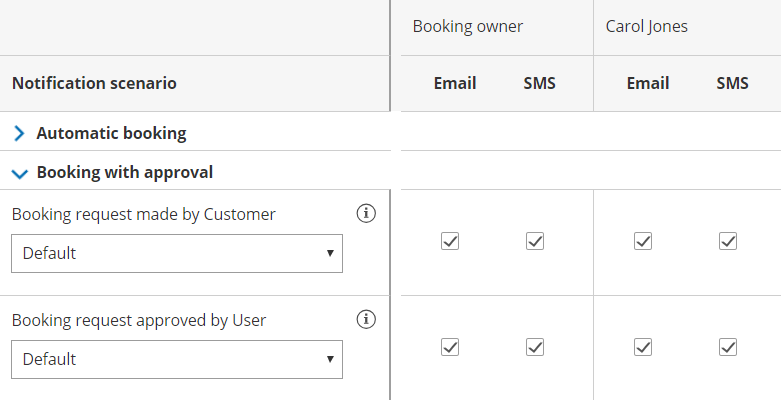
Figure 3: Selecting User notifications
-
Click the Save button at the bottom when you’re finished.
If your name does not appear in the Notification scenarios list, you’ll need to be added as a Booking page editor (see above).
Ensuring you have SMS credits available
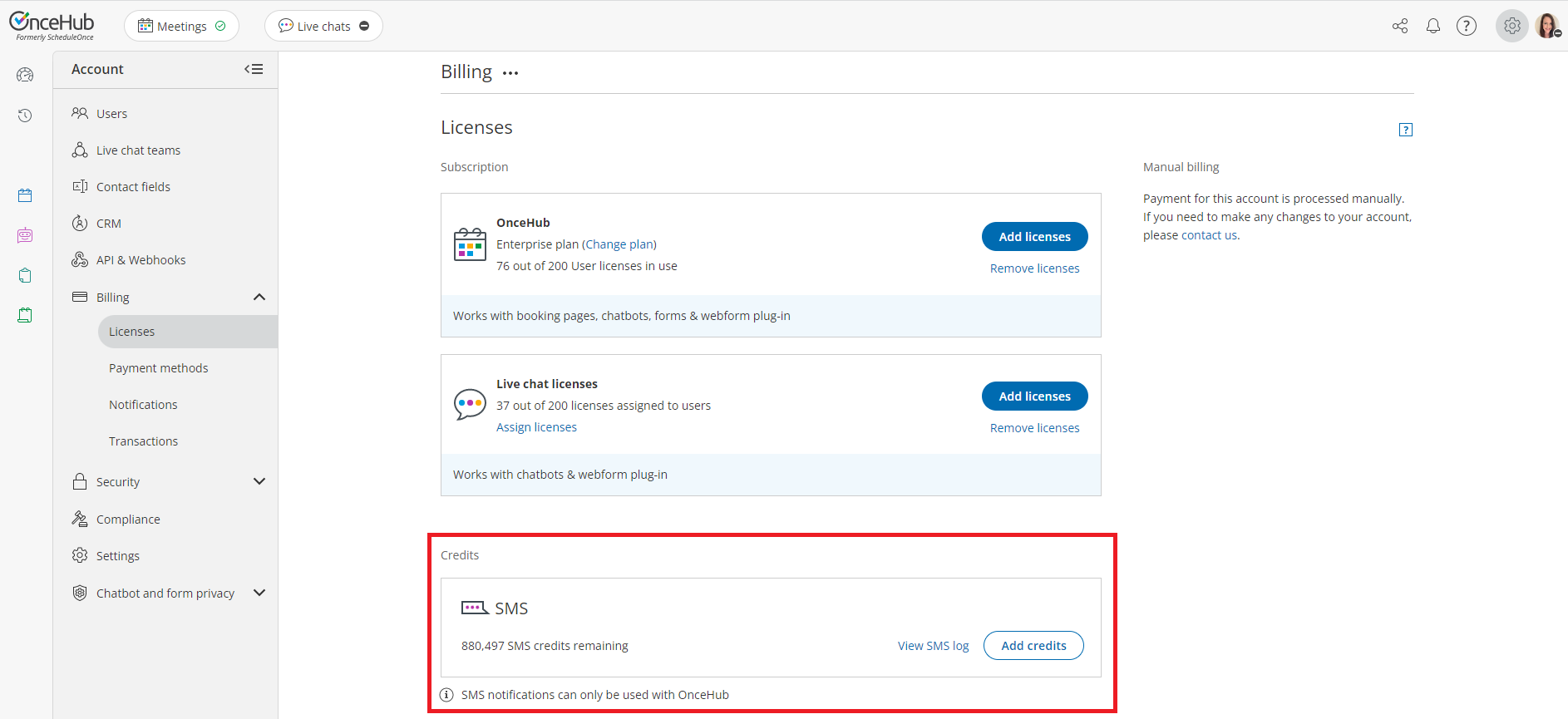
Section titled “Ensuring you have SMS credits available”You need to have SMS credits available to send SMS notifications. To view the SMS credits available in your account, click go to Settings (gear icon) in the top right corner → Billing on the left → Licenses.