
Opting in and out of SMS Notifications [Classic]
Mobile phone numbers provided by your Customers and Team members are held in strict confidence and will only be used for sending scheduling notifications, based on settings that you define. However, sometimes Customers or Users will want to stop receiving SMS notifications.
OnceHub maintains an SMS opt-out list. This is a list of mobile numbers that have opted out of receiving SMS notifications from the OnceHub system. The opt-out list is maintained to ensure OnceHub Users comply with applicable laws and regulations.
You do not need an assigned product license to subscribe to booking notifications. Learn more
<script id="snippet-prepend">$(function(){
/*disable in widget*/ if($('.w-documentation-article').length === 0){
var ToC = "<nav role='navigation' class='table-of-contents toc-top'><h4>In this article:" + "<ul>"; var el, title, link, header; //Define the heading levels you want to use in ascending order. Can add extra or remove unneeded. $(".hg-article-body h1, .hg-article-body h2, .hg-article-body h3, .hg-article-body h4").each(function() { el = $(this); title = el.text(); if(title != ''){ anchorTitle = el.text().replace(/([~!@#$%^&*()_+=`{}\[\]\|\\:;'<>,.\/\? ])+/g, '-').toLowerCase(); link = "#" + anchorTitle; //Set all headers to a 0-nesting level. header = 'header-nesting-0'; //Adjust header-nesting layers so that they point to the correct html tag. header-nesting-1 should match the second .hg-article-body h# listed above; header-nesting-2 should match the third, etc. if($(this).is('h2')){ header = 'header-nesting-1'; }else if($(this).is('h3')){ header = 'header-nesting-2' } el.html('<a id="'+anchorTitle+'" class="toc-anchor">' + el.html()); newLine = "<li class='"+header+"'>" + "<a class='article-anchor' href='" + link + "'>" + title + "" + "";
ToC += newLine; } }); ToC += "" + ""; $("#snippet-prepend").before(ToC); }});
</script><style>/* CSS to style the TOC as it displays and the auto-created anchors.toc-top styles the box for the TOC; adjust styles here to tweak look and feel */
.toc-top { background-color: #FAFAFA; /* set to #fff or delete entirely for no background */ border: 1px solid #C8C8C8; /* adjust the color hex here to change border color */ box-shadow: 0 1px 1px rgba(0, 0, 0, 0.05) inset; margin-top: 24px; margin-bottom: 36px; min-height: 20px; padding: 13px 20px; max-width: 75%;}.toc-top h4 { font-size: 18px; line-height: 26px; margin: 0 0 8px; font-weight: 400;}.toc-top ul { padding: 0 0 0 15px !important; margin-bottom: 0;}.toc-top > ul { margin-bottom: 13px!important;}.toc-anchor { display: block; height: 90px; margin-top: -90px; visibility: hidden;}
/* Set the indentation for the nesting levels. May need to be edited to match changes above. Increase or decrease the margin-left to get your desired level of indentation. */.header-nesting-1 { margin-left: 14px;}.header-nesting-1:before { background-image: url(https://dyzz9obi78pm5.cloudfront.net/app/image/id/5d31bcc88e121c9b25ba22c4/n/bulletv2.svg)!important;}.header-nesting-2 { margin-left: 28px;}.header-nesting-2:before { background-image: url(https://dyzz9obi78pm5.cloudfront.net/app/image/id/5d31be536e121cf22b0cc6ae/n/bulletv3.svg)!important;}</style>User action: Opt in
Section titled “User action: Opt in”To opt in, go to My profile (your profile image or initials in the top right corner) → Profile settings → SMS Notifications section. Enter your mobile phone number and toggle the Receive User notifications via SMS option to ON. Learn more about sending SMS notifications to Users
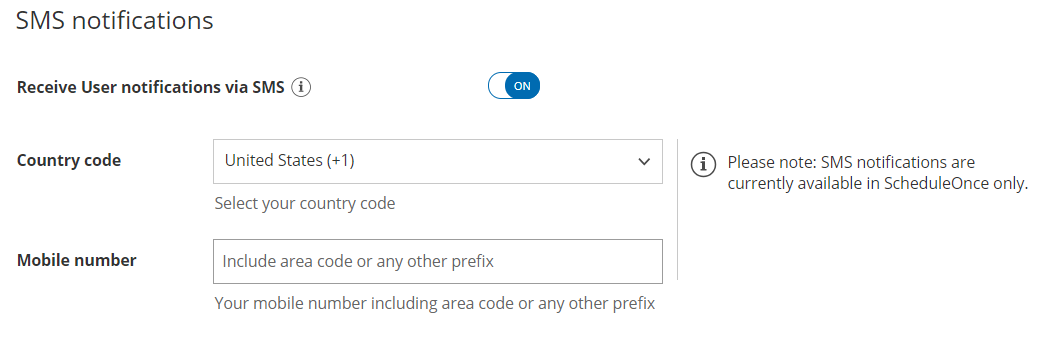 Figure 1: SMS notifications section
User action: Opt out
Section titled “User action: Opt out”To opt out from receiving scheduling notifications via SMS, go to My profile (your profile image or initials in the top right corner) → Profile settings → SMS Notifications section. Toggle the Receive User notifications via SMS option to OFF.
If you have a US phone number, you can also opt out by replying to any SMS you receive with STOP, END, QUIT, CANCEL or UNSUBSCRIBE.
Customer action: Opt in
Section titled “Customer action: Opt in”To opt in, Customers must provide their mobile phone number on the Booking form and check the box that enables sending of SMS booking notifications (Figure 2). Learn more about sending SMS notifications to Customers
 Figure 2: Booking form
Customer action: Opt out
Section titled “Customer action: Opt out”To opt out from receiving scheduling notifications via SMS, Customers with a US phone number can reply to any SMS they receive with STOP, END, QUIT, CANCEL, UNSUBSCRIBE. Customers with a non-US phone number should contact us to opt out.
If a Customer opts out and changes their mind, they may reply to any SMS they receive with UNSTOP. This will allow them to receive any future planned notifications.