
Customer notification scenarios [Classic]
The Scenarios table below defines the Customer notification scenarios used in the Customer notification section of the Booking page. These scenarios are the booking events that can take place during the booking lifecycle. You can choose which scenarios will trigger notifications and if the notifications are sent via email, SMS, or both.
In this article, you’ll learn about the different scenarios for using Customer notifications.
<script id="snippet-prepend">$(function(){
/*disable in widget*/ if($('.w-documentation-article').length === 0){
var ToC = "<nav role='navigation' class='table-of-contents toc-top'><h4>In this article:" + "<ul>"; var el, title, link, header; //Define the heading levels you want to use in ascending order. Can add extra or remove unneeded. $(".hg-article-body h1, .hg-article-body h2, .hg-article-body h3, .hg-article-body h4").each(function() { el = $(this); title = el.text(); if(title != ''){ anchorTitle = el.text().replace(/([~!@#$%^&*()_+=`{}\[\]\|\\:;'<>,.\/\? ])+/g, '-').toLowerCase(); link = "#" + anchorTitle; //Set all headers to a 0-nesting level. header = 'header-nesting-0'; //Adjust header-nesting layers so that they point to the correct html tag. header-nesting-1 should match the second .hg-article-body h# listed above; header-nesting-2 should match the third, etc. if($(this).is('h2')){ header = 'header-nesting-1'; }else if($(this).is('h3')){ header = 'header-nesting-2' } el.html('<a id="'+anchorTitle+'" class="toc-anchor">' + el.html()); newLine = "<li class='"+header+"'>" + "<a class='article-anchor' href='" + link + "'>" + title + "" + "";
ToC += newLine; } }); ToC += "" + ""; $("#snippet-prepend").before(ToC); }});
</script><style>/* CSS to style the TOC as it displays and the auto-created anchors.toc-top styles the box for the TOC; adjust styles here to tweak look and feel */
.toc-top { background-color: #FAFAFA; /* set to #fff or delete entirely for no background */ border: 1px solid #C8C8C8; /* adjust the color hex here to change border color */ box-shadow: 0 1px 1px rgba(0, 0, 0, 0.05) inset; margin-top: 24px; margin-bottom: 36px; min-height: 20px; padding: 13px 20px; max-width: 75%;}.toc-top h4 { font-size: 18px; line-height: 26px; margin: 0 0 8px; font-weight: 400;}.toc-top ul { padding: 0 0 0 15px !important; margin-bottom: 0;}.toc-top > ul { margin-bottom: 13px!important;}.toc-anchor { display: block; height: 90px; margin-top: -90px; visibility: hidden;}
/* Set the indentation for the nesting levels. May need to be edited to match changes above. Increase or decrease the margin-left to get your desired level of indentation. */.header-nesting-1 { margin-left: 14px;}.header-nesting-1:before { background-image: url(https://dyzz9obi78pm5.cloudfront.net/app/image/id/5d31bcc88e121c9b25ba22c4/n/bulletv2.svg)!important;}.header-nesting-2 { margin-left: 28px;}.header-nesting-2:before { background-image: url(https://dyzz9obi78pm5.cloudfront.net/app/image/id/5d31be536e121cf22b0cc6ae/n/bulletv3.svg)!important;}</style>Location of the Customer notifications section
Section titled “Location of the Customer notifications section”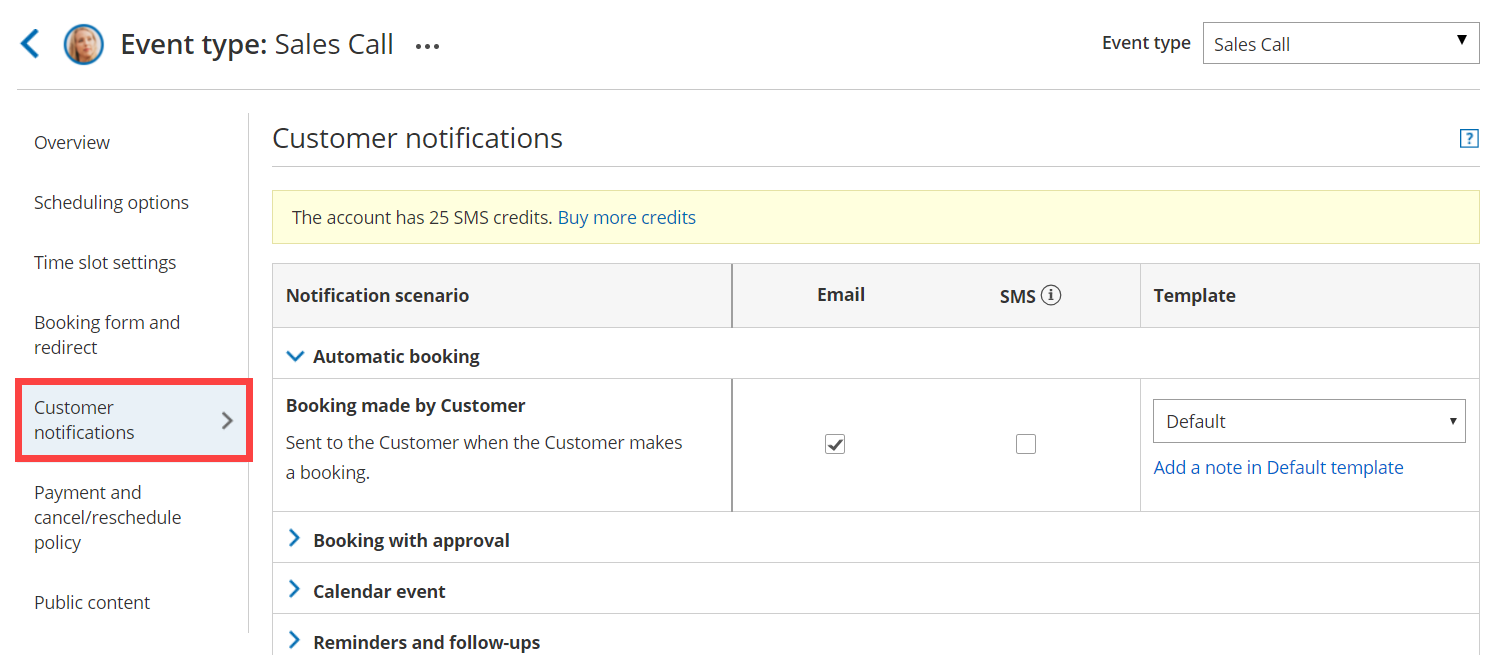 Figure 1: The Customer notifications section on an Event type
By default, when your Booking page is associated with Event types, the Customer notifications section is located on the Event type. When your Booking Page is not associated with Event types, this section is located on the Booking page. However, your account Administrator can change the location of this section to be always on either Booking pages or Event types for the entire account.
Learn more about the location of the Customer notifications section
Scenarios
Section titled “Scenarios”| Notification Scenario | Description |
| Automatic Booking | |
| Booking made by Customer | Sent to the Customer* when the Customer makes a booking. |
| Booking with approval | |
| Booking request made by Customer | Sent to the Customer* when the Customer submits a booking request. |
| Booking request approved by User | Sent to the Customer* when a User approves a booking request. |
| Calendar event | |
| Calendar event | The calendar event can include any booking details and can be added to the Owner’s and Customer’s** calendars. |
| Reminders and follow-ups | |
| First Customer reminder | Sent to the Customer* at a predefined time prior to the meeting. |
| Second Customer reminder | Sent to the Customer* at a predefined time prior to the meeting. |
| Third Customer reminder | Sent to the Customer* at a predefined time prior to the meeting. |
| Follow-up message | Sent to the Customer* at a predefined time after the meeting ends. Note: There is no predefined text in the Default email or SMS template. The note you write for the Follow-up message will be the only text the customer will receive. |
| Booking cancellation | |
| Booking canceled by Customer | Sent to the Customer* when the Customer cancels a booking. |
| Booking canceled by User | Sent to the Customer* when a User cancels a booking. |
| Booking reschedule | |
| Booking rescheduled by Customer | Sent to the Customer* when the Customer reschedules a booking. |
| Reschedule requested by User | Sent to the Customer* when a User sends a reschedule request to the Customer. |
| Booking request cancellation | |
| Booking request canceled by Customer | Sent to the Customer* when the Customer cancels a booking request. |
| Booking request canceled by User | Sent to the Customer* when a User cancels a booking request. |
| Booking request resubmission | |
| Booking request resubmitted by Customer | Sent to the Customer* when the Customer resubmits a booking request. |
| Booking request resubmission requested by User | Sent to the Customer* when a User asks the Customer to resubmit a booking request. |
| Other notifications | |
| Manual refund issued by User | Sent to the Customer* when the User issues a refund via OnceHub. |
* If the Customer invites additional guests to the meeting via the Customer guests feature, those guests will be CCed in these email notifications, but will not receive any SMS notifications.
** If the Customer invites additional guests to the meeting via the Customer guests feature, those guests will be added as attendees to the calendar event, and receive all subsequent event updates.