
Booking page ownership [Classic]
In this article, you’ll learn about assigning Booking page ownership to a User.
The ownership of Booking pages can be changed by any OnceHub Administrator with a scheduled meetings license. You do not need to have a license to assign Booking page ownership. Learn more
<script id="snippet-prepend">$(function(){
/*disable in widget*/ if($('.w-documentation-article').length === 0){
var ToC = "<nav role='navigation' class='table-of-contents toc-top'><h4>In this article:" + "<ul>"; var el, title, link, header; //Define the heading levels you want to use in ascending order. Can add extra or remove unneeded. $(".hg-article-body h1, .hg-article-body h2, .hg-article-body h3, .hg-article-body h4").each(function() { el = $(this); title = el.text(); if(title != ''){ anchorTitle = el.text().replace(/([~!@#$%^&*()_+=`{}\[\]\|\\:;'<>,.\/\? ])+/g, '-').toLowerCase(); link = "#" + anchorTitle; //Set all headers to a 0-nesting level. header = 'header-nesting-0'; //Adjust header-nesting layers so that they point to the correct html tag. header-nesting-1 should match the second .hg-article-body h# listed above; header-nesting-2 should match the third, etc. if($(this).is('h2')){ header = 'header-nesting-1'; }else if($(this).is('h3')){ header = 'header-nesting-2' } el.html('<a id="'+anchorTitle+'" class="toc-anchor">' + el.html()); newLine = "<li class='"+header+"'>" + "<a class='article-anchor' href='" + link + "'>" + title + "" + "";
ToC += newLine; } }); ToC += "" + ""; $("#snippet-prepend").before(ToC); }});
</script><style>/* CSS to style the TOC as it displays and the auto-created anchors.toc-top styles the box for the TOC; adjust styles here to tweak look and feel */
.toc-top { background-color: #FAFAFA; /* set to #fff or delete entirely for no background */ border: 1px solid #C8C8C8; /* adjust the color hex here to change border color */ box-shadow: 0 1px 1px rgba(0, 0, 0, 0.05) inset; margin-top: 24px; margin-bottom: 36px; min-height: 20px; padding: 13px 20px; max-width: 75%;}.toc-top h4 { font-size: 18px; line-height: 26px; margin: 0 0 8px; font-weight: 400;}.toc-top ul { padding: 0 0 0 15px !important; margin-bottom: 0;}.toc-top > ul { margin-bottom: 13px!important;}.toc-anchor { display: block; height: 90px; margin-top: -90px; visibility: hidden;}
/* Set the indentation for the nesting levels. May need to be edited to match changes above. Increase or decrease the margin-left to get your desired level of indentation. */.header-nesting-1 { margin-left: 14px;}.header-nesting-1:before { background-image: url(https://dyzz9obi78pm5.cloudfront.net/app/image/id/5d31bcc88e121c9b25ba22c4/n/bulletv2.svg)!important;}.header-nesting-2 { margin-left: 28px;}.header-nesting-2:before { background-image: url(https://dyzz9obi78pm5.cloudfront.net/app/image/id/5d31be536e121cf22b0cc6ae/n/bulletv3.svg)!important;}</style>Assigning Booking page ownership
Section titled “Assigning Booking page ownership”There are two ways to assign ownership of a Booking page to a User:
-
Go to Booking pages in the bar on the left → Booking pages action menu (three dots) →** Booking page access**. In this section, you can determine which Booking pages each specific User owns.
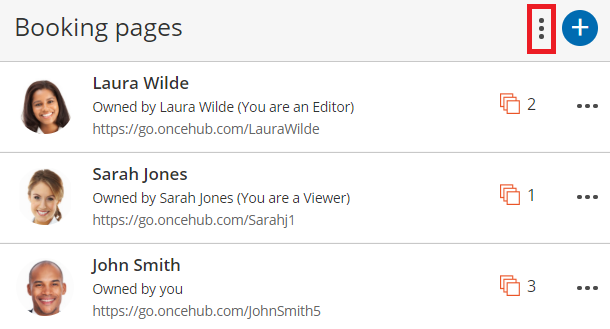
Figure 1: Booking page action menu
-
Go to Booking pages in the bar on the left → Relevant Booking page → Overview section (Figure 2). Here you can edit the specific Booking page’s Owner.
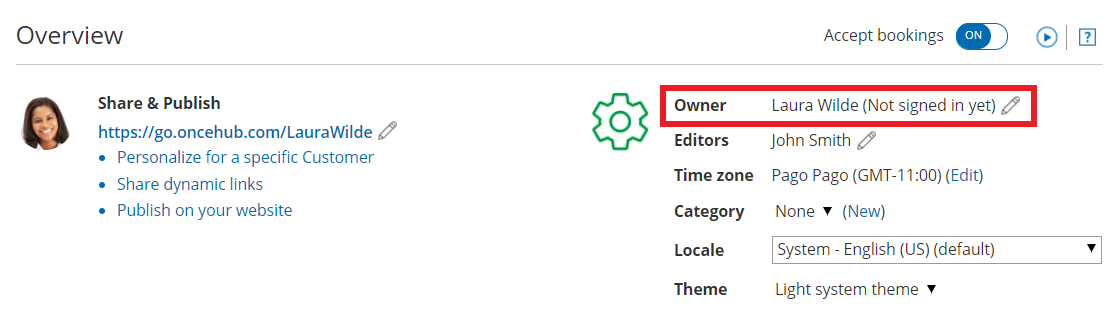
Figure 2: Booking page Overview section
NoteIf you change the Owner of a Booking page, any User notifications settings you have previously customized for the Owner will be returned to the default settings for the new Booking page Owner.
Assignment scenarios
Section titled “Assignment scenarios”Users can be connected to various applications: a calendar, a video conferencing solution, and also a CRM system. When you assign Booking pages, you might experience inconsistencies in application connections.
There are three assignment scenarios:
Assigning Booking page ownership to a new User
Section titled “Assigning Booking page ownership to a new User”In this case, the new User profile does not yet exist. The Administrator invites the User to join the organization’s account and at the same time assigns ownership of one or more Booking pages. Booking pages remain enabled even if the Owner has not signed up yet.
It is recommended that the new User review the settings of the Booking page, especially the Associated calendars section, to ensure that the desired calendars are selected.
The User must have a scheduled meetings license assigned to them in order to be Owner of an enabled Booking page. Learn more
New Owner of a Booking page are not connected to any application, or connected to the same application
Section titled “New Owner of a Booking page are not connected to any application, or connected to the same application”If both the original and new Owners of a Booking page are connected to the same account within a specific application, they will remain connected and no action is required.
No connection differences between the original Owner and new Owner of a Booking page
Section titled “No connection differences between the original Owner and new Owner of a Booking page”In this case, the original Owner will be disconnected from the applications. When you update the changes in the new Owner’s User profile, a message appears indicating the changes that will occur upon transfer of ownership.
An Administrator unassigns the Owner’s scheduled meetings license
Section titled “An Administrator unassigns the Owner’s scheduled meetings license”If you unassign someone’s scheduled meetings license and they were Owner of a Booking page, that Booking page will be disabled automatically. If you prefer, you can reassign ownership to another User with a license.
Disconnection scenarios
Section titled “Disconnection scenarios”The following disconnection scenarios can occur:
- When disconnecting from a calendar: The Booking section is reset to its default settings. The Booking page is set to Booking with approval with unlimited bookings per slot and unlimited bookings per day. The Time slot duration setting is set to 15 minutes and Starting times for time slots is set every 15 minutes.
- When disconnecting from a video conferencing application: The Conferencing / Location section of the Booking page is automatically set to the Don’t use conferencing or location option. You will need to update the Conferencing / Location settings manually.
- When disconnecting from a CRM: the Booking pages will not create or update records in the CRM.