
Custom themes [Classic]
The Theme designer allows you to fully customize the look and feel of your Booking pages and Master pages.
The Theme designer comes with two system themes. If you need more customization for your theme, you can create a custom theme by duplicating an existing theme and modifying it, or you can create a new custom theme from scratch.
You do not need an assigned product license to create custom themes in the Theme designer. Learn more
However, you may need to upgrade your plan to apply a custom theme to your page(s).
In this article, you’ll learn about creating a custom theme.
<script id="snippet-prepend">$(function(){
/*disable in widget*/ if($('.w-documentation-article').length === 0){
var ToC = "<nav role='navigation' class='table-of-contents toc-top'><h4>In this article:" + "<ul>"; var el, title, link, header; //Define the heading levels you want to use in ascending order. Can add extra or remove unneeded. $(".hg-article-body h1, .hg-article-body h2, .hg-article-body h3, .hg-article-body h4").each(function() { el = $(this); title = el.text(); if(title != ''){ anchorTitle = el.text().replace(/([~!@#$%^&*()_+=`{}\[\]\|\\:;'<>,.\/\? ])+/g, '-').toLowerCase(); link = "#" + anchorTitle; //Set all headers to a 0-nesting level. header = 'header-nesting-0'; //Adjust header-nesting layers so that they point to the correct html tag. header-nesting-1 should match the second .hg-article-body h# listed above; header-nesting-2 should match the third, etc. if($(this).is('h2')){ header = 'header-nesting-1'; }else if($(this).is('h3')){ header = 'header-nesting-2' } el.html('<a id="'+anchorTitle+'" class="toc-anchor">' + el.html()); newLine = "<li class='"+header+"'>" + "<a class='article-anchor' href='" + link + "'>" + title + "" + "";
ToC += newLine; } }); ToC += "" + ""; $("#snippet-prepend").before(ToC); }});
</script><style>/* CSS to style the TOC as it displays and the auto-created anchors.toc-top styles the box for the TOC; adjust styles here to tweak look and feel */
.toc-top { background-color: #FAFAFA; /* set to #fff or delete entirely for no background */ border: 1px solid #C8C8C8; /* adjust the color hex here to change border color */ box-shadow: 0 1px 1px rgba(0, 0, 0, 0.05) inset; margin-top: 24px; margin-bottom: 36px; min-height: 20px; padding: 13px 20px; max-width: 75%;}.toc-top h4 { font-size: 18px; line-height: 26px; margin: 0 0 8px; font-weight: 400;}.toc-top ul { padding: 0 0 0 15px !important; margin-bottom: 0;}.toc-top > ul { margin-bottom: 13px!important;}.toc-anchor { display: block; height: 90px; margin-top: -90px; visibility: hidden;}
/* Set the indentation for the nesting levels. May need to be edited to match changes above. Increase or decrease the margin-left to get your desired level of indentation. */.header-nesting-1 { margin-left: 14px;}.header-nesting-1:before { background-image: url(https://dyzz9obi78pm5.cloudfront.net/app/image/id/5d31bcc88e121c9b25ba22c4/n/bulletv2.svg)!important;}.header-nesting-2 { margin-left: 28px;}.header-nesting-2:before { background-image: url(https://dyzz9obi78pm5.cloudfront.net/app/image/id/5d31be536e121cf22b0cc6ae/n/bulletv3.svg)!important;}</style>Creating a custom theme
Section titled “Creating a custom theme”-
Go to Booking pages in the bar on the left.
-
On the left, select Theme designer.
-
Click the Create theme button on the top left corner.
-
In the Create theme pop-up, enter a Theme name and select a Base theme for your new Custom theme. Then click Create.
Note The Base theme cannot be changed once the theme is created.
-
Alternatively, you can duplicate an existing theme by clicking the Duplicate theme button (Figure 2).
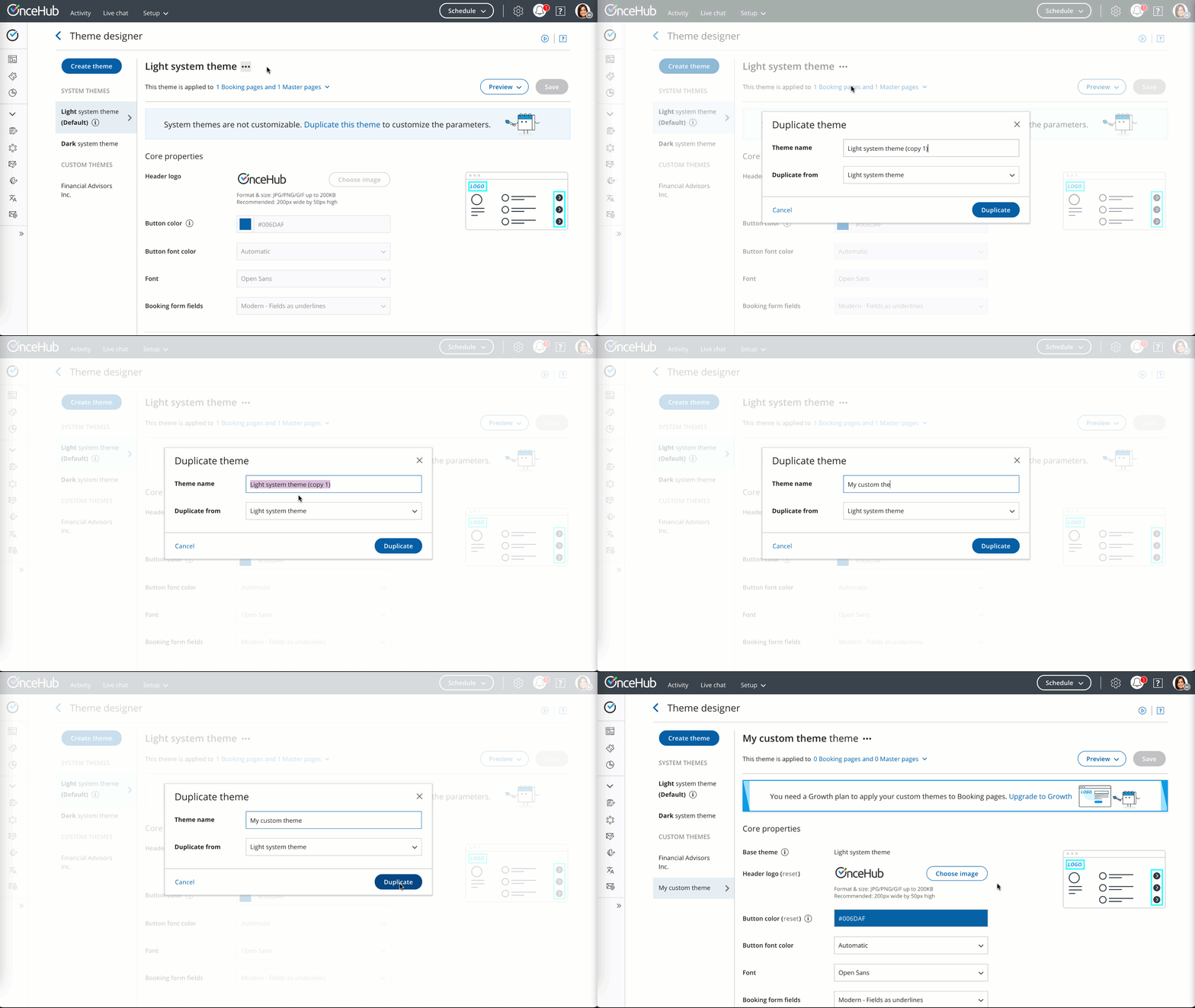 Figure 2: Duplicate theme button
 -
Configure your custom theme as required by modifying the Core properties (Figure 3), Page background properties, Interaction pane properties, and Information pane properties. Learn more about Theme properties
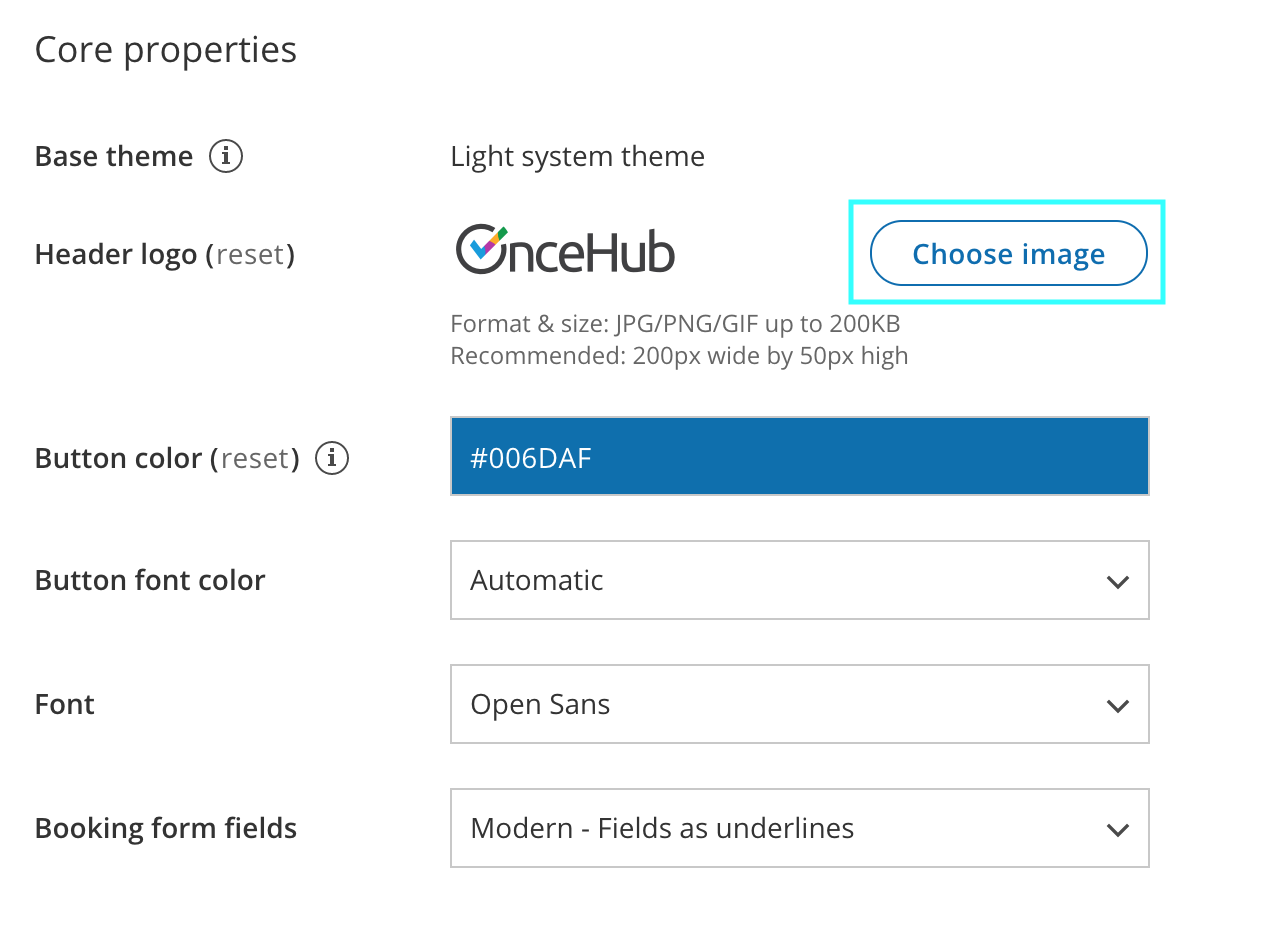 Figure 3: Core properties
 -
Click Save.
Default theme
Section titled “Default theme”You can set any theme as your default theme, including a system theme. The default theme is automatically applied to all newly created pages, but not to existing pages.
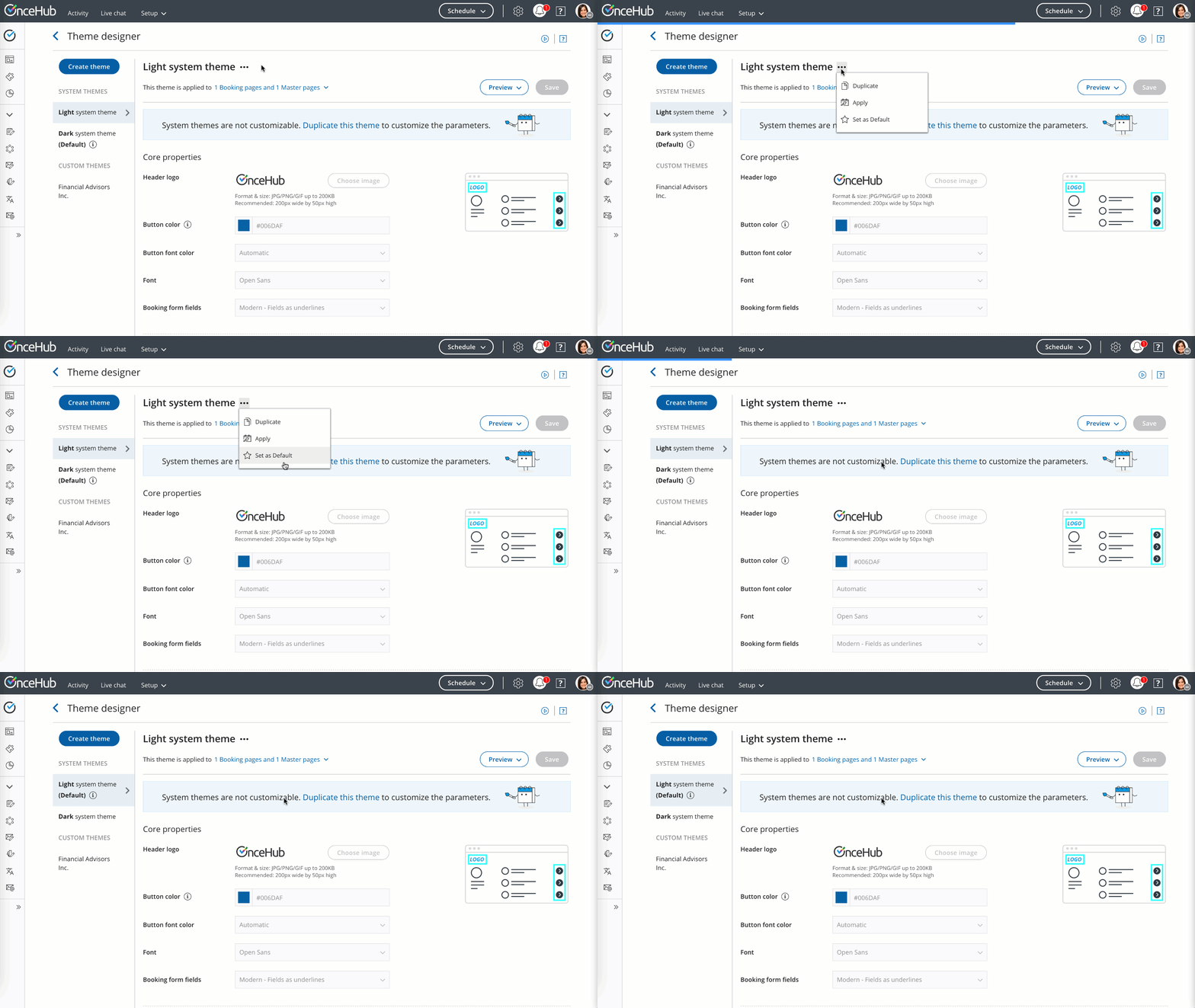 Figure 4: Default theme
Previewing and applying a Custom theme
Section titled “Previewing and applying a Custom theme”You can preview a theme on a Booking page or Master page by selecting it from the drop-down menu in the top right of the Theme designer and clicking the Preview button (Figure 4). Previewing a theme does not apply the theme to the page.
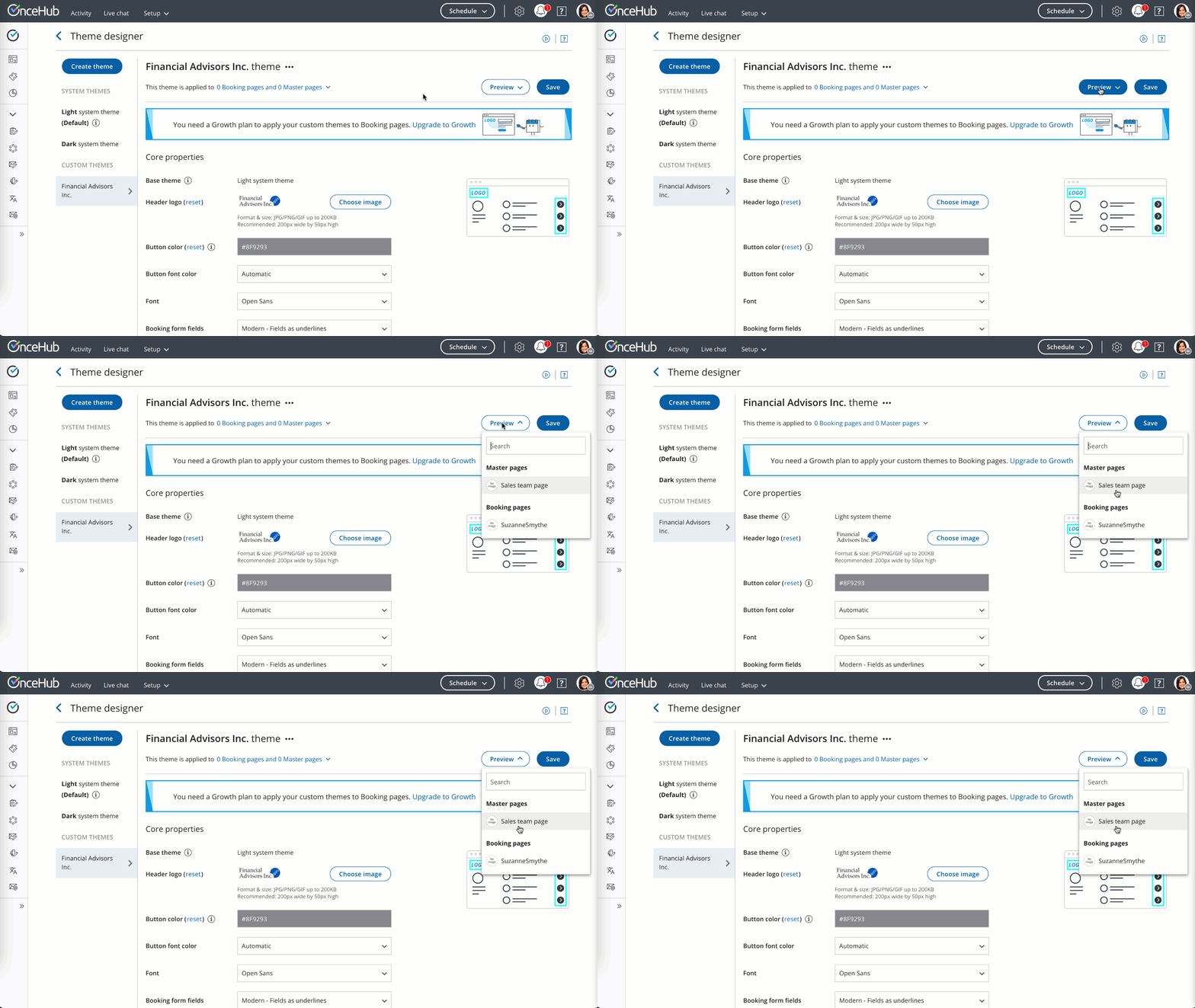 Figure 5: Previewing a theme
Once you’re happy with it, you can apply the theme.